Imagine walking into your room and instantly filling it with your favorite songs—without lifting a finger. With Google Home, you can turn this into your everyday reality.
Whether you're hosting a party, relaxing after a long day, or just want some background tunes, knowing how to use Google Home to play music makes your life easier and more enjoyable. In this guide, you’ll discover simple steps and tips to get the most out of your device, so your perfect playlist is always just a voice command away.
Ready to transform how you experience music at home? Let’s dive in.

Setting Up Google Home
Google Home lets you play music using voice commands. To start, you need to set it up correctly.
This guide helps you connect your device and choose your favorite music service.
Connecting To Wi-fi
Google Home needs Wi-Fi to work. Connect it to your home network for the best experience.
Use the Google Home app to find and join your Wi-Fi network easily.
- Open the Google Home app on your phone.
- Follow the prompts to add a new device.
- Select your Wi-Fi network from the list.
- Enter your Wi-Fi password.
- Wait for the device to connect.
Linking Google Account
Link your Google Account to personalize Google Home. This lets it recognize your voice and preferences.
Sign in through the Google Home app to connect your account.
- Open the Google Home app.
- Go to your profile or settings.
- Sign in with your Google Account.
- Allow permissions for personal results.
Choosing Default Music Service
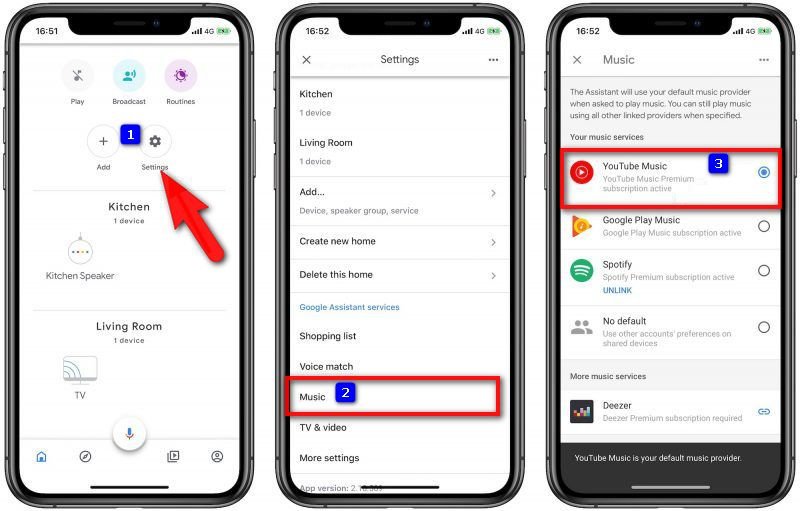
Set a default music service to play songs quickly. Google Home supports many popular apps.
Pick your favorite service in the Google Home app to save time.
- Open the Google Home app.
- Tap on Settings.
- Select Music.
- Choose your preferred music service.
- Link your account if needed.
Basic Voice Commands
Google Home lets you play music using simple voice commands. You can control songs without touching your phone or speaker.
This guide shows basic commands to play music, control playback, and adjust volume with Google Home.
Playing Specific Songs
Ask Google Home to play any song you want by saying the song name and artist. It will find the song and start playing it.
Make sure to say clear names for better results. You can also ask for music by genre or mood.
- “Hey Google, play Shape of Youby Ed Sheeran.”
- “Hey Google, play jazz music.”
- “Hey Google, play relaxing songs.”
Controlling Playback
You can control music playback without touching your device. Use commands to pause, resume, skip, or go back to songs.
These commands help you manage music while doing other tasks around the house.
- “Hey Google, pause the music.”
- “Hey Google, resume the song.”
- “Hey Google, next song.”
- “Hey Google, previous song.”
Adjusting Volume
You can change the music volume with simple voice commands. Ask Google Home to make the sound louder or softer.
You can also set the volume to a specific level from 1 to 10.
- “Hey Google, turn up the volume.”
- “Hey Google, turn down the volume.”
- “Hey Google, set volume to 5.”
Using Playlists And Stations
Google Home makes it easy to play music using your voice. You can listen to playlists you created or explore different radio stations. It also offers mixes based on your favorite songs and artists.
Below are ways to enjoy music with Google Home using playlists and stations.
Playing Created Playlists
To play a playlist you made, just say the name of the playlist. Google Home will find it in your music service and start playing it. You can also ask to shuffle or repeat the playlist.
- Say “Hey Google, play my workout playlist.”
- Try “Hey Google, shuffle my chill playlist.”
- Ask “Hey Google, repeat my favorite songs playlist.”
Exploring Radio Stations
Google Home lets you listen to many radio stations from around the world. You can ask for stations by name, genre, or location. It will stream the station live for you.
| Command | Example |
| Play a specific station | “Hey Google, play NPR radio.” |
| Play by genre | “Hey Google, play jazz radio.” |
| Play by location | “Hey Google, play London radio.” |
Using Personalized Mixes
Google Home can create mixes based on your music taste. These mixes change often and include songs you like plus new ones. You can start a mix by asking Google Home to play it.
Try these commands:
- “Hey Google, play my personalized mix.”
- “Hey Google, play a mix of my favorite artists.”
- “Hey Google, play a daily mix.”
Streaming From Other Devices
You can use Google Home to play music from devices like phones or tablets. This lets you enjoy your favorite songs easily.
There are different ways to send music from your device to Google Home. Two popular ways are casting and using Bluetooth.
Casting From Phone Or Tablet
Casting lets you send music directly from a compatible app on your phone or tablet to Google Home. The music plays through the speaker while your device controls it.
- Open a music app that supports casting, like YouTube Music or Spotify.
- Look for the cast icon in the app and tap it.
- Select your Google Home device from the list.
- Play the song or playlist you want.
- Control volume and playback from your device.
Using Bluetooth Connection
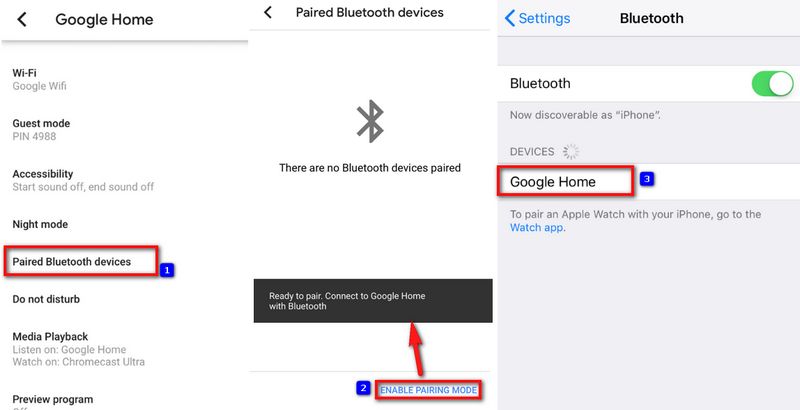
You can also connect your phone or tablet to Google Home using Bluetooth. This lets you play any audio from your device through Google Home.
| Action | How to Do It |
| Enable pairing mode | Say, “Hey Google, pair Bluetooth.” |
| Find device | Go to Bluetooth settings on your phone or tablet. |
| Connect | Select your Google Home device from the list. |
| Play music | Start any audio on your device; it will play on Google Home. |
| Disconnect | Say, “Hey Google, disconnect Bluetooth.” |
Managing Multiple Speakers
Google Home lets you control several speakers easily. This helps you play music in many rooms at once.
Understanding how to group and use multiple devices makes your music experience smooth and fun.
Grouping Speakers
You can group Google Home speakers to play music together. Grouping lets all speakers play the same sound at the same time.
- Open the Google Home app on your phone.
- Tap the “+” icon to create a speaker group.
- Select the speakers you want to add to the group.
- Name your group for easy use later.
- Save the group to start using it.
Playing Music On Multiple Devices
After grouping speakers, you can ask Google Home to play music on all devices in the group. This works with many music services.
| Command | Action |
| "Play music on [group name]" | Starts music on all grouped speakers |
| "Pause music on [group name]" | Pauses music on all grouped speakers |
| "Stop music on [group name]" | Stops music on all grouped speakers |
| "Set volume to 50% on [group name]" | Adjusts volume on all grouped speakers |
Troubleshooting Common Issues
Google Home is a great way to listen to music. Sometimes, problems can stop your tunes. Here, we will fix common issues.
Learn how to solve playback errors and connection problems. This guide helps get your music back on track.
Fixing Playback Errors
Playback errors can stop music. Try these steps to fix them:
- Check if your Google Home is muted.
- Ensure your music app is updated.
- Restart your Google Home device.
- Check your internet connection.
Resolving Connection Problems
Connection issues can disrupt your music. Use this table to check common solutions:
| Problem | Solution |
| Wi-Fi not connected | Reconnect to Wi-Fi network |
| Device not responding | Restart the device |
| Bluetooth issues | Re-pair Bluetooth devices |

Frequently Asked Questions
How Do I Connect Music Services To Google Home?
Open the Google Home app, tap your profile, then Assistant settings. Choose Music, and link your preferred service like Spotify or YouTube Music. This enables voice commands for playing music on Google Home devices easily.
Can Google Home Play Music Offline?
No, Google Home requires an internet connection to stream music. It cannot play offline tracks stored locally. Streaming services like Spotify or YouTube Music need active internet access for playback.
How Do I Control Music Volume On Google Home?
Say, "Hey Google, set volume to 50%," or "increase volume. " You can also tap volume buttons on the device or adjust volume in the Google Home app for precise control.
What Voice Commands Play Specific Songs On Google Home?
Say, "Hey Google, play [song name] by [artist]. " Google Home supports commands for songs, albums, playlists, or genres for quick access to your favorite music.
Conclusion
Using Google Home to play music is simple and fun. Just say the command, and your favorite songs start. You can ask for playlists, artists, or genres anytime. The device listens and plays music from many apps. Adjust volume or skip tracks with your voice.
Enjoy hands-free music without touching your phone. This way, you create a better music experience at home. Try different commands to explore all features. Music becomes easier to enjoy every day.