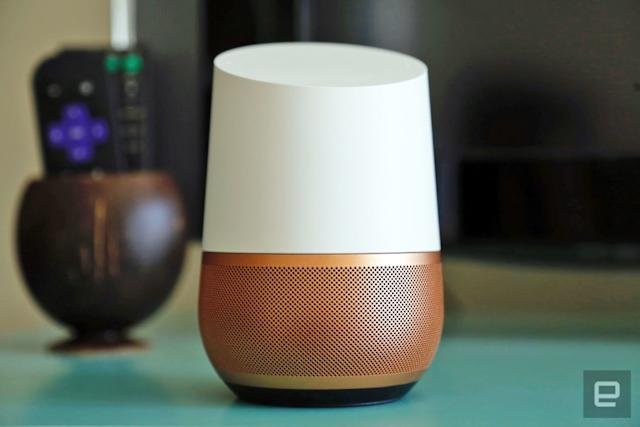
Imagine controlling your TV with just your voice—no remote, no hassle. With a Google Home speaker, this simple convenience is right at your fingertips.
You might already use your Google Home for music or weather updates, but did you know it can transform how you watch TV? In this guide, you’ll discover easy steps to connect your Google Home speaker to your TV and unlock hands-free control.
By the end, you’ll wonder how you ever managed without it. Ready to make your TV experience smarter and smoother? Let’s dive in.
Setup Google Home With Your Tv
Using a Google Home speaker with your TV makes controlling it easy. You can use voice commands to play shows, change volume, and more.
This guide will help you set up your Google Home with your TV step by step.
Check Compatibility
Not all TVs work with Google Home. Check if your TV supports Google Assistant or Chromecast built-in.
Smart TVs from brands like Samsung, LG, and Sony often support Google Home. Streaming devices like Chromecast also work well.
- Smart TV with Google Assistant built-in
- Chromecast or Chromecast Ultra device
- Google Home or Google Nest speaker
- Wi-Fi network connecting all devices
Connect Devices
Make sure your Google Home and TV are on the same Wi-Fi network. This allows them to communicate easily.
Use the Google Home app on your phone to link your TV or Chromecast device. Follow the app's instructions to add your TV.
- Open Google Home app on your phone
- Tap “Add” and select “Set up device”
- Choose “New devices” or “Works with Google”
- Find your TV or Chromecast on the list
- Follow on-screen instructions to connect
Configure Settings
After connecting, customize your TV settings in the Google Home app. Enable voice control and set default apps.
You can also link streaming services like Netflix or YouTube for easier voice commands.
- Open Google Home app and select your TV
- Enable “Use TV for audio” if available
- Link streaming services under “Linked accounts”
- Test voice commands like “Play Netflix on TV”
Control Tv With Voice Commands
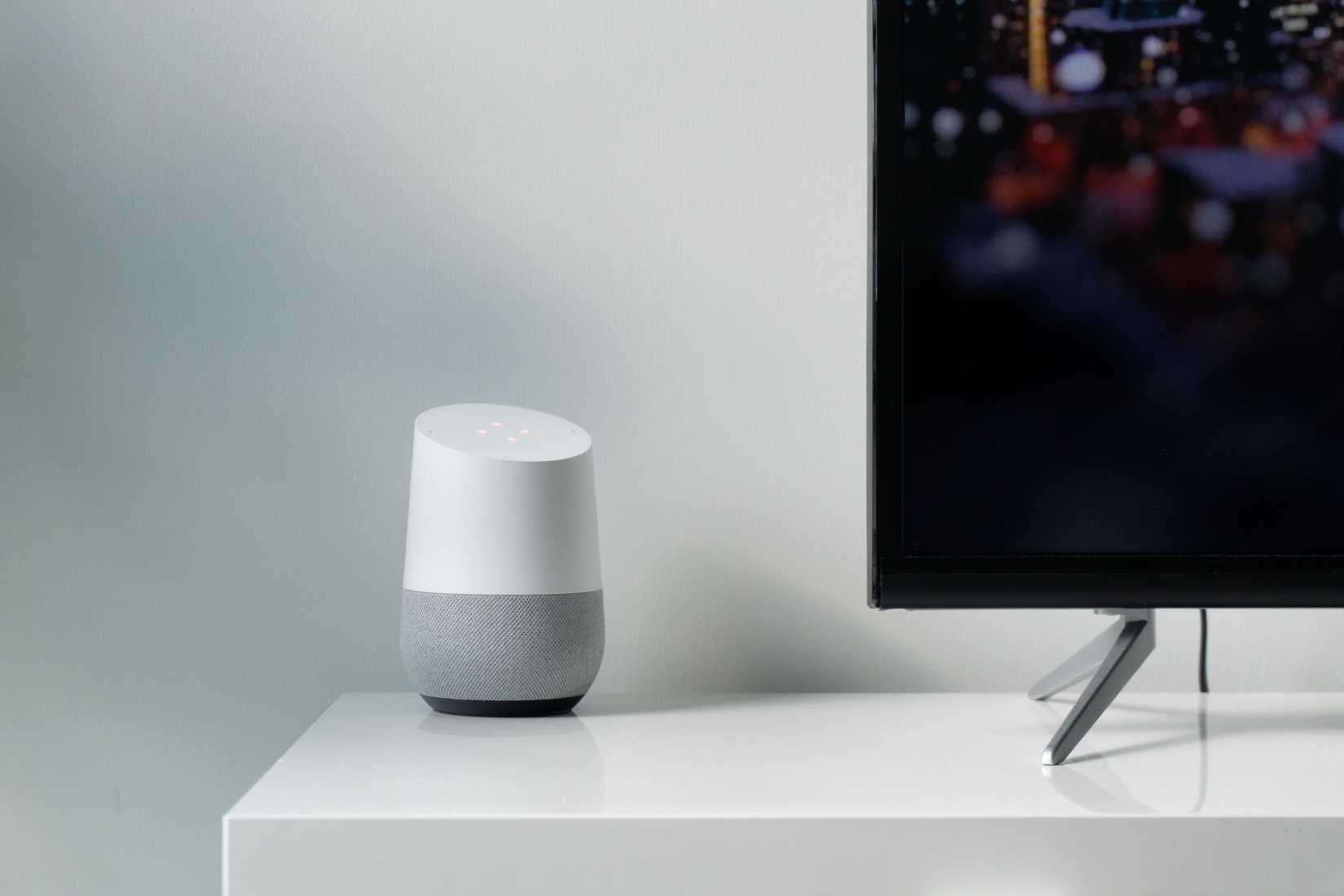
Using a Google Home speaker to control your TV makes watching easier. You can change channels, adjust volume, and more just by speaking.
This guide covers basic commands, advanced controls, and how to fix voice issues.
Basic Commands
Start with simple commands to control your TV with Google Home.
- Say "Hey Google, turn on the TV."
- Say "Hey Google, turn off the TV."
- Say "Hey Google, increase the volume."
- Say "Hey Google, mute the TV."
- Say "Hey Google, change the channel to [channel name or number]."
Advanced Controls
You can use Google Home for more than just basic commands. Try these advanced controls.
| Command | Function |
| "Hey Google, play [show or movie name]." | Start a specific show or movie. |
| "Hey Google, pause the TV." | Pause the current show or movie. |
| "Hey Google, rewind 30 seconds." | Go back 30 seconds in playback. |
| "Hey Google, open [app name]." | Launch a streaming app on your TV. |
| "Hey Google, switch to HDMI 1." | Change the TV input to HDMI 1. |
Troubleshooting Voice Issues
If Google Home does not control your TV, check these common issues.
- Make sure your TV and Google Home are on the same Wi-Fi network.
- Check that your TV supports Google Assistant commands.
- Restart your Google Home and TV to refresh connections.
- Try speaking clearly and closer to the Google Home device.
- Verify that your TV brand and model are linked in the Google Home app.
Stream Content Using Google Home
Google Home can control your TV to stream shows, videos, and music. You can use voice commands to make it easy.
This guide explains how to cast from apps, use Chromecast, and play media with Google Home.
Casting From Apps
Many apps like YouTube and Netflix support casting to your TV. Just tap the cast icon and select your device.
- Open a supported app on your phone or tablet.
- Look for the cast icon and tap it.
- Select your Google Home-connected TV or Chromecast device.
- Choose the video or show to play on your TV.
- Use your device or voice to pause or stop the stream.
Using Chromecast
Chromecast works with Google Home to stream content by voice or phone. Connect Chromecast to your TV’s HDMI port first.
| Action | Description |
| Set up Chromecast | Plug in and connect to Wi-Fi |
| Link with Google Home | Use Google Home app for device setup |
| Start streaming | Say “Hey Google, play [show/movie] on TV” |
| Control playback | Use voice commands or phone controls |
Playing Music And Videos
You can ask Google Home to play music or videos on your TV. It works with many streaming services.
Try voice commands like these:
- “Hey Google, play jazz music on TV.”
- “Hey Google, play the latest episode of [show name] on TV.”
- “Hey Google, pause the video.”
- “Hey Google, stop the music.”

Customize Google Home For Tv
You can control your TV with Google Home speaker. It makes watching shows easier and hands-free.
Customizing your Google Home helps it work better with your TV. You can set routines and manage accounts.
Create Routines
Routines let you combine commands for your TV and other devices. For example, say "Good night" to turn off the TV and lights.
You can add or change routines in the Google Home app. This saves time and makes your TV control smoother.
- Open the Google Home app
- Tap Routines
- Choose or create a routine
- Add actions like "Turn on TV" or "Set volume"
- Save your routine
Manage Linked Accounts
Link your streaming service accounts to Google Home. This helps your speaker find and play shows easily.
You can add or remove accounts anytime in the Google Home app. Make sure your accounts are active for smooth use.
- Open Google Home app
- Go to Settings
- Tap Linked Accounts
- Add or remove services like Netflix or YouTube
- Follow prompts to sign in
Adjust Notification Preferences
You can choose what notifications Google Home sends. This helps avoid interruptions while watching TV.
Notifications can include reminders, updates, or alerts. Adjust settings to fit your TV watching habits.
- Open Google Home app
- Go to Settings
- Select Notifications
- Turn on or off TV-related alerts
- Customize how and when you get notifications
Maximize Tv Experience
Google Home Speaker can improve how you watch TV. It lets you control your TV with your voice. This makes watching shows and movies easier and more fun.
You can connect Google Home to many devices to create a smart home setup. This helps you get the most from your TV and speakers.
Integrate With Smart Devices
Link your Google Home Speaker with smart TVs or streaming devices. Use simple voice commands to play, pause, or change channels. This removes the need to use a remote.
Smart devices like Chromecast or smart TV brands work well with Google Home. You can ask Google to open apps or search for shows without touching anything.
- Connect Google Home to your smart TV or Chromecast
- Use voice commands to control playback
- Switch between apps or input sources hands-free
Use Multi-room Audio
Google Home Speaker can link with other speakers in your home. This creates a multi-room audio system. You can play TV sound in different rooms at the same time.
This setup is great for parties or if you move around your house while watching TV. The audio stays in sync on all speakers connected.
- Group multiple Google Home speakers
- Play TV audio across all speakers
- Control volume for each room separately
Enhance Accessibility Features
Google Home Speaker helps people with limited mobility control the TV. Voice commands make it easier to turn the TV on or off. You can also change the volume or switch channels.
It supports closed captions and audio descriptions. These features help viewers with hearing or vision difficulties enjoy TV better.
- Use voice to control TV without a remote
- Enable closed captions via voice commands
- Turn on audio descriptions for shows

Frequently Asked Questions
How Do I Connect Google Home To My Tv?
To connect Google Home to your TV, use a Chromecast or a smart TV with built-in Google Assistant. Link your devices via the Google Home app by adding the TV as a device. This enables voice control over your TV through Google Home.
Can Google Home Control Tv Volume And Playback?
Yes, Google Home can control TV volume and playback. Use voice commands like "Hey Google, turn up the volume" or "Pause the TV. " This works when your TV is connected via Chromecast or a compatible smart TV.
What Tvs Work With Google Home Speaker?
Google Home works best with Chromecast-enabled TVs and smart TVs supporting Google Assistant. Brands like Sony, LG, and Samsung offer compatible models. Ensure your TV and Google Home are on the same Wi-Fi network for smooth connectivity.
How To Cast Videos From Google Home To Tv?
You can cast videos by saying, "Hey Google, play on my TV. " Google Home streams content via Chromecast or compatible smart TVs, making it easy to watch videos hands-free on your television.
Conclusion
Using your Google Home speaker for TV control is simple and helpful. It saves time and makes watching easier. Just set up the device and connect it to your TV. Voice commands let you change channels, adjust volume, and play or pause shows.
This hands-free way fits well into daily life. Try it out to enjoy a smoother TV experience. You’ll wonder how you managed without it before.