Setting up your Xbox One at home doesn’t have to be confusing or time-consuming. Whether you’re a first-time user or upgrading your gaming space, this guide will walk you through every step clearly and simply.
Imagine jumping straight into your favorite games without any hassle or delay. By the end of this article, you’ll have your Xbox One ready to deliver endless fun, entertainment, and smooth gameplay. Let’s get your gaming setup perfect, so you can focus on what matters most—enjoying your games!

Preparing Your Space
Setting up your Xbox One at home needs a good space. A well-prepared area helps your console work well and last longer.
Think about where you place it. Make sure the spot fits your needs and keeps the console safe and cool.
Choosing The Right Location
Pick a flat and stable surface to put your Xbox One. It should be near your TV and easy to reach. Avoid places with lots of dust or direct sunlight.
Keep some space around the console. Do not put it inside closed cabinets or crowded shelves.
Ensuring Proper Ventilation
Your Xbox One needs air to stay cool. Blocked vents can cause it to overheat and stop working.
- Leave at least 4 inches of free space around vents
- Do not cover the console with cloth or other items
- Keep the console away from heaters and direct sunlight
- Clean dust from vents regularly using a soft brush or air blower
Organizing Power Sources
Use a good power setup to keep your Xbox One safe. Power surges can damage the console.
| Power Setup | Recommendation |
| Power Strip | Use one with surge protection |
| Wall Outlet | Ensure it is working properly and not overloaded |
| Cable Management | Keep cables tidy to avoid tripping and damage |
| Backup Power | Consider a UPS for power cuts |
Unboxing And Inspecting
Setting up your Xbox One starts with unboxing it carefully. You should check the contents and the console itself. This helps avoid missing parts or damage.
Take your time to review everything before connecting the console to power. This ensures a smooth setup process.
Checking Included Accessories
Look inside the box for all the accessories that come with the Xbox One. These parts are necessary for using the console properly.
- Xbox One console
- Power cable
- HDMI cable
- Wireless controller
- Batteries for the controller
- User manuals and warranty information
Make sure each item is present. Missing accessories can cause setup delays.
Inspecting The Console For Damage
Check the Xbox One console carefully for any visible damage. Look for scratches, dents, or cracks on its surface.
Also, inspect the ports and buttons. Damaged parts may affect the console's performance or connection.
- Examine the front and back panels
- Check the USB and HDMI ports
- Press the power and eject buttons to test them
- Look inside the disc drive for debris
Connecting Your Xbox One
Setting up your Xbox One at home is simple. This guide will help you connect the console to your TV and internet.
Follow these steps to get your Xbox One ready to use quickly and easily.
Hooking Up To Your Tv
Connect your Xbox One to your TV using an HDMI cable. This cable carries video and audio signals.
Plug one end of the HDMI cable into the Xbox One's HDMI Out port. Plug the other end into your TV's HDMI input.
- Use the HDMI cable that came with your Xbox One.
- Choose the correct HDMI input on your TV using the remote.
- Make sure the TV is turned on before powering your Xbox.
Setting Up Internet Connection
Your Xbox One needs internet to download updates and play online. Connect using Wi-Fi or Ethernet cable.
To use Wi-Fi, select your network and enter the password. For Ethernet, plug the cable into the Xbox's Ethernet port.
- Wi-Fi is wireless and easy to set up.
- Ethernet provides a stable and fast connection.
- Check your internet speed for a smooth gaming experience.
Powering On The Console
Plug the power cable into the Xbox One and then into a power outlet. Press the Xbox button on the console or controller.
The console will light up and begin the startup process. Follow on-screen instructions to finish setup.
- Use the controller to navigate through setup menus.
- Sign in with your Microsoft account or create a new one.
- Adjust settings like language and time zone as needed.
Initial Console Setup
Setting up your Xbox One at home is easy. Follow a few simple steps to get started.
This guide helps you set your console language, connect to the internet, and install updates.
Choosing Language And Region
When you turn on your Xbox One, it asks for your language and region. Choose these carefully.
Pick the language you understand best. Select your country or region to get local content.
- Use the controller to scroll through language options.
- Pick the region where you live or plan to use the console.
- Confirm your choices to continue the setup.
Connecting To Xbox Live
Xbox Live connects your console to the internet. This lets you play online and download games.
Choose your Wi-Fi network or use a wired connection to connect to Xbox Live.
- Select your Wi-Fi network from the list.
- Enter the Wi-Fi password carefully.
- Test the connection to make sure it works.
Installing System Updates
After connecting to Xbox Live, your console checks for updates. These keep your Xbox running smoothly.
Download and install all available updates before playing games or using apps.
- Wait while updates download automatically.
- Do not turn off the console during installation.
- The console restarts to finish updating.
Configuring User Accounts
Setting up user accounts on your Xbox One is easy. It helps you personalize your gaming experience.
You can create a new profile or sign in with an existing account. Adjusting privacy and security settings is also important.
Creating A New Profile
To create a new profile, start your Xbox One. Follow the instructions on the screen.
Enter your email and choose a gamertag. Your gamertag is your gaming identity.
- Open the guide by pressing the Xbox button
- Go to "Add new" and follow the steps
- Choose a unique gamertag
- Set up preferences for your profile
Signing In Existing Accounts
If you already have an account, sign in easily. Use your email and password.
Make sure you remember your login details. This keeps your profile and achievements safe.
- Press the Xbox button to open the guide
- Select "Sign in" and enter your email
- Input your password to access your account
- Enjoy your personalized gaming experience
Setting Privacy And Security
Privacy and security settings are vital. They protect your account and personal data.
You can customize who sees your activity. Choose settings that make you comfortable.
| Option | Description |
| Privacy | Control who can see your profile and activity |
| Security | Set up a passkey for extra security |
| Content | Manage what content is visible to others |
Customizing Settings
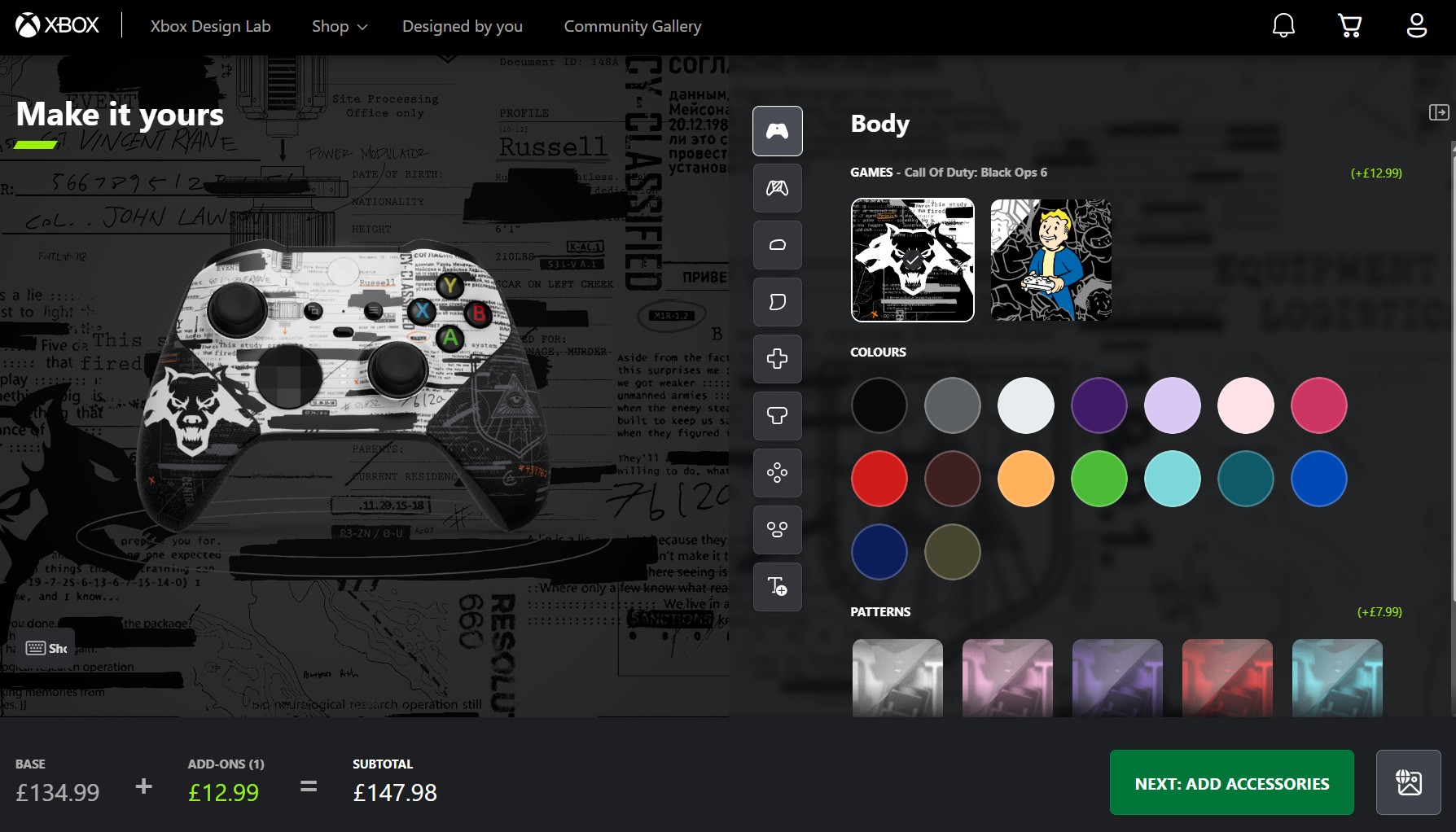
Setting up your Xbox One includes adjusting settings to fit your needs. Customizing helps improve your gaming experience.
You can change display, sound, controller, and storage settings easily in the menu. These options make your Xbox feel personal.
Adjusting Display And Sound
Go to the Settings menu to change your display and sound options. You can set resolution and audio output.
Choose the right screen size and sound type for your TV or speakers. This improves picture quality and sound clarity.
- Select screen resolution (720p, 1080p, 4K)
- Adjust brightness and color settings
- Choose audio output (stereo, surround sound)
- Turn on or off volume limits
Configuring Controller Preferences
Customize your controller settings to play comfortably. You can change button mapping and vibration strength.
Adjust sensitivity for thumbsticks and triggers. This helps with aiming and movement in games.
- Remap buttons to preferred layout
- Set vibration intensity or turn it off
- Adjust thumbstick sensitivity
- Configure trigger sensitivity
Managing Storage Options
Check your Xbox storage to keep enough space for games and apps. You can move or delete files if needed.
Add external drives to expand storage easily. Manage where new games and apps save by default.
- View used and free space on internal storage
- Move games and apps to external drives
- Delete unwanted content to free space
- Set default save location for new downloads
Installing Games And Apps
Setting up your Xbox One to install games and apps is easy. You can use physical discs or download them from the Xbox Store. Organizing your library keeps your games and apps in order.
Learn the steps for each method to make the most of your Xbox One. Follow these guides to install and manage your games and apps efficiently.
Using Physical Discs
Inserting a game disc is simple. Your Xbox One will start installing the game automatically. Make sure your console is connected to the internet to download any updates.
Physical discs are a great way to save storage space. You can play games directly from the disc without needing to install the full game.
Downloading From Xbox Store
The Xbox Store offers a wide selection of games and apps. To download, sign in to your Xbox Live account and browse the store.
After purchasing, the download begins automatically. Ensure your internet connection is stable for a smooth download experience.
- Open the Xbox Store on your console
- Search for games or apps
- Select and purchase your chosen title
- Wait for the download to finish
Organizing Your Library
Organizing your library helps you find games quickly. You can sort games alphabetically or by most recently played.
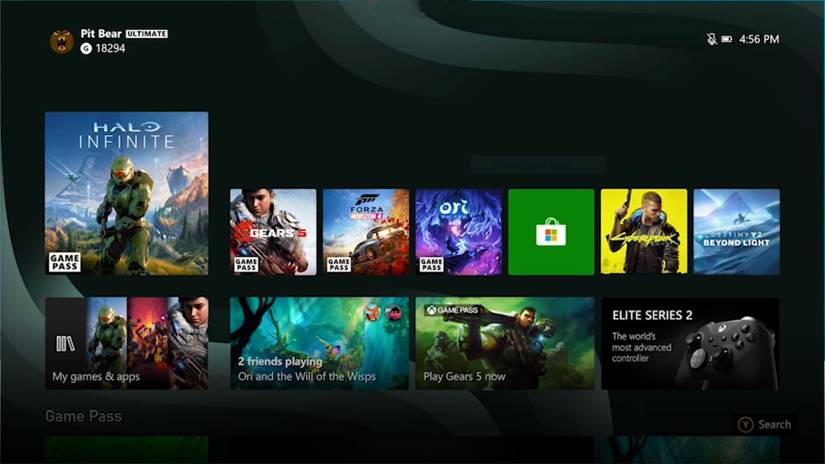
Use the "My Games & Apps" section to manage your collection. You can also create groups for easy access to your favorite titles.
- Go to "My Games & Apps"
- Sort by name or recently played
- Create groups for easy access
- Manage storage and updates
Setting Up Accessories
Setting up your Xbox One accessories helps you enjoy your gaming experience. You will learn how to connect controllers, headsets, chatpads, and external storage devices.
Follow simple steps to get each accessory ready to use with your console. This guide will make the process easy and clear.
Pairing Controllers
To play games, you need to pair your Xbox One controller with the console. This connects the controller wirelessly for smooth gameplay.
Press the Xbox button on the controller to turn it on. Then, press the connect button on the console. Press the small connect button on the controller until the Xbox button flashes.
- Turn on the Xbox One console.
- Press the Xbox button on the controller.
- Press the console’s connect button.
- Press the controller’s connect button until it flashes.
- Wait for the Xbox button to stay lit, showing pairing is complete.
Connecting Headsets And Chatpads
Headsets and chatpads help you communicate and type during games. Most connect through the controller’s audio jack or USB port.
Plug the headset into the controller’s 3.5mm jack. For chatpads, connect them to the bottom of the controller. Adjust volume and chat settings in the console menu.
- Plug headset into the controller’s audio jack.
- Attach chatpad to the controller’s expansion port.
- Adjust volume and mic settings on Xbox One.
- Test the headset for sound and voice chat.
Using External Storage Devices
External storage devices add more space for games and apps. Use a USB 3.0 drive with at least 256 GB of space for best results.
Plug the external drive into a USB port on the Xbox One. The console will ask if you want to format it for games or use it for media only.
- Choose a USB 3.0 external drive with enough space.
- Connect the drive to the Xbox One USB port.
- Follow on-screen prompts to format the drive for games or media.
- Use the new storage to save games and apps.
Optimizing For Multiplayer
Playing multiplayer games on Xbox One is fun and exciting. Setting up your console right makes sure you have smooth gameplay.
Good settings help reduce lag and connect you with friends easily. This guide covers key steps to improve your multiplayer experience.
Configuring Network Settings
Strong network settings reduce delays and keep your connection stable. Use a wired connection if possible for the best speed.
- Go to Settings > Network > Network Settings.
- Check your NAT type. Aim for “Open” to connect with more players.
- If NAT is “Strict” or “Moderate,” open ports on your router: 88, 3074, 53, 80.
- Run the network test to check your connection speed.
- Enable Quality of Service (QoS) on your router to prioritize Xbox traffic.
Setting Up Xbox Live Gold
You need Xbox Live Gold to join multiplayer games online. It also allows you to download free games each month and get discounts.
| Feature | Benefit |
| Online Multiplayer | Play games with friends worldwide |
| Free Games | Access free games every month |
| Exclusive Discounts | Save money on digital games |
| Party Chat | Talk with friends while gaming |
Managing Friends And Parties
Connect with friends to play together and chat easily. Xbox One makes it simple to manage your friends and parties.
- Go to the Friends tab to add or remove friends.
- Create or join parties to voice chat while playing.
- Use the party settings to mute or remove players if needed.
- Invite friends to games or share your screen during a party.
- Set your online status to show when you are available to play.
Troubleshooting Common Issues
Setting up your Xbox One at home can sometimes cause problems. This guide helps fix common issues fast.
We cover fixes for connection troubles, controller syncing, and update errors to get you playing quickly.
Resolving Connectivity Problems
Connection issues stop your Xbox One from online play and downloads. Try these simple fixes.
- Check your Wi-Fi or Ethernet cable is plugged in well.
- Restart your router and Xbox One console.
- Go to Settings > Network > Network settings to test connection.
- Clear the cache by holding the Xbox power button for 10 seconds, then restart.
- Make sure your Xbox software is up to date.
Fixing Controller Sync Issues
Controllers may lose connection or fail to sync. Follow these steps to reconnect your controller.
| Issue | Fix |
|---|---|
| Controller not turning on | Replace batteries or recharge the controller. |
| Controller not syncing | Press and hold the sync button on console and controller until lights flash. |
| Controller disconnects often | Move closer to console and remove wireless interference. |
Addressing Update Failures
Update errors stop your Xbox from getting new features and fixes. Try these steps to fix update problems.
- Check your internet connection is stable.
- Clear space on the hard drive by deleting unused games or apps.
- Restart your Xbox and try updating again.
- If update fails repeatedly, perform an offline system update using a USB drive.
- Contact Xbox support if none of these solutions work.
Frequently Asked Questions
How Do I Connect Xbox One To Home Wi-fi?
To connect Xbox One to Wi-Fi, go to Settings > Network > Set up wireless network. Choose your network, enter the password, and connect. Ensure your Wi-Fi is stable for smooth gameplay and downloads.
What Are The Steps To Set Up Xbox One Console?
First, plug in your Xbox One and connect it to your TV. Follow on-screen instructions to select language, connect to Wi-Fi, and sign in with your Microsoft account.
How Can I Link Xbox One To My Home Entertainment System?
Use an HDMI cable to connect Xbox One to your TV or receiver. For surround sound, connect via optical audio cable or HDMI ARC. Adjust audio settings under Settings > Display & Sound.
How Do I Update Xbox One Software At Home?
Go to Settings > System > Updates. If an update is available, select Update console. Keep your Xbox connected to the internet for automatic updates and optimal performance.
Conclusion
Setting up your Xbox One at home is simple and quick. Follow each step carefully for the best results. Connect your console to the TV and internet without trouble. Customize your settings to suit your preferences easily. Enjoy gaming, streaming, and apps with smooth performance.
Keep your system updated to avoid problems. Now, your Xbox One is ready to provide hours of fun. Time to relax and play!