Are you looking to get the most out of your Xbox without juggling multiple accounts or missing out on your favorite games? Setting your home Xbox as primary can unlock a world of benefits—like sharing games with family and friends, accessing content offline, and saving money on purchases.
But if you’re not sure how to do it, don’t worry. This guide will walk you through simple, clear steps to set your home Xbox as primary quickly and easily. By the end, you’ll have full control over your gaming library and enjoy a smoother Xbox experience.
Ready to get started? Let’s dive in!
Benefits Of Setting A Primary Xbox
Setting your home Xbox as primary gives you easy access to your games. It helps you share games and manage updates smoothly. This setup makes your gaming experience better.
Here are some key benefits of making your Xbox the primary console for your account.
Access To Games Offline
When you set an Xbox as your primary console, you can play your digital games without the internet. This means you do not need to connect online every time you want to play.
Sharing Games With Family
Making an Xbox primary allows all users on that console to play your games. This is helpful for families who want to share games without buying extra copies.
- All profiles on the primary Xbox can play your games.
- Family members can enjoy multiplayer games together.
- Purchases from one account can be used by others.
- No need to log in to your account each time.
Automatic Updates And Downloads
Your primary Xbox can download game updates and new content automatically. This keeps your games ready to play with the latest features and fixes.
| Feature | Benefit |
|---|---|
| Automatic Updates | Keeps games up to date without manual effort |
| Background Downloads | Downloads start even when the console is off |
| New Content Ready | Access new game features as soon as they release |

Requirements Before Setting Primary Xbox
Setting your home Xbox as primary lets you share games and subscriptions with others. Before you do this, some important requirements must be met. This guide explains what you need first.
Make sure your account and system meet these rules. This helps avoid errors when setting the primary Xbox.
Active Xbox Live Account
You need an active Xbox Live account to set a primary Xbox. This account must be signed in on the console. Without signing in, you cannot assign the primary Xbox status.
Your Xbox Live account also tracks your game purchases and subscriptions. This information is necessary for sharing content with other users on the primary Xbox.
Internet Connection
An internet connection is required to set your home Xbox. The console needs to verify your account and sync with Xbox servers. Without internet, the process cannot complete.
Once set, your home Xbox can be used offline for most features. But the initial setup must happen online for verification.
Game Ownership Verification
You must own the games or subscriptions you want to share on your primary Xbox. The system checks if your account has these digital licenses. Only owned content can be shared.
If you do not own the games, others on your primary Xbox cannot play them. Physical discs do not require verification but must be inserted to play.
Steps To Set Your Home Xbox
Setting your Home Xbox allows you to share games and subscriptions with others on the same console. This guide shows you how to set your Home Xbox quickly.
Follow these simple steps to make your Xbox the designated Home console for your account.
Sign In To Your Xbox Account
Turn on your Xbox and sign in using the Microsoft account you want to set as primary. Make sure you enter the correct login details to proceed.
Navigate To Settings
After signing in, press the Xbox button on your controller. Select the gear icon to open Settings from the menu.
- Press the Xbox button.
- Go to Profile & system.
- Select Settings.
- Open General settings.
Select Personalization Options
Inside Settings, find the Personalization tab. This area lets you adjust your console preferences.
| Menu | What to do |
| Settings | Open console configuration |
| Personalization | Adjust appearance and Home Xbox settings |
| My Home Xbox | Select your primary Xbox |
Choose 'my Home Xbox'
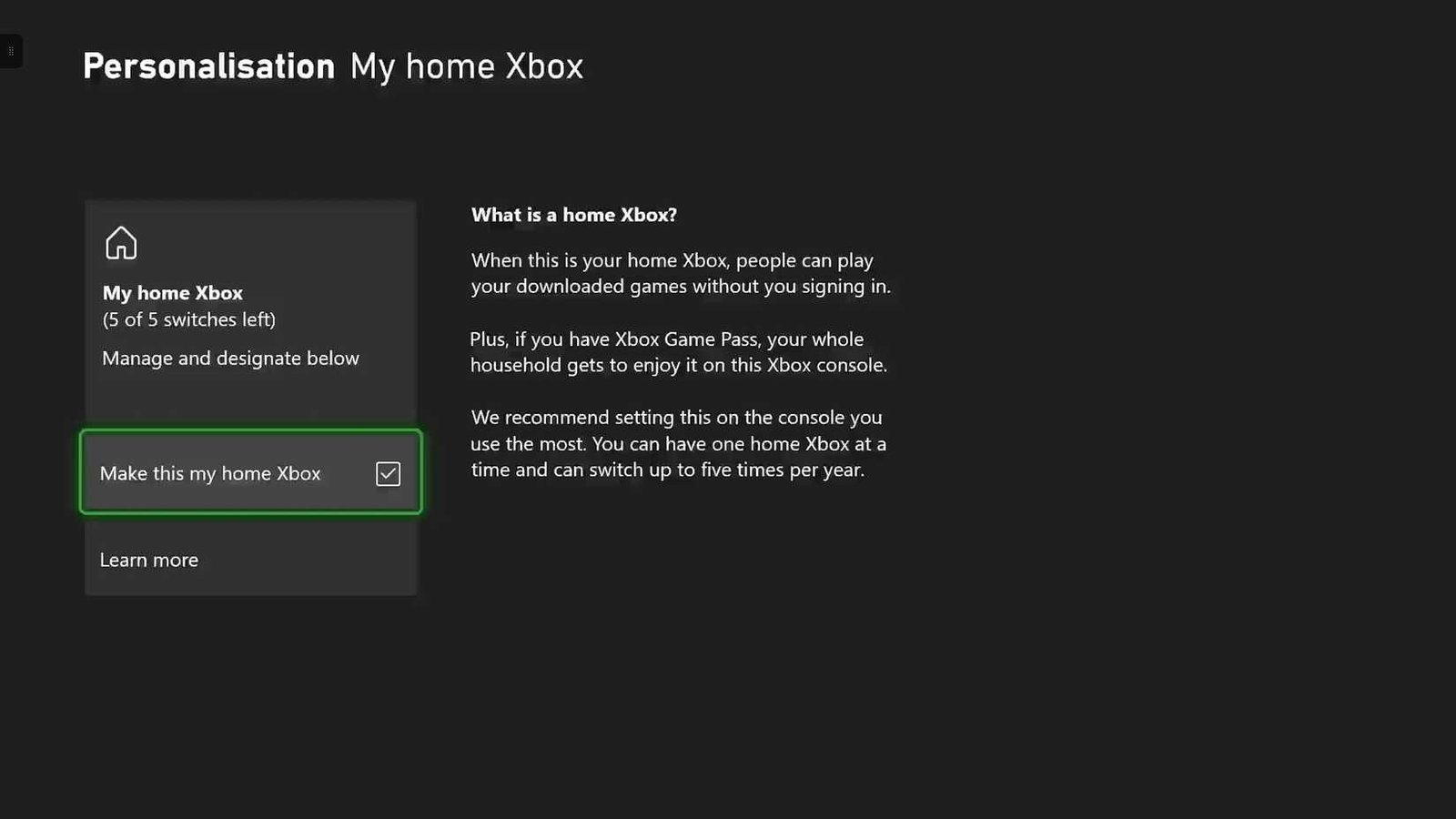
In the Personalization section, find and select the 'My Home Xbox' option. This lets you make the current console your Home Xbox.
- Click 'Make this my home Xbox'.
- Confirm your choice to enable sharing.
- Note that you can change this up to five times per year.
Confirm The Selection
A confirmation message will appear after you select your Home Xbox. Check it to ensure your console is set correctly.
Now you can enjoy shared games and apps on your Home Xbox with other users on the same console.
Switching Primary Xbox To Another Console
You can set your home Xbox as the primary console to share games and subscriptions. Sometimes, you may want to switch the primary Xbox to a different console.
This guide explains how to deactivate your current primary Xbox and set a new one as primary.
Deactivating The Current Primary Xbox
Before you set a new console as primary, you must deactivate the current one. Deactivating stops that console from sharing your games and subscriptions.
You can deactivate the current primary Xbox directly on the console or online through your Microsoft account settings.
- On your current Xbox, go to Settings > Personalization > My home Xbox
- Select "Remove this as my home Xbox"
- Or visit account.microsoft.com on a browser
- Find the Xbox settings and choose to deactivate all consoles
Setting New Console As Primary
After deactivating the old console, sign in to your new Xbox. You can make it your primary Xbox to enjoy shared games and subscriptions.
Go to Settings and find the option to set your new console as your home Xbox.
- Sign in with your Xbox account on the new console
- Navigate to Settings > Personalization > My home Xbox
- Select "Make this my home Xbox"
- Confirm your choice
Limitations On Changing Primary Xbox
You can only change your primary Xbox a limited number of times each year. Microsoft allows up to five changes every 12 months.
This limit helps prevent abuse of the sharing system. Keep track of your changes to avoid issues.
- You can set only one primary Xbox at a time
- Changing primary Xbox more than five times a year is blocked
- Deactivating all consoles online may have a 6-month cooldown
Troubleshooting Common Issues
Setting your home Xbox as primary can sometimes cause problems. This guide helps you fix common errors. Follow these tips to get your Xbox working right.
We will look at three main issues: errors when setting the primary Xbox, account limits, and network troubles. Each section has clear advice to solve the problem.
Cannot Set Primary Xbox Error
This error happens when Xbox does not allow you to make a console your primary. It may show a message that stops the process.
- Check if another Xbox is already set as your primary. You can only have one primary Xbox at a time.
- Sign out from other consoles you no longer use as primary.
- Try restarting your Xbox and sign in again to reset the system.
- Make sure your Xbox has the latest system update installed.
Account Restrictions
Your account settings can block you from setting a primary Xbox. Family settings or account limits may cause this.
| Restriction Type | Effect | What To Do |
| Child Account | Cannot set primary without adult approval | Ask family organizer for permission |
| Account Suspended | Features are limited or blocked | Check email for suspension details |
| Multiple Consoles | Limits on how many primary consoles | Remove old primary Xbox from settings |
Network Problems
Network issues can stop your Xbox from connecting to Xbox Live. This can block setting your home Xbox as primary.
Try these fixes:
- Check your internet connection on the Xbox settings.
- Restart your modem and router.
- Clear the Xbox cache by holding the power button for 10 seconds.
- Test the network connection in Xbox settings to see if it works.
- Use a wired connection if Wi-Fi is unstable.

Tips For Managing Multiple Xbox Accounts
Managing multiple Xbox accounts can be tricky. It's important to keep track of each account's settings. This ensures a smooth gaming experience for everyone involved.
Here are some helpful tips to manage your Xbox accounts effectively. These tips cover sharing games, using family settings, and avoiding conflicts.
Sharing Games With Friends
Sharing games on Xbox is fun and easy. Set your home Xbox as primary to share your games with friends.
Make sure your account is signed in on your home Xbox. This will allow others to play your games without needing your account.
- Sign in on your home Xbox
- Go to settings and select personalization
- Set this Xbox as your home Xbox
Using Family Settings
Family settings help manage multiple accounts safely. They allow parents to control what children can access.
Use family settings to set screen time limits. You can also restrict content based on age ratings.
- Create a family group on Xbox
- Set screen time limits for each account
- Adjust content restrictions as needed
Avoiding Account Conflicts
Avoid account conflicts by keeping each account's settings separate. This prevents issues with saved games and achievements.
Always sign out when switching accounts. This helps keep your data secure and reduces confusion.
- Sign out before switching accounts
- Keep track of each account's settings
- Use unique passwords for each account

Frequently Asked Questions
How Do I Set My Xbox As Primary?
To set your Xbox as primary, go to Settings > General > Personalization > My home Xbox. Select "Make this my home Xbox" to enable sharing of games and subscriptions.
What Are The Benefits Of A Primary Xbox?
A primary Xbox allows sharing of games and Xbox Live Gold benefits with others on that console. It also enables offline access to your games.
Can I Change My Primary Xbox Often?
You can change your primary Xbox up to five times per year. Frequent changes are limited to prevent abuse of game sharing features.
Will I Lose Access If I Remove Primary Xbox?
If you remove a console as your primary Xbox, you lose shared game access on that device. However, you can still play games on the original account.
Conclusion
Setting your Xbox as the primary console makes sharing games easy. It lets others use your games and subscriptions on that device. You keep access to your content on other consoles too. Changing the primary Xbox is simple and only takes a few steps.
Remember to check your account settings carefully. This helps avoid any problems with your games or downloads. Enjoy gaming with friends and family without limits. Now, you know how to set your home Xbox as primary.