Setting up your Google Home system can transform the way you live, making daily tasks easier and your home smarter. Imagine controlling your lights, music, and even your thermostat with just your voice.
Sounds exciting, right? But if you’re unsure where to start, don’t worry—you’re in the right place. This guide will walk you through every simple step to get your Google Home up and running quickly. Keep reading, and you’ll be enjoying hands-free convenience before you know it.
Choosing The Right Google Home Device
Setting up a Google Home system starts with picking the right device. Each model fits different needs and spaces.
Understanding the options helps you choose a device that works best for your home and lifestyle.
Comparing Available Models
| Model | Speaker Quality | Smart Features | Size |
| Google Home Mini | Good for small rooms | Basic voice commands | Compact |
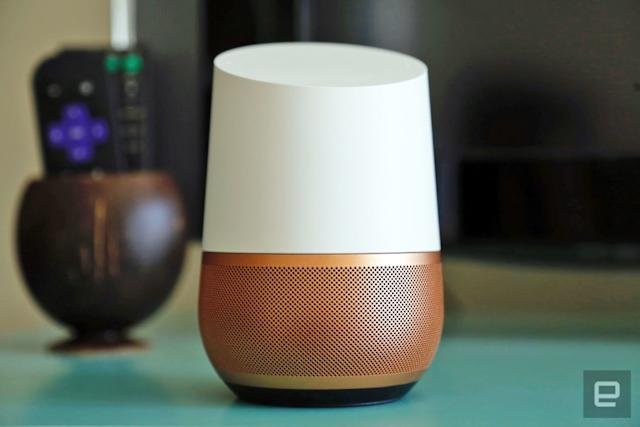
| Google Home | Clear and louder sound | Supports multiple devices | Medium |
| Google Home Max | High-quality stereo sound | Advanced audio controls | Large |
Matching Device To Your Needs
Think about where you will use the device. Different rooms need different speakers.
- Small rooms work well with Google Home Mini.
- Living rooms benefit from Google Home’s louder sound.
- For music lovers, Google Home Max offers the best audio.
- Consider if you want extra smart features like multiple device support.
Budget Considerations
Price varies between models. Choose a device that fits your budget without losing needed features.
- Set a maximum budget before shopping.
- Compare prices of models that meet your needs.
- Look for deals or bundles to save money.
- Remember that cheaper devices may have fewer features.

Preparing For Setup
Setting up your Google Home system starts with some simple preparations. These steps help ensure a smooth and quick setup process.
Before you begin, check your Wi-Fi, download the right app, and have a Google account ready. These basics are key to getting your device working.
Checking Wi-fi Requirements
Your Google Home device needs a strong Wi-Fi connection. Make sure your internet is stable and fast enough for smart devices.
Google Home works best with a 2.4 GHz or 5 GHz Wi-Fi network. Check your router settings to find this information.
- Ensure your Wi-Fi network is active and has internet access
- Use a network with WPA or WPA2 security
- Keep your Wi-Fi password handy for setup
- Place your Google Home near the router for a strong signal
Downloading The Google Home App
The Google Home app controls your device and helps with setup. Download it on your smartphone or tablet.
The app is free and available on both the Apple App Store and Google Play Store. Make sure you download the official app.
- Open your device’s app store
- Search for "Google Home"
- Download and install the app
- Open the app and follow on-screen instructions
Creating Or Using A Google Account
You need a Google account to use Google Home. It stores your settings and links your device to your services.
If you do not have an account, create one before setup. If you already have a Google account, you can use it right away.
- Go to the Google account creation page if needed
- Fill in your name, email, and password
- Verify your account with the code sent to your phone or email
- Sign in to the Google Home app with your account
Connecting Your Google Home
Setting up your Google Home device starts with connecting it to your power source and app. This guide will help you link your device to your network.
Follow these clear steps to connect your Google Home so you can begin using voice commands and smart features.
Plugging In And Powering On
First, find a power outlet near the spot where you want to place your Google Home. Plug the power adapter into the device and then into the outlet.
The Google Home will light up and make a sound when it powers on. This means it is ready to connect.
Pairing With The Google Home App
Download and open the Google Home app on your phone or tablet. Make sure your device is connected to the same Wi-Fi network you want your Google Home to use.
The app will detect your Google Home device. Follow the on-screen instructions to connect and set up your preferences.
- Open the Google Home app
- Tap "Add" and select "Set up device"
- Choose your Google Home from the list
- Connect to your Wi-Fi network
- Complete the setup by following prompts
Troubleshooting Connection Issues
If your Google Home does not connect, check your Wi-Fi and power. Make sure your phone is near the device during setup.
Restart the Google Home and your router if you still have problems. Try setting up the device again after the restart.
- Ensure power cable is secure
- Check Wi-Fi password is correct
- Restart your router and Google Home
- Keep phone close to Google Home during setup
- Update the Google Home app to the latest version
Configuring Voice Settings
Setting up voice settings on your Google Home improves your experience. You can customize how the device recognizes and responds to your voice.
Below are key steps to configure voice settings, including voice match, language, and volume adjustments.
Setting Up Voice Match
Voice Match helps Google Home recognize your voice. This lets it provide personalized answers and secure your information.
- Open the Google Home app on your phone.
- Tap your profile icon and go to Assistant settings.
- Select Voice Match and follow the prompts to train your voice.
- Repeat the phrases clearly for better recognition.
- Confirm and save your voice model.
Choosing Language Preferences
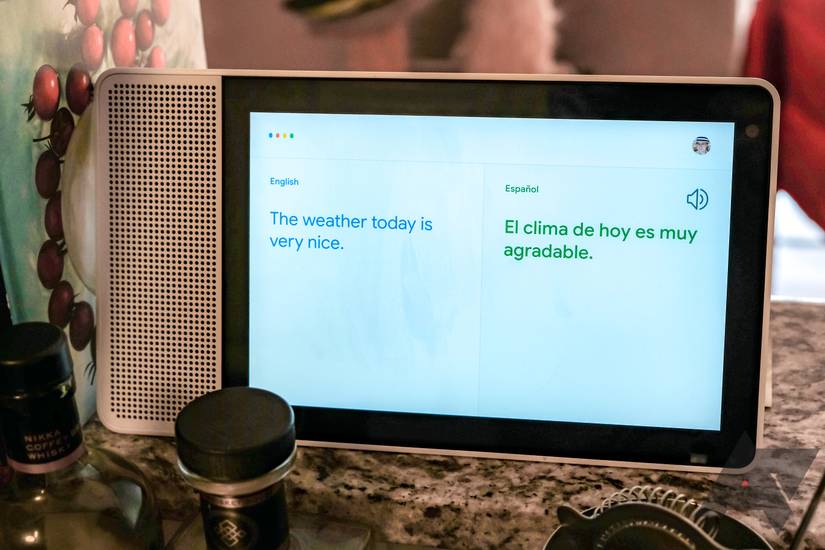
You can choose the language Google Home uses to talk with you. It supports many languages and dialects.
| Language | Description |
| English (US) | Standard American English voice |
| English (UK) | British English accent and vocabulary |
| Spanish (Spain) | Castilian Spanish for Spain |
| French (Canada) | French with Canadian pronunciation |
| German | Standard German voice |
To change language, open the Google Home app, go to Assistant settings, then Languages. Select your preferred language from the list.
Adjusting Sensitivity And Volume
You can adjust how sensitive Google Home is to your voice and change the speaker volume.
- Open the Google Home app and select your device.
- Tap the settings gear icon.
- Find Voice Match sensitivity to change how easily it hears you.
- Use the volume slider to set the speaker loudness.
- Test by speaking to ensure settings feel right.
Linking Smart Home Devices
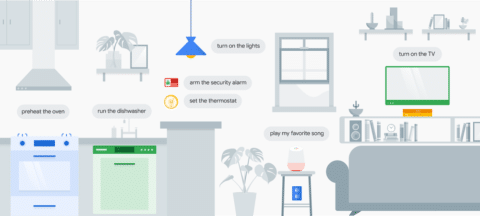
Connecting your smart home devices to Google Home makes controlling them easy. You can use voice commands or the app to manage your devices.
Linking devices helps you control lights, thermostats, cameras, and more from one place.
Adding Compatible Devices
First, make sure your devices work with Google Home. Look for the "Works with Google Assistant" label on the product.
Use the Google Home app to add new devices by following these steps:
- Open the Google Home app.
- Tap the "+" button to add a device.
- Select "Set up device" and then "Works with Google."
- Search for your device brand.
- Log in to your device account to link it.
Creating Groups For Easy Control
Grouping devices lets you control many at once. For example, you can group all living room lights.
Create groups in the Google Home app to make commands faster and simpler.
- Open the app and tap "+" then "Create speaker group."
- Choose devices to add to the group.
- Name the group for easy recognition.
- Use voice commands to control the group.
Managing Device Permissions
You can control who uses your smart home devices. Managing permissions keeps your home secure.
Share device access carefully and adjust settings in the Google Home app.
- Open the Google Home app and tap your profile icon.
- Select "Home settings" then "Household."
- Invite people by email to share control.
- Remove or limit access anytime.
Customizing Routines And Commands
Setting up your Google Home system is easy. You can make it work the way you want. Customize routines and commands to fit your daily needs.
Learn how to create personalized routines, use voice commands, and schedule automated actions. These steps will help you get the most out of your Google Home.
Creating Personalized Routines
Personalized routines make your Google Home more useful. You can set routines to handle multiple tasks with one command.
Start by opening the Google Home app. Tap on "Routines" to create a new one. Choose what you want Google Home to do, like playing music or turning off lights.
- Open Google Home app
- Tap on "Routines"
- Select tasks for your routine
- Save your routine
Using Voice Commands Effectively
Voice commands make using Google Home simple. Speak clearly to get the best results. You can ask Google Home to do many things, like checking the weather or setting reminders.
Practice using clear, short commands. This will help Google Home understand you better. Remember, you can always ask Google Home for help if you forget a command.
Scheduling Automated Actions
Automated actions let Google Home handle tasks on a schedule. You can set it to turn off the lights at night or start your coffee maker in the morning.
To schedule actions, open the Google Home app. Choose the device you want to automate. Set the time and action you need. This helps keep your home running smoothly.
- Open Google Home app
- Select your device
- Set the time for action
- Choose the action
Maximizing Google Home Features
Google Home is a smart device that helps in your daily tasks. Learn how to use its features to make life easier.
Set up your Google Home to get the most from it. Use voice commands to manage your day better.
Streaming Music And Podcasts
Play your favorite tunes with Google Home. Use simple voice commands to start streaming.
Listen to podcasts while you relax or work. Google Home connects with music apps easily.
- Say "Hey Google, play music."
- Try "Hey Google, play my podcast."
- Connect Spotify or YouTube for more options.
Setting Reminders And Alarms
Never miss an event with Google Home reminders. Voice commands can keep you on schedule.
Set alarms to wake up or stay on time. Google Home makes it easy to manage your daily routine.
- Say "Hey Google, set a reminder for dinner at 7 PM."
- Use "Hey Google, set an alarm for 6 AM."
- Change or cancel reminders anytime.
Getting News And Weather Updates
Stay informed with Google Home. Get the latest news with a simple voice command.
Check the weather before heading out. Google Home gives updates quickly and easily.
- Ask "Hey Google, what's the news?"
- Say "Hey Google, what's the weather today?"
- Customize your news sources in settings.
Maintaining And Updating Your System
Keeping your Google Home system updated is important. It helps your device work well and stay secure.
Regular maintenance ensures your Google Home responds correctly and protects your data.
Checking For Software Updates
Google Home updates automatically most of the time. You can check for updates to make sure it is current.
Open the Google Home app and look for device settings. There you can see if an update is available.
- Open Google Home app on your phone
- Select your Google Home device
- Tap on settings or device info
- Look for software version and update status
- If available, follow prompts to update
Resetting The Device If Needed
If your Google Home is not working well, resetting can help fix the issue. Resetting returns the device to factory settings.
Use reset only when other fixes do not work. After reset, you must set up the device again.
- Press and hold the microphone mute button
- Hold for about 15 seconds until you hear a sound
- Release the button and wait for the device to reset
- Use the Google Home app to set up again
Ensuring Privacy And Security
Protect your Google Home by managing privacy and security settings. This keeps your data safe from others.
Review your voice recordings and adjust settings for what Google saves or deletes.
- Open Google Home app and go to your account
- Find privacy settings and review activity controls
- Delete voice recordings you do not want saved
- Turn off microphone when not in use
- Use strong Wi-Fi passwords and secure your network
Frequently Asked Questions
How Do I Connect Google Home To Wi-fi?
Open the Google Home app, select your device, and tap Wi-Fi. Choose your network and enter the password. This connects Google Home to the internet for full functionality.
What Devices Are Compatible With Google Home?
Google Home works with smartphones, tablets, smart lights, thermostats, and speakers. It supports both Android and iOS devices for seamless control.
How Do I Set Up Voice Recognition On Google Home?
In the Google Home app, access Settings, then Voice Match. Follow prompts to train Google Home to recognize your voice for personalized responses.
Can I Control Multiple Google Home Devices Together?
Yes, use the Google Home app to create speaker groups. This lets you play music or give commands across multiple devices simultaneously.
Conclusion
Setting up your Google Home system is simple and quick. Just follow each step carefully. Your smart home will respond to your voice commands easily. You can control lights, music, and more from one device. This setup improves daily life with hands-free help.
Keep your system updated for best performance. Enjoy the convenience and comfort your Google Home brings. Start exploring its features today.