Are you ready to bring your home to life with smart sound? Installing Google Home speakers is easier than you think, and once set up, they can change how you control your space.
Imagine asking your speaker to play your favorite music, check the weather, or even control your lights – all with just your voice. In this guide, you’ll find simple, step-by-step instructions to get your Google Home speakers up and running quickly.
Keep reading, and you’ll be enjoying hands-free convenience in no time.
Prepare Your Google Home Speaker
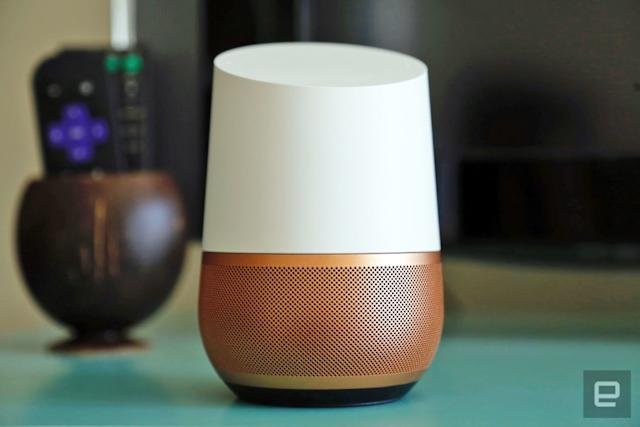
Setting up your Google Home speaker is easy and quick. Before you start, you need to prepare the device and choose the right spot for it.
This guide will help you get your speaker ready for use in just a few simple steps.
Unboxing And Checking Components
When you open the box, make sure you have all the parts needed to set up your Google Home speaker. Check each item carefully to avoid missing pieces.
- Google Home speaker unit
- Power adapter and cable
- Quick start guide
- Warranty and safety information
Choosing The Right Location
Pick a place that lets your Google Home hear you well and connect to your Wi-Fi. Avoid spots near windows or loud appliances.
| Location Tip | Reason |
| Flat surface | Speaker needs stable support |
| Open space | Better sound quality and voice detection |
| Near Wi-Fi router | Stronger wireless connection |
| Away from direct sunlight | Prevents overheating |
Download And Open The Google Home App
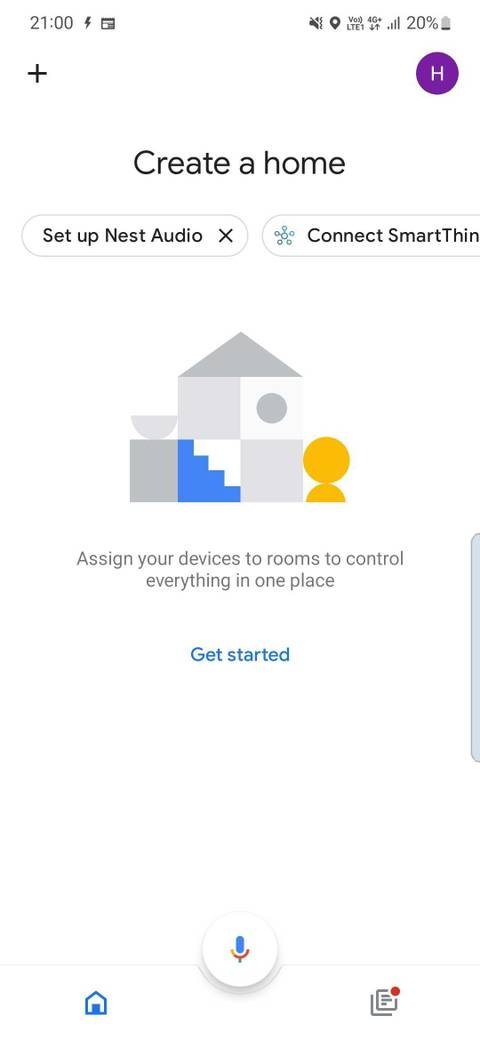
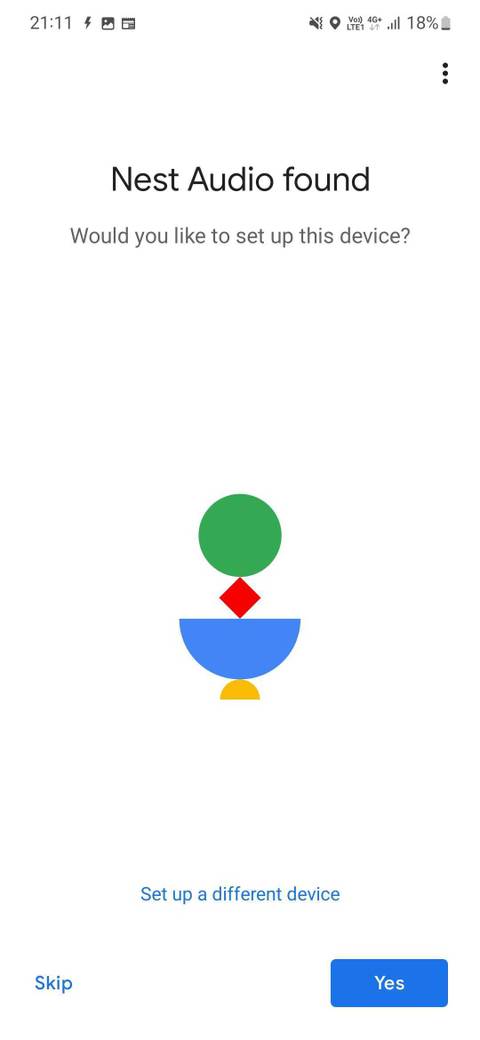
To install Google Home speakers, start by downloading the Google Home app. This app helps you set up and control your speakers easily.
The app works on most mobile devices and is free to download from app stores. Once installed, you can open it to begin setup.
Compatible Devices
The Google Home app works on many smartphones and tablets. Make sure your device meets the app’s requirements before downloading.
- Android phones and tablets with Android 6.0 or later
- iPhones and iPads with iOS 12.0 or later
- Devices with Bluetooth and Wi-Fi connections
App Installation
Find the Google Home app in the Google Play Store or Apple App Store. Tap the install button to download the app to your device.
After installation, open the app from your home screen. The app will guide you through the next steps to connect your Google Home speaker.
Creating Or Signing Into A Google Account
You need a Google account to use the Google Home app. This account stores your settings and preferences.
If you have a Google account, sign in when the app asks. If not, you can create a new account easily within the app.
- Open the app and tap “Sign in”
- Enter your email and password for an existing account
- Or choose “Create account” to set up a new one
Connect Your Speaker To Power
Connecting your Google Home speaker to power is the first step. Without power, the device cannot work or connect to your network.
Make sure you have the power adapter and cable that came with your speaker. Use only the original parts for safe setup.
Plugging In The Device
Locate the power port on the back of your Google Home speaker. It is usually a small round socket or USB-C port.
Connect the power cable firmly into the speaker’s power port. Then plug the other end into a nearby electrical outlet.
- Use a wall outlet, not a USB port on a computer
- Check the power cable is not damaged
- Keep the speaker on a flat surface near the outlet
Indicators And Initial Setup Signals
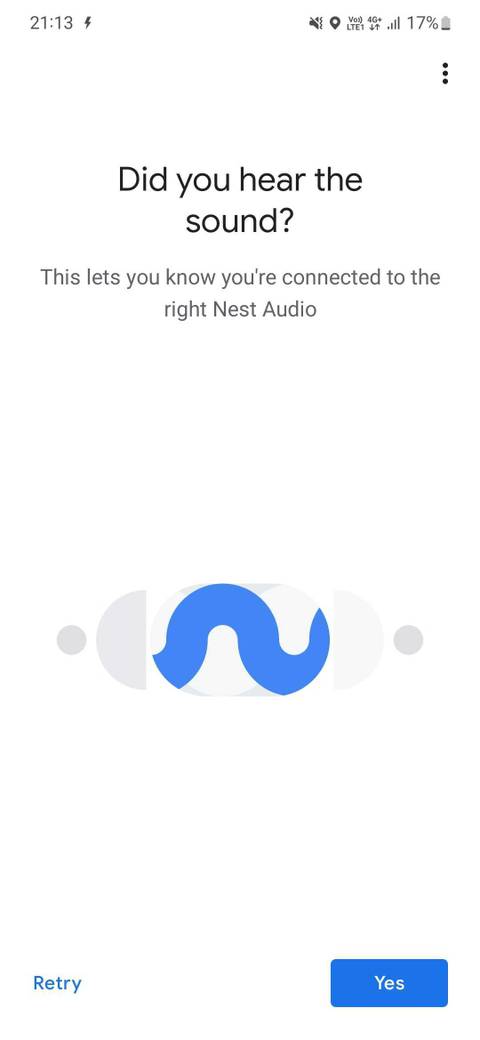
Once plugged in, the speaker will show lights or sounds to signal it is powering on. These signals help you know the device is ready.
Look for a spinning colored light or hear a startup tone. This means the speaker is booting up and entering setup mode.
- Spinning white or colored lights mean the device is starting
- A chime sound indicates the speaker is ready for setup
- If no lights or sound appear, check the power connection
Set Up Wi-fi Connection
Connecting your Google Home speaker to Wi-Fi is essential for its operation. This guide explains how to select your network and fix connection problems.
Follow the steps carefully to ensure a stable and fast connection for your device.
Selecting Your Network
Choose the right Wi-Fi network to connect your Google Home speaker. It must be a 2.4 GHz or 5 GHz network with internet access.
- Open the Google Home app on your phone.
- Tap the device icon for your Google Home speaker.
- Go to device settings and select “Wi-Fi.”
- Pick your home Wi-Fi network from the list.
- Enter the Wi-Fi password carefully.
- Wait for the speaker to connect and confirm success.
Troubleshooting Connection Issues
If your Google Home speaker does not connect, try these common fixes. Check your device and network settings.
| Problem | Solution |
| No Wi-Fi networks found | Move closer to the router and refresh the list. |
| Wrong password error | Re-enter the Wi-Fi password carefully. |
| Speaker won’t connect after setup | Restart the speaker and router, then try again. |
| Slow or unstable connection | Check for network interference or reset your router. |
Customize Speaker Settings
After setting up your Google Home speaker, you can adjust its settings to fit your needs. Customizing helps you get the best experience.
Settings include options like Voice Match, personalization, and linking music services. Each helps your speaker work better for you.
Voice Match And Personalization
Voice Match lets your speaker recognize different voices. It gives personalized answers based on who is speaking.
To set up Voice Match, open the Google Home app and follow the prompts. The speaker will learn your voice and others in your home.
- Helps the speaker respond with personal info
- Allows different users to hear their own calendar or reminders
- Improves accuracy in voice recognition
Linking Music Services
You can connect your favorite music services to Google Home. This lets you play songs using simple voice commands.
In the Google Home app, go to settings and find Music. Choose your service and link your account for easy access.
- Supports popular services like Spotify, YouTube Music, and Apple Music
- Lets you ask to play specific songs, albums, or playlists
- Works with free and paid accounts depending on the service
Test Your Google Home Speaker
After setting up your Google Home speaker, it's important to test it. This ensures everything works correctly and meets your needs.
Testing your device helps you understand its functions. It also allows you to customize settings for better performance.
Basic Voice Commands
Your Google Home speaker responds to simple voice commands. These commands help you interact with the device easily.
Start by saying "Hey Google" or "Ok Google" to activate the speaker. Then give a command to see how it responds.
- Ask for the weather: "What's the weather like today?"
- Set a timer: "Set a timer for 10 minutes."
- Play music: "Play some music."
Adjusting Volume And Preferences
To get the best experience, adjust the volume and preferences. This makes your speaker more enjoyable to use.
You can change the volume using voice commands or the device itself. Set preferences to match your listening habits.
- Increase volume: "Turn up the volume."
- Decrease volume: "Turn down the volume."
- Set preferences in the Google Home app for personalized settings.
Tips For Optimizing Performance
Installing Google Home Speakers is easy. Optimizing their performance takes a bit more effort.
Follow these tips to get the best sound and functionality from your speakers.
Regular Updates
Keep your Google Home Speakers updated for the best performance. Updates fix bugs and improve features.
Check the Google Home app regularly for updates. Enable automatic updates if available.
- Open the Google Home app
- Go to device settings
- Enable automatic updates
Placing For Best Sound Quality
Placement affects sound quality. Place speakers on a flat surface for even sound distribution.
Avoid corners or enclosed spaces. These can muffle the sound. Keep speakers at ear level for best results.
| Placement Tips |
|---|
| Center of the room |
| Away from walls |
| At ear level |
Frequently Asked Questions
How Do I Set Up Google Home Speakers?
Plug in your Google Home speaker and download the Google Home app. Follow the app’s instructions to connect to Wi-Fi and link your Google account. This setup allows easy control and customization of your device features.
What Devices Are Compatible With Google Home?
Google Home works with most smartphones and tablets running iOS 11 or Android 5. 0 and above. It also supports smart home devices like lights, thermostats, and TVs for seamless integration and voice control.
Can I Connect Multiple Google Home Speakers?
Yes, you can connect multiple Google Home speakers for synchronized audio. Use the Google Home app to group devices, enabling multi-room playback and a richer sound experience throughout your home.
How Do I Troubleshoot Google Home Connection Issues?
Restart your Google Home device and router. Ensure your smartphone is on the same Wi-Fi network. Update the Google Home app and check for firmware updates to resolve common connection problems.
Conclusion
Installing Google Home speakers is simple and quick with the right steps. Just follow the instructions carefully to set up your device. Once connected, enjoy voice control for music, smart home, and more. Troubleshooting is easy if you face any issues during installation.
Now, your Google Home speaker is ready to assist daily tasks. Start exploring its features and make life easier at home.