Are you ready to transform your TV watching experience? Hooking your home theater system to your TV can bring cinema-quality sound right into your living room.
But if you’re unsure where to start or worried about complicated cables and settings, don’t worry—you’re in the right place. This guide will walk you through simple, step-by-step instructions to get your home theater system connected quickly and correctly. By the end, you’ll enjoy richer sound and a more immersive viewing experience.
Keep reading to discover how easy it really is to upgrade your entertainment setup!

Choose The Right Home Theater System
Setting up a home theater system with your TV can improve your movie experience. Picking the right system is very important.
This guide helps you choose the best home theater system for your needs. Look at different types and key features.
Types Of Home Theater Systems
Home theater systems come in several types. Each type offers different sound and setup options.
- Soundbar Systems:Compact and easy to connect. Good for small rooms.
- 5.1 Surround Sound:Five speakers and one subwoofer. Offers clear and balanced sound.
- 7.1 Surround Sound:Adds two extra speakers for a wider sound field.
- Wireless Systems:No wires between speakers. Easy to place around the room.
Key Features To Consider
Look for features that fit your TV and room size. Good features make setup easy and sound better.
- Compatibility:Check if the system works with your TV ports.
- Speaker Quality:Clear and balanced sound is important.
- Connectivity Options:HDMI, optical, Bluetooth, or Wi-Fi connections.
- Power Output:Higher watts mean louder sound but need bigger space.
- Ease of Setup:Systems with simple instructions save time.
- Remote Control:Controls all parts of the system from one device.
Identify Tv Audio Output Options
Connecting your home theater system to your TV starts with knowing the audio outputs your TV offers. Different TVs have different ports for sending sound to external devices.
Understanding these outputs helps you choose the right cable and get the best sound quality from your home theater system.
Hdmi Arc/earc
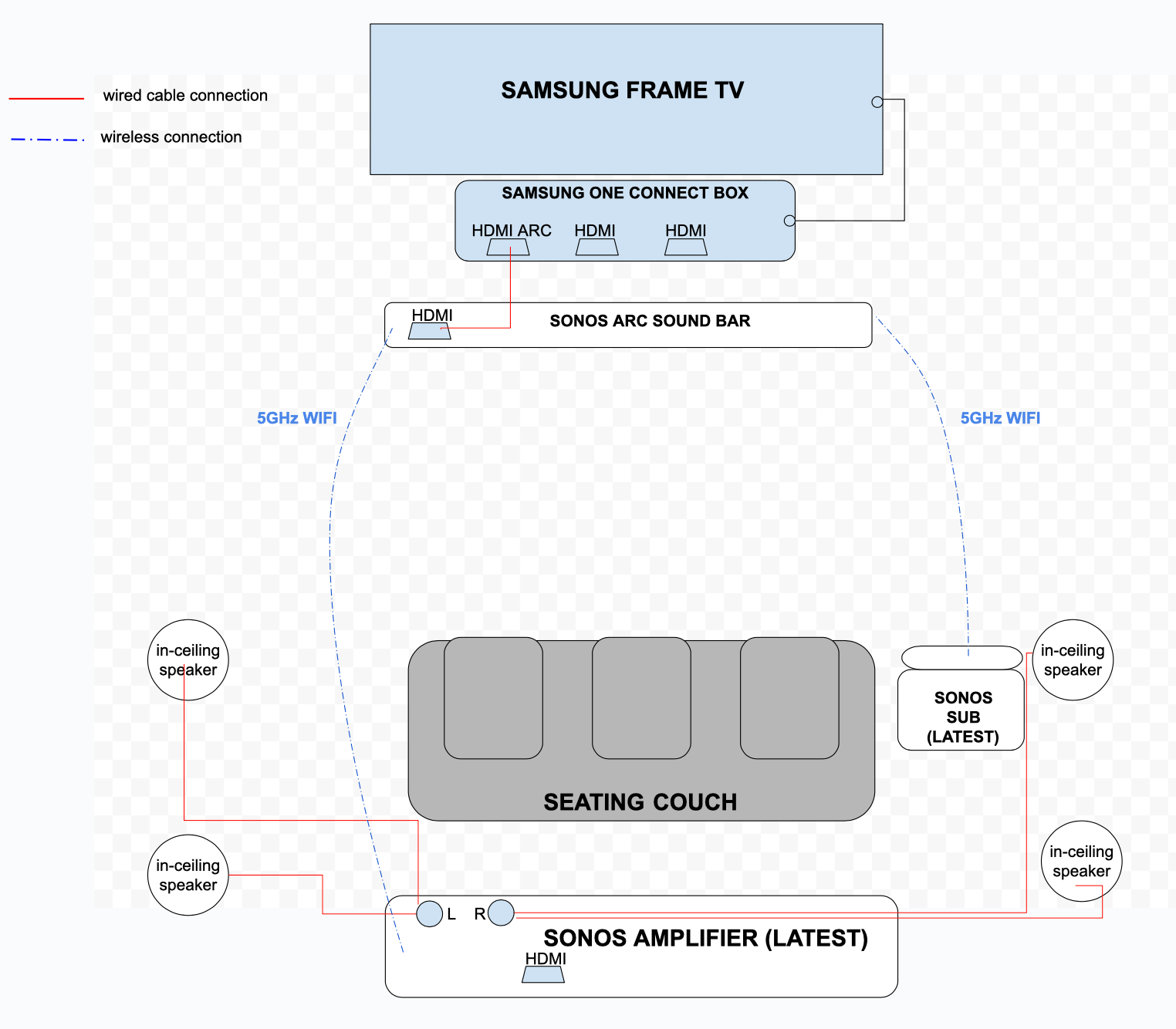
HDMI ARC (Audio Return Channel) and eARC (Enhanced Audio Return Channel) let your TV send audio to your home theater system using a single HDMI cable. This connection supports high-quality sound and easy control with one remote.
- Look for an HDMI port labeled ARC or eARC on your TV.
- Use an HDMI cable to connect the TV's ARC port to the receiver's HDMI input.
- This option supports surround sound and high-resolution audio.
Optical Audio
Optical audio uses a fiber optic cable to send digital sound signals. It delivers clear audio and supports surround sound, but it does not carry control signals like HDMI ARC.
| Feature | Description |
|---|---|
| Port Type | TOSLINK Optical |
| Audio Quality | Digital, supports 5.1 surround sound |
| Control Signals | No |
| Cable | Fiber optic cable |
Rca And Aux Ports
RCA and AUX ports provide analog audio outputs. These are common on older TVs and use red, white, and sometimes yellow connectors. They offer basic stereo sound but no surround sound support.
- RCA ports usually have two jacks: red (right audio) and white (left audio).
- AUX ports use a 3.5mm headphone-style jack.
- These connections require separate cables for audio and video.
- Sound quality is lower compared to digital outputs.
Gather Necessary Cables And Adapters
Setting up your home theater system with your TV needs the right cables. Choosing the correct cables ensures good sound and picture quality.
Before connecting, gather all the cables and adapters you will need. This saves time and avoids frustration during setup.
Hdmi Cables
HDMI cables carry both audio and video signals in one cable. Most modern TVs and home theater systems support HDMI. Use a high-speed HDMI cable for the best quality.
- Check the length to reach from your TV to the home theater receiver.
- Use HDMI 2.0 or higher for 4K support.
- Look for cables with good shielding to avoid interference.
Optical Cables
Optical cables use light to carry sound signals. They are good for audio-only connections when HDMI is not an option. The cable has a square-shaped connector with a small flap.
| Feature | Description |
|---|---|
| Connector Type | TOSLINK (optical fiber) |
| Audio Quality | Supports up to 5.1 surround sound |
| Length Limit | Usually up to 5 meters without signal loss |
| Use Case | Connect TV audio out to home theater audio in |
Rca Cables And Adapters
RCA cables are older but still used in many systems. They separate audio and video into different connectors. You may need adapters to connect RCA to HDMI or optical inputs.
Common RCA connections include:
- Red and White:Right and left audio channels
- Yellow:Composite video signal
Adapters can convert RCA signals to HDMI or optical formats if needed.
Connect Home Theater To Tv
Connecting your home theater system to your TV improves sound quality. It makes watching movies and shows more enjoyable.
There are several ways to connect your devices. Choose the best option based on your equipment.
Using Hdmi Arc Connection
HDMI ARC stands for Audio Return Channel. It lets your TV send sound to your home theater using one HDMI cable.
To use HDMI ARC, find the HDMI ARC port on both your TV and home theater. Connect them with a single HDMI cable.
- Turn on HDMI-CEC or Anynet+ on your TV settings
- Select the home theater as the audio output
- Adjust volume using the TV or home theater remote
Using Optical Audio Connection
Optical audio uses a fiber optic cable to send sound. It supports high-quality digital audio.
Connect the optical cable from the TV’s optical out port to the home theater’s optical in port.
- Change the TV audio output to optical or digital
- Turn off the TV speakers if needed
- Use the home theater remote to control sound
Using Rca Or Aux Connection
RCA or AUX cables carry analog sound signals. They are common on older TVs and home theaters.
Plug the red and white RCA cables or the AUX cable from the TV’s audio out to the home theater’s audio in.
- Set the TV audio output to external speakers
- Use the home theater remote to adjust volume
- Check cable connections for best sound quality
Configure Tv Audio Settings
After connecting your home theater system to your TV, you need to set up the TV audio correctly. This will improve the sound quality and match it with your speakers.
Adjusting the audio settings on your TV helps you get the best experience from your home theater system. It also prevents sound issues like echoes or no sound at all.
Selecting Audio Output
First, you must tell your TV where to send the sound. TVs often have multiple audio output options. Choose the one that matches your home theater connection.
- Go to the TV’s audio or sound settings menu
- Look for “Audio Output” or “Sound Output” option
- Select the output device, such as HDMI ARC, optical, or external speakers
- If you use HDMI ARC, make sure the HDMI cable supports it
- Choose external speakers to disable the TV’s internal speakers if needed
Adjusting Sound Settings
After selecting the audio output, customize the sound settings to fit your room and preferences. Many TVs offer options like bass, treble, and surround sound modes.
Adjusting these settings can make voices clearer or enhance the bass for movies. Try different presets to find what sounds best with your home theater system.
- Access sound or audio settings on your TV
- Adjust volume levels and balance if available
- Try sound modes like Movie, Music, or Standard
- Enable surround sound or Dolby Digital if your system supports it
- Turn off TV speakers if sound comes only from your home theater

Test And Troubleshoot The Setup
Setting up a home theater system can enhance your TV experience. But, issues may arise that need troubleshooting.
Ensuring sound output and fixing audio problems are common tasks. Let's explore how to address them.
Checking Sound Output
First, verify that your system is properly connected. Check all cables between the TV and the home theater.
- Ensure HDMI cables are tightly secured
- Check if the TV is set to the correct audio output
- Confirm that the home theater system is powered on
Common Connection Issues
Connection problems can lead to sound issues. Double-check all connections to troubleshoot these problems.
| Issue | Solution |
| No sound | Check the mute setting |
| Intermittent sound | Inspect cable integrity |
| Static noise | Reposition the cables |
Tips To Fix Audio Problems
If you encounter audio problems, don't worry. Follow these tips to resolve them effectively.
Check software updates for both TV and home theater system. Sometimes updates fix known sound issues.
- Reset the home theater system
- Verify the correct audio input is selected
- Consult the user manual for specific troubleshooting steps
Optimize Home Theater Sound
Connecting your home theater system to your TV can greatly enhance your viewing experience. Proper setup ensures the best sound quality.
Follow these guidelines to optimize your audio setup and enjoy clear, immersive sound.
Speaker Placement Tips
Positioning your speakers correctly is crucial for achieving optimal sound quality. Consider these tips to place them effectively.
- Place front speakers at ear level for direct sound.
- Position center speaker above or below the TV for clear dialogue.
- Use stands or mounts for rear speakers to create surround effects.
Calibrating Sound Levels
Calibrating sound levels ensures balanced audio output. It makes sure all speakers perform well together.
| Action | Result |
| Use a sound level meter | Measure speaker output |
| Adjust volume settings | Balance speaker levels |
| Test different audio modes | Find the best sound profile |
Frequently Asked Questions
How Do I Connect A Home Theater System To My Tv?
Use an HDMI ARC port or optical audio cable to connect the home theater system to your TV. Ensure both devices are powered off before connecting. Select the correct input source on your home theater to enjoy audio from your TV.
Can I Use Bluetooth To Hook A Home Theater System To Tv?
Yes, if both your TV and home theater system support Bluetooth. Pair the devices via settings menu for wireless audio streaming. This method reduces cable clutter but may have slight audio lag.
What Type Of Cable Is Best For Home Theater Connection?
HDMI cables are the best option for connecting home theater systems to TVs. They support high-definition audio and video through a single cable. Optical cables are an alternative but only transmit audio signals.
How Do I Set Up Audio Output On My Tv?
Go to your TV’s audio settings and select the home theater system as the output device. Choose PCM or Bitstream audio format for compatibility. Adjust volume settings on both the TV and home theater for optimal sound.
Conclusion
Connecting your home theater system to your TV is simple and quick. Use the right cables and follow the steps carefully. Check all connections before turning on the devices. Adjust settings on both the TV and sound system for the best sound.
Enjoy a clear picture and powerful audio in your room. Now, watching movies feels like being in a theater. Small effort, big difference. Try it today and hear the change yourself.