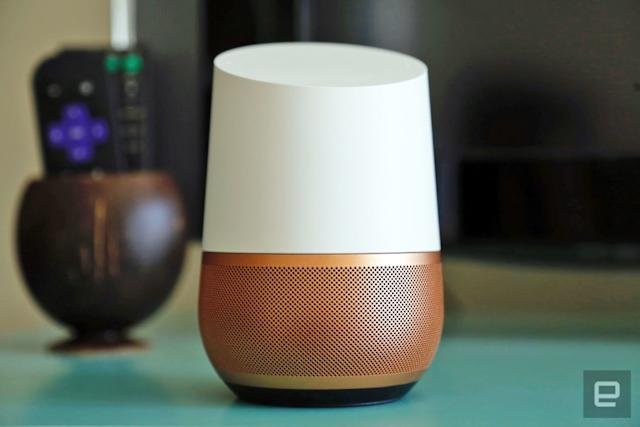
Want to get richer, fuller sound from your Google Home? Connecting it to external speakers can take your music, podcasts, and voice responses to the next level.
But if you’ve never done it before, the process might seem confusing or tricky. Don’t worry—this guide will walk you through each simple step so you can enjoy amazing audio in no time. By the end, you’ll know exactly how to link your Google Home to the perfect speakers and make every sound crystal clear.
Ready to transform your listening experience? Let’s dive in!
Choosing The Right Speakers
Connecting Google Home to speakers can improve your audio experience. Choosing the right speakers matters for sound quality and ease of use.
Consider compatibility and connection options before linking your Google Home to external speakers.
Compatible Speaker Types
Google Home works with many speaker types. Some are easy to connect, while others need extra devices.
- Bluetooth Speakers:Connect wirelessly for flexible placement.
- Wi-Fi Speakers:Use your home network for better sound quality.
- Smart Speakers:Built-in support for Google Home integration.
- Auxiliary (3.5mm) Speakers:Connect using a cable from Google Home’s audio jack.
- Chromecast Audio Devices:Allow streaming to traditional speakers.
Wired Vs Wireless Options
| Connection Type | Advantages | Disadvantages |
|---|---|---|
| Wired | Stable connection, no interference | Limited placement, cable clutter |
| Wireless (Bluetooth) | Easy setup, flexible location | Signal may drop, limited range |
| Wireless (Wi-Fi) | Better sound, multi-room support | Needs strong Wi-Fi, setup complexity |
Preparing Your Google Home
Before connecting your Google Home to external speakers, you need to prepare the device. This will help ensure a smooth connection and better sound quality.
Start by checking the device settings and making sure your Google Home is connected to Wi-Fi. These steps are important for the setup process.
Checking Device Settings
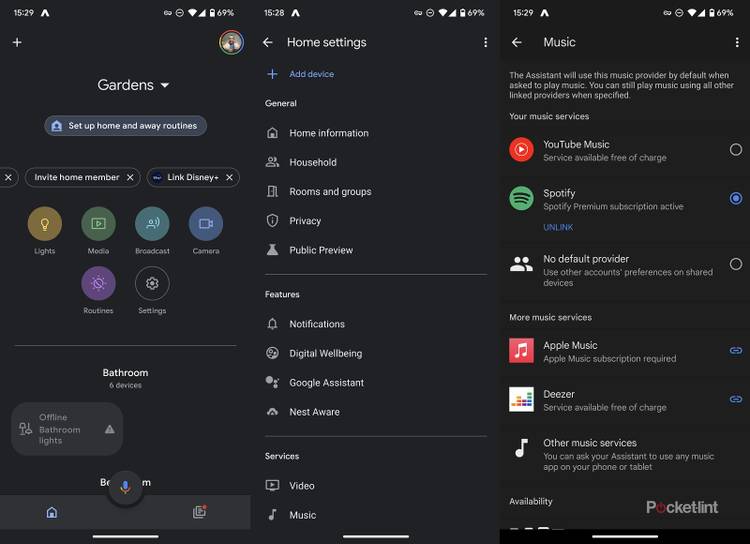
Open the Google Home app on your phone or tablet. Make sure your Google Home device is listed there. If it is not, you need to add it first.
Check the volume level on your Google Home. Set it to a medium level to avoid very loud or very low sound when connected.
- Open Google Home app
- Find your Google Home device
- Check and adjust volume settings
- Ensure the device is active and ready
Ensuring Wi-fi Connection
Your Google Home needs a stable Wi-Fi connection to work properly. Check if it is connected to your home network. A weak or no connection can cause issues.
Make sure your Wi-Fi network is working well. If other devices in your home connect fine, your Google Home should too.
- Open Google Home app
- Go to device settings
- Check Wi-Fi network name
- Restart router if needed
- Reconnect Google Home to Wi-Fi
Connecting Via Bluetooth
Connecting your Google Home to external speakers can improve sound quality. Bluetooth is a simple way to link your devices without wires.
This guide explains how to connect Google Home to speakers using Bluetooth. Follow the steps to enjoy better audio.
Pairing Process
First, make sure your speaker is ready to pair. Turn on Bluetooth pairing mode on the speaker.
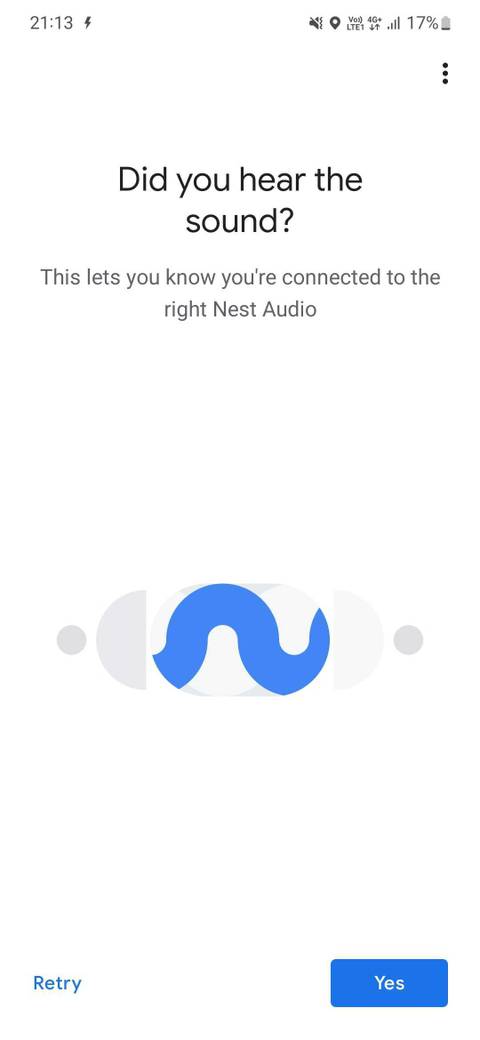
Next, open the Google Home app on your phone. Select your Google Home device from the list.
Go to Device Settings and find the “Paired Bluetooth devices” option. Tap “Enable Pairing Mode” to start searching.
- Turn on Bluetooth on your speaker
- Open Google Home app and select device
- Go to Device Settings > Paired Bluetooth devices
- Tap “Enable Pairing Mode”
- Select your speaker from the list
- Confirm the pairing
Troubleshooting Bluetooth Issues
If your Google Home does not connect to the speaker, try these fixes. Sometimes Bluetooth needs a reset or a fresh connection.
- Make sure the speaker is in pairing mode
- Turn Bluetooth off and on again on Google Home
- Restart your Google Home device
- Forget the speaker in Bluetooth settings and pair again
- Keep devices close to each other
- Check if speaker supports Bluetooth audio
Following these tips should solve most connection problems quickly.
Using Chromecast For Audio
Google Home can connect to speakers using Chromecast. This lets you play audio on better sound systems. Chromecast works with many speakers for wireless audio.
You can cast music, podcasts, or any sound from your Google Home to speakers. Setting up Chromecast is easy and quick.
Setting Up Chromecast
First, plug your Chromecast device into your speaker or TV. Make sure the speaker has an HDMI or audio input that matches Chromecast. Connect the power adapter to Chromecast and plug it into a power outlet.
- Download the Google Home app on your phone or tablet.
- Open the app and tap “Add” to set up a new device.
- Follow the instructions to connect Chromecast to your Wi-Fi network.
- Name your Chromecast device to find it easily later.
- Test the connection by playing a sound from the app.
Casting To Speakers
After setup, you can cast audio from your Google Home to the Chromecast-connected speakers. Use voice commands or the Google Home app to start casting.
| Command | Action |
|---|---|
| "Hey Google, play music on [Chromecast name]" | Starts music on connected speakers |
| "Hey Google, stop casting" | Stops audio on the speakers |
| Google Home app casting | Select Chromecast device and play audio |
Grouping Speakers With Google Home
Google Home lets you play music on many speakers at once. You can group speakers to enjoy sound in multiple rooms.
This guide explains how to create speaker groups and manage playback easily.
Creating Speaker Groups
To start, open the Google Home app on your phone. You can add several speakers into one group.
- Tap the "+" icon and select "Create speaker group".
- Choose the speakers you want to include in the group.
- Give your group a name that is easy to remember.
- Save the group to use it with voice commands or the app.
Managing Group Playback
After creating a group, you can control music on all speakers at once. Use voice commands or the app.
| Action | How to Do It |
| Play Music | Say "Hey Google, play jazz on [group name]" |
| Pause Music | Say "Hey Google, pause the music" |
| Adjust Volume | Say "Hey Google, set volume to 50% on [group name]" |
| Stop Music | Say "Hey Google, stop the music" |
Optimizing Sound Quality
Connecting Google Home to speakers can enhance your audio experience. Follow these steps to optimize sound quality.
Learn how to adjust settings for the best sound. This guide will help you enjoy clearer audio.
Adjusting Volume Levels
Volume levels can greatly affect sound quality. It's important to adjust them correctly for the best experience.
- Open the Google Home app on your device.
- Tap on the speaker you wish to adjust.
- Use the slider to change the volume level.
- Test different levels to find the best sound.
Using Equalizer Settings
Equalizer settings can fine-tune the audio output. They help balance frequencies for a richer sound.
To adjust equalizer settings:
- Access the speaker settings in the Google Home app.
- Find the "Equalizer" section.
- Adjust bass and treble to your preference.
Common Problems And Fixes
Connecting Google Home to speakers is convenient but not always smooth. Many users face issues during setup.
This guide helps solve common problems like connection drops and audio delays.
Connection Drops
Connection drops occur when your devices lose sync with each other. This can be frustrating.
- Ensure Wi-Fi is stable and strong.
- Keep devices within range of the router.
- Update Google Home app to the latest version.
Audio Delays
Audio delays disrupt the listening experience, making it less enjoyable. This issue often occurs when devices are not perfectly synced.
- Check device settings for any delay options.
- Reset both Google Home and the speaker.
- Verify if Bluetooth interference is the issue.

Frequently Asked Questions
How Do I Connect Google Home To External Speakers?
Open the Google Home app, tap your device, select "Audio," then "Default speaker. " Choose your external speaker from the list to connect it easily.
Can I Use Bluetooth Speakers With Google Home?
Yes, Google Home supports Bluetooth speakers. Pair your speaker via the Google Home app or voice command for wireless audio playback.
What Types Of Speakers Work With Google Home?
Google Home works with Bluetooth and Chromecast-enabled speakers. Ensure your speaker supports these connections for smooth integration and quality sound.
How To Fix Google Home Speaker Connection Issues?
Restart both devices, check Bluetooth settings, and ensure your app is updated. Re-pair the speaker if connection problems persist.
Conclusion
Connecting Google Home to speakers is simple and quick. You just need to follow a few easy steps. Once linked, enjoy better sound for music and calls. This setup works well with most Bluetooth and smart speakers. Keep your devices close during pairing for best results.
Play your favorite songs with clearer, louder audio. Try it today and enhance your home audio experience.