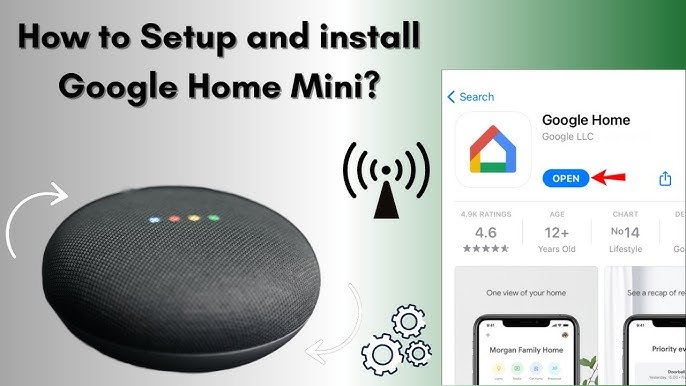
Setting up your Google Home Mini speaker is easier than you might think. Imagine having a smart assistant ready to play your favorite music, answer questions, and control your smart devices—all with just your voice.
In this guide, you’ll learn exactly how to get your Google Home Mini up and running quickly. By the end, you’ll be enjoying all the benefits of a smarter home without any hassle. Ready to make your life simpler? Let’s dive in!

Unboxing And Initial Checks
Setting up your Google Home Mini begins with unboxing and checking the device.
These first steps ensure you have all parts and the speaker is ready to use.
What’s In The Box
Check the package contents before starting the setup process.
- Google Home Mini speaker
- Power adapter with cable
- Quick start guide
- Safety and warranty information
Inspecting The Device
Look over the speaker for any damage or defects before use.
| Check | What to Look For |
|---|---|
| Speaker body | Clean surface, no cracks or dents |
| Power port | Free of debris and damage |
| Buttons | Responsive and intact |
| Fabric cover | No tears or stains |
Connecting To Power
To start using your Google Home Mini speaker, you need to connect it to power. This process is simple but important for the device to work properly.
Follow the instructions below to choose the right outlet and plug in your speaker safely.
Choosing The Right Outlet
Pick an outlet that is near your usual listening area. Avoid outlets that are hard to reach or behind furniture. Make sure the outlet provides a steady power supply without frequent interruptions.
- Use a standard 110-120V outlet for North America or 220-240V for other regions.
- Do not use outlets that are loose or damaged.
- Avoid outlets controlled by a switch that might turn off accidentally.
- Keep the area around the outlet dry and clean.
Plugging In The Speaker
Use the power adapter that came with your Google Home Mini. Connect the small end of the cable to the speaker’s power port. Then, plug the adapter into the chosen outlet.
| Action | Details |
| Connect cable | Insert the USB end into the speaker’s power port firmly. |
| Plug adapter | Insert the power adapter into the wall outlet securely. |
| Check power | Look for lights on the speaker to confirm it has power. |
| Adjust position | Move the speaker slightly if the cable is tight or stressed. |
Downloading The Google Home App
To set up your Google Home Mini speaker, you need the Google Home app. This app helps connect the speaker to your Wi-Fi and control its settings.
Downloading the app is the first step before you start using your new device.
Where To Find The App
You can find the Google Home app on the main app stores for your device. It is free to download and works on both Android and iOS devices.
- Google Play Store for Android phones and tablets
- Apple App Store for iPhones and iPads
- Compatible devices include most smartphones and tablets running recent operating systems
Installing On Your Device
After finding the app, install it by following simple steps. The process takes only a few minutes.
| Action | Details |
| Open Store | Launch Google Play or App Store on your device |
| Search | Type "Google Home" in the search bar |
| Select | Tap the Google Home app in the results |
| Install | Press the install or get button |
| Open | Once installed, open the app to begin setup |
Setting Up The Speaker
Setting up your Google Home Mini speaker is easy. This guide will help you connect it to your phone and Wi-Fi.
Follow the steps below to get your speaker ready for use in just a few minutes.
Launching The App
Start by downloading the Google Home app on your phone. It works on both Android and iOS devices.
Open the app after installing it to begin setting up your speaker.
Adding A New Device
In the Google Home app, tap the plus (+) icon to add a new device. This lets the app search for your Google Home Mini.
Select “Set up device” and then choose “New devices” in your home. The app will find the speaker nearby.
- Make sure your phone’s Bluetooth is on
- Keep the speaker plugged in and powered on
- Wait for the app to detect the device
Connecting To Wi-fi
After the device is found, the app will ask you to choose a Wi-Fi network. Connect the speaker to your home Wi-Fi.
Enter your Wi-Fi password if needed. The speaker will use this connection to work properly.
- Choose the same Wi-Fi network your phone uses
- Enter the correct Wi-Fi password
- Wait for the confirmation that the speaker is online
Personalizing Voice Settings
Setting up your Google Home Mini includes customizing how it understands and responds to you. Personalizing voice settings makes your experience smoother and more accurate.
This guide covers how to set up Voice Match and choose your preferred language for better interaction.
Voice Match Setup
Voice Match lets Google Home recognize your voice and give personalized answers. You must train it by repeating certain phrases.
- Open the Google Home app on your phone.
- Tap your profile icon and select Voice Match.
- Follow the prompts to say phrases aloud.
- Finish setup to let the device recognize your voice.
After setup, Google Home Mini will respond only to recognized voices, protecting your privacy.
Choosing Your Language
Choosing the right language helps Google Home understand you clearly. You can select from many available languages.
| Language | Notes |
|---|---|
| English (US) | Standard American English |
| English (UK) | British English accent |
| Spanish | Popular in many countries |
| French | Works well in France and Canada |
Change language anytime in the Google Home app under device settings.
Linking Music And Services
Your Google Home Mini can play your favorite tunes. Connect music services for a seamless experience.
Learn how to link streaming accounts and set a default music service.
Connecting Streaming Accounts
Linking your streaming accounts to Google Home Mini is simple. Follow these steps to enjoy unlimited music.
- Open the Google Home app on your phone.
- Tap on the device you want to set up.
- Select "Settings" and then "Music".
- Choose your preferred music service and log in.
Setting Default Music Service
Set a default music service to make it easier for Google Home Mini to play your favorite tracks.
- Open the Google Home app.
- Go to "Settings" and select "Music".
- Tap the radio button next to your preferred service to set it as default.
Now, you can play music with voice commands. Enjoy listening to your favorite songs anytime.
Testing Your Google Home Mini
After setting up your Google Home Mini, testing it ensures everything works. This step helps you know if it responds to your commands.
Testing involves checking basic voice commands and resolving any issues. Follow these steps to make sure your device is ready.
Basic Voice Commands
Start by trying simple voice commands. These help you interact with your Google Home Mini easily.
- Say "Hey Google, what time is it?"
- Ask "Hey Google, play some music."
- Try "Hey Google, what's the weather today?"
If your device responds correctly, your setup is successful. Practice these commands to get familiar with your speaker.
Troubleshooting Common Issues
Sometimes, your Google Home Mini may not work properly. Troubleshooting helps fix these problems quickly.
First, check if your device is plugged in and connected to Wi-Fi. Restart it if needed.
- If it doesn't respond, check the volume is up.
- Ensure the microphone is not muted.
- Reboot your router if Wi-Fi issues persist.
These steps should resolve most common issues. If problems continue, check for more help online.
Tips For Daily Use
Google Home Mini is easy to use every day. It helps with tasks and answers questions quickly.
Using simple commands makes your day smoother. Learn how to get the most from your speaker.
Custom Routines
Custom routines let you do many things with one command. You can set actions like playing music or turning lights on.
Create routines for morning, evening, or any time you want. This saves time and keeps things organized.
- Say "Good morning" to hear news and weather
- Set a routine to turn off smart lights and lock doors
- Add reminders or calendar events to your routine
- Use voice commands to start routines easily
Controlling Smart Home Devices
You can control smart home devices with Google Home Mini. Use your voice to adjust lights, thermostats, and more.
Connect compatible devices to your Google Home app. Then ask the speaker to manage them for you.
- Say "Turn on the living room light"
- Adjust temperature by saying "Set thermostat to 72 degrees"
- Control smart plugs to power devices on or off
- Use voice commands to check device status

Frequently Asked Questions
How Do I Connect Google Home Mini To Wi-fi?
To connect Google Home Mini to Wi-Fi, open the Google Home app. Follow the setup prompts, select your Wi-Fi network, and enter the password. Ensure your phone is connected to the same Wi-Fi for smooth setup.
What App Is Needed To Set Up Google Home Mini?
The Google Home app is required to set up your Google Home Mini. It is available for free on both iOS and Android devices. The app guides you through device setup and customization.
How To Reset Google Home Mini To Factory Settings?
To reset Google Home Mini, press and hold the factory reset button under the device for about 15 seconds. Release when you hear a confirmation sound. This erases all settings, allowing you to start fresh.
Can I Use Google Home Mini Without A Google Account?
No, a Google account is necessary to use Google Home Mini. It enables personalized responses and access to Google services. You must sign in during the setup process.
Conclusion
Setting up your Google Home Mini is simple and quick. Just follow the steps carefully. Now, you can enjoy hands-free help around your home. Ask questions, play music, or control smart devices easily. This small speaker adds convenience to your daily life.
Keep exploring its features to get the most out of it. Stay connected and make your tasks easier every day. Your Google Home Mini is ready to assist you anytime.