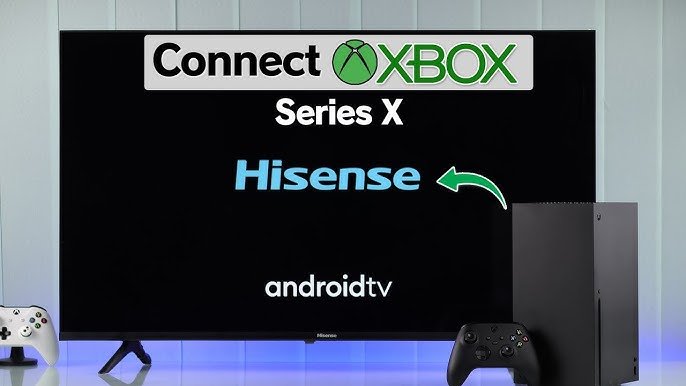
Looking to connect your Xbox to your TV but not sure where to start? You’re in the right place.
Setting up your Xbox the right way can make all the difference in your gaming experience. Imagine jumping straight into your favorite games with crisp visuals and smooth gameplay. In this guide, you’ll find simple, step-by-step instructions that anyone can follow.
Whether you’re a beginner or just need a quick refresher, we’ll help you get your Xbox hooked up quickly and easily. Keep reading to unlock the full potential of your gaming setup!

Prepare Your Xbox And Tv
Connecting your Xbox to a TV is simple with the right preparation. First, you need to check your Xbox model and accessories. Then, inspect your TV ports and compatibility.
This guide helps you get ready before plugging in any cables. It saves time and avoids connection issues later.
Check Xbox Model And Accessories
Different Xbox models may need different cables or adapters. Knowing your model helps you prepare the right tools.
- Look at the Xbox label on the back or bottom for the model name.
- Common models include Xbox One, Xbox Series X, and Xbox Series S.
- Check if you have an HDMI cable or need to buy one.
- Gather the power supply and any controllers you want to use.
Inspect Tv Ports And Compatibility
Check your TV to find the right port for the Xbox connection. Most Xbox consoles use HDMI ports for video and audio.
| TV Port Type | Description | Use with Xbox |
| HDMI | High-Definition Multimedia Interface | Best option for Xbox connection |
| Component | Red, Green, Blue video cables plus audio | Older Xbox models only, needs adapter |
| Composite | Yellow video plus red and white audio cables | Lowest quality, use only if no HDMI |
Connect Hdmi Cable
Connecting your Xbox to your TV is simple with an HDMI cable. This cable sends both video and audio signals.
Make sure to connect the cable properly to enjoy clear picture and sound during your game time.
Locate Hdmi Ports On Xbox And Tv
First, find the HDMI port on the back of your Xbox console. It is a small, flat slot labeled "HDMI Out."
- Check the back of your TV for HDMI ports. They are usually on the side or back panel.
- Look for labels like "HDMI 1," "HDMI 2," or "HDMI ARC."
- Choose a free HDMI port to connect your Xbox.
Plug In Hdmi Cable Securely
After locating the ports, plug one end of the HDMI cable into the Xbox HDMI Out port.
Then, plug the other end into the chosen HDMI port on your TV.
| Action | Details |
| Insert HDMI into Xbox | Push the HDMI plug gently but firmly into the Xbox port. |
| Insert HDMI into TV | Connect the other end into your TV’s free HDMI port. |
| Check connection | Ensure both ends fit tightly to avoid loose connections. |
Power Up And Switch Inputs
Connecting your Xbox to your TV is simple. First, you need to power on both devices. Then, select the correct HDMI input on your TV. This guide will help you do both quickly.
Turn On Xbox And Tv
Make sure your Xbox is plugged into a power source. Press the power button on the console or the Xbox controller to turn it on. Next, press the power button on your TV remote or TV itself to turn it on.
- Check that Xbox power cable is connected
- Press Xbox console power button or controller button
- Turn on your TV using the remote or power button
Select Correct Hdmi Input On Tv
Your TV has several HDMI inputs. You need to choose the one where your Xbox is connected. Use your TV remote to find and select the right input source.
| TV Remote Button | Function |
| Input or Source | Open input menu to select HDMI port |
| Arrow Keys | Navigate through input options |
| OK or Select | Confirm the chosen HDMI input |
Configure Xbox Display Settings
After connecting your Xbox to the TV, you need to adjust the display settings. This ensures the best picture quality and smooth gameplay.
Xbox display settings help match your TV's capabilities. This improves your viewing experience and makes games look clearer.
Adjust Resolution And Display Options
Set the screen resolution to fit your TV. Xbox supports several resolutions like 720p, 1080p, and 4K. Choose the one your TV shows best.
You can also change display options like screen refresh rate and video fidelity. These settings make gameplay smoother and sharper.
- Go to Settings > General > TV & display
- Select Resolution and pick the best option for your TV
- Set Refresh rate to 60Hz or higher if supported
- Adjust display scaling to fit your screen
Enable Hdr And Other Features
HDR improves color and contrast on compatible TVs. Turn it on to see richer colors and deeper blacks in games and videos.
You can also enable features like Auto Low Latency Mode (ALLM) and Variable Refresh Rate (VRR). These reduce lag and screen tearing.
- Go to Settings > General > TV & display
- Turn on Allow HDR10 and Auto HDR
- Enable Auto Low Latency Mode (ALLM) if your TV supports it
- Turn on Variable Refresh Rate (VRR) for smoother gameplay
Set Up Audio For Gaming
Setting up audio for your Xbox is important for a good gaming experience. You can choose different ways to connect your audio devices.
Follow these simple steps to connect your Xbox to your TV and set up the audio correctly.
Choose Audio Output On Xbox
First, you need to choose the audio output on your Xbox. This will help you get the best sound for your games.
- Go to the Xbox home screen.
- Open the settings menu.
- Select "Display & Sound".
- Choose "Audio Output".
- Select your preferred audio format.
Connect External Speakers Or Headphones
You can connect external speakers or headphones for better sound. This makes your gaming more immersive.
For wired connections, use the audio jack on your Xbox controller. For wireless, pair your Bluetooth headphones with the Xbox.
| Connection Type | Device Needed |
| Wired | Audio Jack Cable |
| Wireless | Bluetooth Headphones |

Troubleshoot Common Connection Issues
Connecting your Xbox to the TV can sometimes be tricky. Issues may arise that prevent a smooth setup.
We will explore common problems and how to fix them. This guide aims to help you solve these issues quickly.
No Signal On Tv
If your TV shows "No Signal," check the HDMI connection first. Ensure the cable is securely connected to both Xbox and TV.
- Verify the TV is set to the correct HDMI input.
- Try using a different HDMI cable.
- Restart both the Xbox and the TV.
Audio Problems
Audio issues can be frustrating. Check the TV volume and mute settings first. Ensure your Xbox is not muted.
Sometimes, you may need to adjust the audio settings on your Xbox. Go to the settings menu and choose "Audio Output."
Display Resolution Errors
Incorrect display resolution can affect your gaming experience. Set the right resolution for your TV and Xbox.
| Resolution | Recommended Devices |
| 720p | Older TVs |
| 1080p | HD TVs |
| 4K | Ultra HD TVs |
To change the resolution, go to Xbox settings. Select "Display & Sound" and then "Video Output" to adjust settings.
Enhance Gaming Experience
Connecting your Xbox to a TV is easy and improves your gameplay. A good setup helps you enjoy games with better visuals and sound. Simple steps can boost your gaming comfort and fun.
After hooking up your Xbox, using the right accessories and a strong network makes a big difference. Let’s see how these tips can help you get the most from your Xbox on TV.
Use Xbox Accessories
Xbox accessories add comfort and improve control. They make gaming easier and more immersive. Choose the right tools for your play style.
- Wireless controllers for freedom of movement
- Headsets for clear game sounds and chat
- Charging docks to keep controllers ready
- External hard drives for more game storage
- Steering wheels and pedals for racing games
Optimize Network Connection
A fast, stable network connection improves online gaming. It reduces lag and keeps your games smooth. Use the best connection options to avoid interruptions.
| Connection Type | Speed | Stability | Best Use |
|---|---|---|---|
| Wired Ethernet | High | Very Stable | Online multiplayer games |
| 5 GHz Wi-Fi | Medium-High | Stable | Single-player and casual games |
| 2.4 GHz Wi-Fi | Medium | Less Stable | Streaming and downloads |

Frequently Asked Questions
How Do I Connect Xbox To Tv With Hdmi?
Use an HDMI cable to connect your Xbox to the TV's HDMI port. Turn on both devices. Select the correct HDMI input on your TV to display the Xbox screen.
Can I Use Xbox With A Smart Tv Wirelessly?
Yes, some smart TVs support wireless Xbox streaming via the Xbox app or Miracast. Both devices must be on the same Wi-Fi network for this to work.
What If Xbox Doesn’t Show On My Tv Screen?
Check the HDMI cable connection and ensure the TV input matches the Xbox port. Restart both devices and try a different HDMI cable if needed.
Do I Need Extra Adapters To Connect Xbox To Tv?
Usually no. Xbox consoles come with HDMI output, which works with most modern TVs. Use an adapter only if your TV lacks an HDMI port.
Conclusion
Connecting your Xbox to a TV is simple and quick. Just follow the steps carefully. Use the right cables and ports for the best picture. Turn on both devices and adjust settings if needed. Now, enjoy your games on a bigger screen.
Playing feels better this way. No extra tools or skills needed. Just plug in and start having fun. Easy setup means more time for gaming. You’re ready to play anytime.