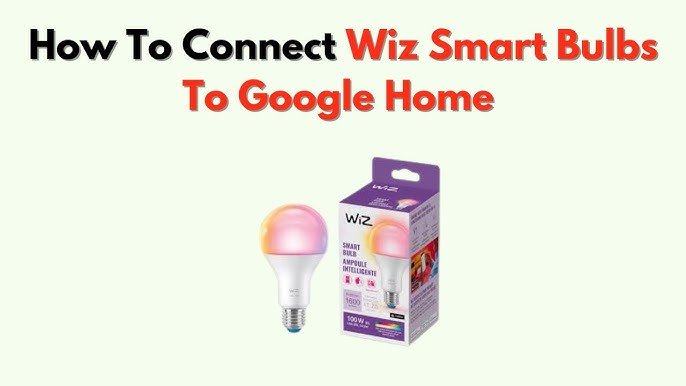
Imagine controlling the lights in your home with just your voice. Sounds convenient, right?
If you’ve got a smart bulb and want to connect it to Google Home, you’re in the right place. This simple step-by-step guide will show you exactly how to link your smart bulb to Google Home, so you can turn your lights on or off, dim them, or even change colors without lifting a finger.
By the end, you’ll have a smarter, more comfortable home that responds to your commands instantly. Ready to transform your lighting experience? Let’s get started!
Choose Compatible Smart Bulbs
Choosing the right smart bulb is key for a smooth connection with Google Home. Not all smart bulbs work with Google Home. It is important to pick bulbs that are compatible.
This guide helps you check compatibility and shows popular brands that work well with Google Home.
Check Google Home Compatibility
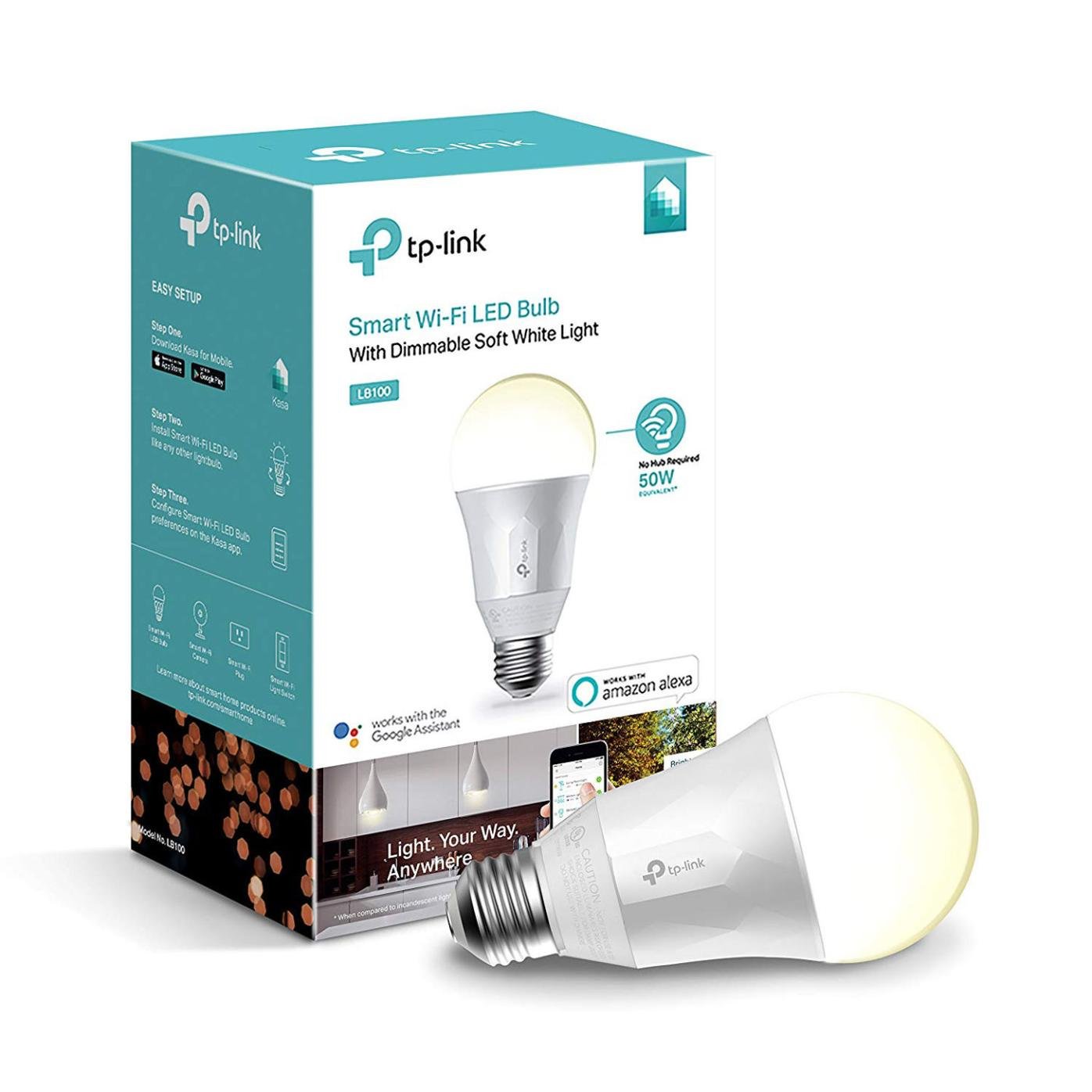
Google Home supports many smart bulbs, but you must verify before buying. Look for bulbs that mention "Works with Google Assistant" on the box or product page.
- Confirm the bulb supports Google Assistant integration.
- Check if the bulb connects via Wi-Fi or requires a hub.
- Review the app needed to control the bulb and if it links with Google Home.
- See if the bulb supports voice commands through Google Home.
Popular Smart Bulb Brands
Several well-known brands offer smart bulbs that work smoothly with Google Home. These brands are trusted for their compatibility and easy setup.
| Brand | Type | Connectivity | Google Home Support |
| Philips Hue | LED | Wi-Fi/Hub | Yes |
| LIFX | LED | Wi-Fi | Yes |
| TP-Link Kasa | LED | Wi-Fi | Yes |
| Wyze Bulb | LED | Wi-Fi | Yes |
| Yeelight | LED | Wi-Fi | Yes |

Credit: www.amazon.com
Prepare Your Devices
Connecting a smart bulb to Google Home needs some preparation. You must get your devices ready first.
Make sure everything is nearby and fully charged or plugged in. This helps avoid problems during setup.
Set Up Google Home Device
Place your Google Home device in a central spot with good Wi-Fi. Plug it into a power outlet and turn it on.
- Download the Google Home app on your smartphone.
- Open the app and sign in with your Google account.
- Follow the app instructions to connect Google Home to your Wi-Fi.
- Wait for Google Home to confirm setup is complete.
Install Smart Bulb And Power On
Screw the smart bulb into the lamp or socket. Make sure the power switch is on to light the bulb.
| Action | Details |
| Insert Bulb | Screw into lamp or ceiling socket |
| Power On | Switch on the light power |
| Check Light | Confirm the bulb lights up |
| Reset if Needed | Follow bulb instructions to reset if not detected |
Connect Smart Bulb To Wi-fi
Connecting a smart bulb to Wi-Fi lets you control it with Google Home. This makes using your smart bulb easy and convenient.
To start, ensure your smart bulb is compatible with Google Home. You'll need to connect it to your Wi-Fi network first.
Download Manufacturer’s App
To connect your smart bulb, download the app from the bulb’s manufacturer. Find the app in the Google Play Store or Apple App Store.
The app will guide you through the process of connecting your smart bulb to Wi-Fi. Make sure your phone is on the same Wi-Fi network as your bulb.
Follow In-app Setup Steps
Open the app and create an account if needed. Follow the instructions to set up your smart bulb.
The app will prompt you to connect the bulb to your Wi-Fi. Enter your Wi-Fi name and password when asked.
- Ensure the bulb is turned on
- Wait for the bulb to blink or change color
- Confirm the connection in the app
Credit: gazette.com
Link Smart Bulb With Google Home
Connecting your smart bulb to Google Home lets you control lights with voice commands. This guide shows how to link your bulb step-by-step.
Make sure your smart bulb is powered on and connected to your home Wi-Fi before starting the setup.
Open Google Home App
Begin by opening the Google Home app on your smartphone or tablet. Use the same Google account you use for your Google Home device.
Add New Device
Tap the plus icon (+) in the top left corner of the app. Then select "Set up device" to start adding your smart bulb.
- Choose "New device" to add a device to your home.
- Select your home location if asked.
- Wait for the app to search for your smart bulb.
- Follow on-screen instructions to connect the bulb to Wi-Fi.
Select Manufacturer’s Service
After connecting the bulb, link it through its manufacturer’s service. This allows Google Home to control the bulb fully.
- Tap "Works with Google" in the Google Home app settings.
- Search for your bulb’s brand or service provider.
- Sign in with your account linked to the smart bulb.
- Grant permissions to allow Google Home control.
| Action | Description |
|---|---|
| Open Google Home App | Launch the app and log in with your Google account. |
| Add New Device | Use the plus (+) icon to find and connect your smart bulb. |
| Select Manufacturer’s Service | Link the bulb’s brand account for full control. |
Control Smart Bulb With Voice
Connecting your smart bulb to Google Home lets you control lights using your voice. This makes managing your lighting easier and more convenient.
You can turn lights on or off, adjust brightness, and change colors just by speaking commands to Google Assistant.
Use Basic Voice Commands
Once your smart bulb is linked to Google Home, you can use simple voice commands to control it. Speak clearly for the best results.
Basic commands include turning the bulb on or off and adjusting the brightness level.
- Say "Hey Google, turn on the living room light."
- Say "Hey Google, turn off the bedroom light."
- Say "Hey Google, dim the kitchen light to 50%."
- Say "Hey Google, brighten the lamp."
Customize Bulb Settings
You can also change the color and set schedules for your smart bulb using voice commands. This helps create the right mood or save energy.
Tell Google Home to change the color or set timers without using your phone.
- Say "Hey Google, set the light to blue."
- Say "Hey Google, make the light warmer."
- Say "Hey Google, set the bedroom light to turn off at 10 PM."
- Say "Hey Google, change the light to red for 10 minutes."
Troubleshoot Common Issues
Connecting a smart bulb to Google Home can sometimes cause problems. You may face issues with connection or app syncing.
This guide helps you fix common problems and get your smart bulb working smoothly.
Connection Problems
Smart bulbs may fail to connect to Google Home due to weak Wi-Fi or incorrect settings. Check if your Wi-Fi network is stable and the bulb is near the router.
Make sure your Google Home and smart bulb are on the same Wi-Fi network. Also, confirm the bulb supports Google Home integration.
- Check Wi-Fi signal strength near the bulb
- Verify both devices use the same network
- Restart your router and smart bulb
- Update the bulb’s firmware if possible
App Sync Errors
Your smart bulb may not sync with the Google Home app properly. This can happen if the app is outdated or if you are logged into the wrong account.
Try closing and reopening the app. Check that your app version is up to date. Also, confirm you are signed into the same Google account as your Google Home device.
- Force close and reopen the Google Home app
- Update the app from your app store
- Sign out and sign back into your Google account
- Clear the app cache if issues continue
Resetting The Smart Bulb
If your smart bulb still does not connect, try resetting it. Resetting deletes old settings and lets you start fresh.
The reset process varies by brand. Usually, it involves turning the bulb on and off several times in a row.
- Turn the bulb on and off 3-5 times quickly
- Watch for a blinking light that shows reset
- Open the Google Home app to add the bulb again
- Follow the setup prompts carefully

Credit: www.amazon.com
Frequently Asked Questions
How Do I Connect A Smart Bulb To Google Home?
To connect, open the Google Home app and tap "Add. " Select "Set up device," then "Works with Google. " Find your bulb’s brand and follow the on-screen instructions to link your account. Once linked, you can control the bulb via Google Home.
What Are The Steps To Sync Smart Bulbs With Google Home?
First, ensure your bulb is powered and connected to Wi-Fi. Open Google Home, choose "Add," then "Set up device. " Select your bulb’s brand under "Works with Google. " Log in to the bulb’s app account. Your bulb will sync and appear in Google Home.
Can I Control Multiple Smart Bulbs With Google Home?
Yes, Google Home supports multiple smart bulbs. You can group bulbs by room or zone in the app. Control them together or individually using voice commands or the Google Home app. This setup simplifies managing several bulbs at once.
What Should I Do If Google Home Doesn’t Find My Smart Bulb?
If your bulb isn’t found, check its Wi-Fi connection and power status. Restart both the bulb and Google Home device. Ensure the bulb’s app account is linked correctly in Google Home. Update apps and firmware to the latest version for better compatibility.
Conclusion
Connecting a smart bulb to Google Home is simple and quick. Follow the steps carefully to ensure a smooth setup. Once connected, control your lights with voice commands easily. This adds comfort and convenience to your daily life. Enjoy hands-free lighting without any hassle.
Start using your smart bulb with Google Home today and see the difference.