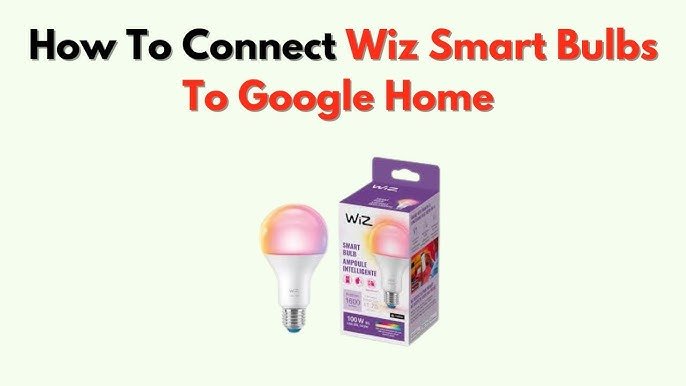
Imagine controlling your lights with just your voice—no switches, no hassle. If you’ve ever wanted to make your home smarter and more convenient, connecting a light bulb to Google Home is a simple step that can transform your daily routine.
Whether you want to set the perfect mood, save energy, or just impress guests, this guide will walk you through every step. By the end, you’ll have your lights responding to your commands like magic. Ready to bring your home into the future?
Let’s get started.
Choosing Compatible Smart Bulbs
Connecting a light bulb to Google Home needs the right smart bulb. Not all bulbs work with Google Home. Picking a compatible bulb makes setup easier and use smoother.
This guide explains different smart bulbs, brands that work with Google Home, and features to check before buying.
Types Of Smart Bulbs
Smart bulbs come in many types. Each type fits different needs and setups. Some bulbs need a hub, and others connect directly to Wi-Fi.
- Wi-Fi Bulbs:Connect directly to your home Wi-Fi. No extra hub needed.
- Bluetooth Bulbs:Link through Bluetooth. Best for small areas.
- Zigbee Bulbs:Require a hub or bridge to connect with Google Home.
- Z-Wave Bulbs:Also need a hub. Less common but very reliable.
Brands That Work With Google Home
Several brands offer smart bulbs that connect easily to Google Home. Choosing a known brand helps with support and compatibility.
| Brand | Connection Type | Google Home Support |
| Philips Hue | Zigbee (with Hue Bridge) | Yes |
| LIFX | Wi-Fi | Yes |
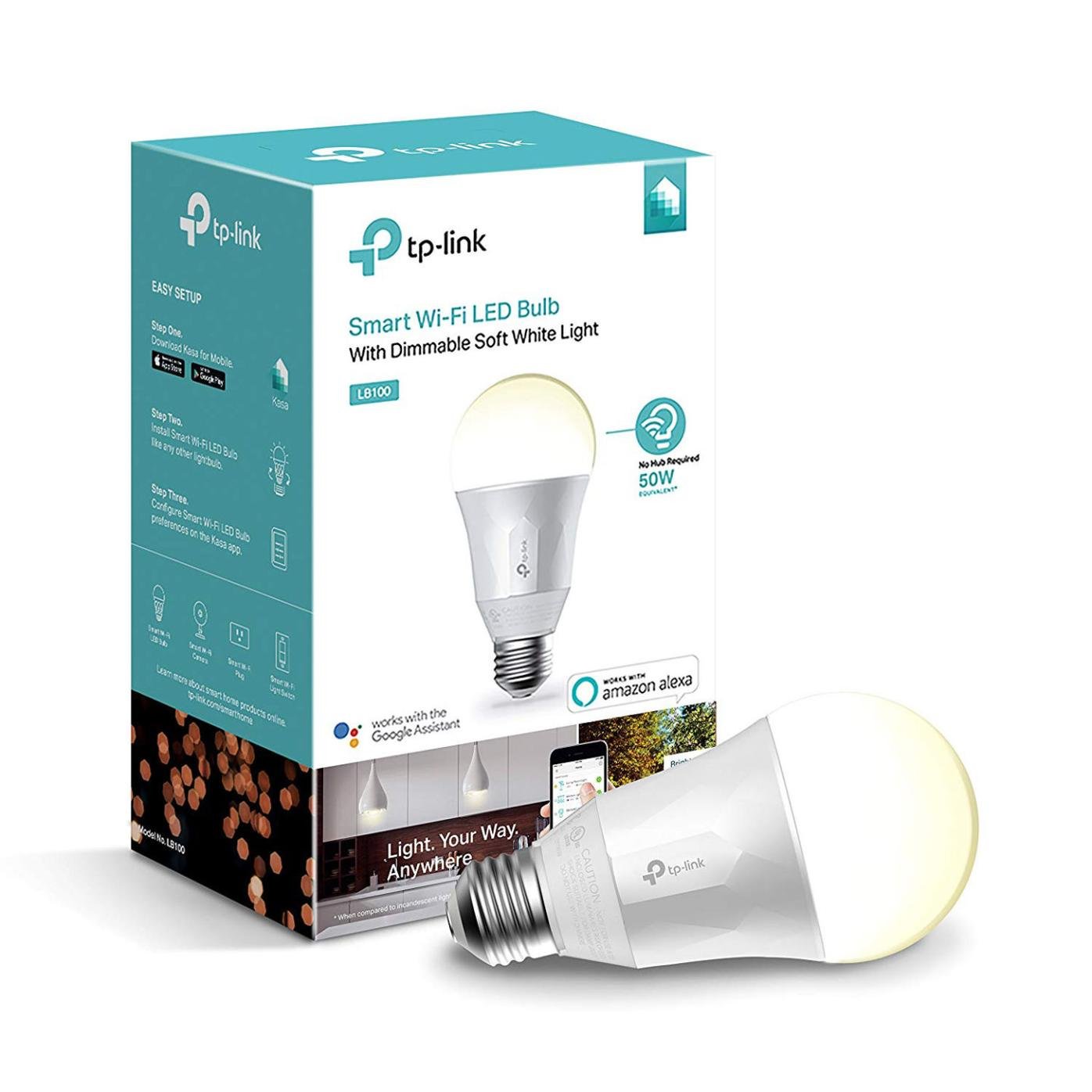
| TP-Link Kasa | Wi-Fi | Yes |
| Nanoleaf | Wi-Fi | Yes |
| Yeelight | Wi-Fi | Yes |
Features To Consider
Look for features that fit your needs. Some bulbs offer extra control and customization.
- Color Options: Choose bulbs that can change colors if you want mood lighting.
- Dimmable: Most smart bulbs allow dimming for soft or bright light.
- Voice Control: Ensure the bulb fully supports Google Home voice commands.
- Energy Usage: Check if the bulb is energy-efficient to save power.
- App Control: A good app helps you control bulbs even when away from home.

Credit: www.amazon.ca
Preparing Your Devices
Connecting your light bulb to Google Home needs some preparation. You must get your devices ready first.
This guide helps you prepare your light bulb, Wi-Fi, and Google Home app for easy setup.
Setting Up The Light Bulb
Start by installing the smart light bulb in a suitable lamp or fixture. Make sure the bulb fits well and is powered off before installation.
After installation, turn on the power switch to activate the bulb. The bulb should show a blinking light, indicating it is ready to connect.
Ensuring Stable Wi-fi Connection
A steady Wi-Fi connection is important for your devices to communicate smoothly. Check your Wi-Fi speed and signal strength near the bulb.
- Use a 2.4 GHz Wi-Fi network, as most bulbs do not support 5 GHz.
- Place your router close to the bulb or use a Wi-Fi extender if needed.
- Restart your router if the connection feels slow or unstable.
- Make sure your Wi-Fi password is handy for setup.
Installing The Google Home App
Download and install the Google Home app on your smartphone or tablet. This app helps you control your smart devices.
| Device | App Store |
| Android | Google Play Store |
| iOS | Apple App Store |
Open the app and sign in with your Google account. Make sure your phone is connected to the same Wi-Fi network you plan to use for the light bulb.
Connecting Bulb To Google Home
Connecting your light bulb to Google Home lets you control it with your voice. This guide shows how to link and use your bulb easily.
You can control the bulb without switches once it is connected. Follow simple steps to set it up.
Linking Through Google Home App
Open the Google Home app on your phone. Make sure your bulb is powered on and near your device.
Tap the "+" icon to add a new device. Choose "Set up device" then "Works with Google."
- Search for your bulb’s brand in the list
- Sign in with your bulb account if required
- Follow on-screen instructions to link the bulb
- Assign the bulb to a room for easy control
Using Voice Commands To Control
Once linked, you can use voice commands to turn the bulb on or off. You can also change brightness and color.
- Say "Hey Google, turn on the bedroom light."
- Ask "Hey Google, dim the living room light to 50%."
- Try "Hey Google, change the kitchen light to blue."
Voice commands make it easy to manage your lights without using your phone or switches.
Troubleshooting Connection Issues
If your bulb does not connect, check your Wi-Fi and power. Make sure the bulb is in pairing mode.
Restart the Google Home app or your phone if the bulb is not found during setup.
- Ensure your Wi-Fi is 2.4 GHz if the bulb needs it
- Reset the bulb by turning it off and on several times
- Update the Google Home app to the latest version
- Move the bulb closer to your router if the signal is weak
Credit: gazette.com
Customizing Your Smart Lighting
Connecting your light bulb to Google Home lets you control your lights easily. You can set schedules, change colors, and group bulbs for a better experience.
These features help you create the perfect lighting in any room. Let’s explore how to customize your smart lighting using Google Home.
Creating Lighting Schedules
Set lighting schedules to turn your bulbs on or off at specific times. This adds convenience and saves energy.
- Open the Google Home app on your phone.
- Select your light bulb device.
- Tap on “Routines” or “Schedules.”
- Choose the time to turn lights on or off.
- Save your schedule to activate it.
Adjusting Brightness And Color
You can change your bulb’s brightness and color to fit your mood or activity. Use voice commands or the Google Home app.
| Feature | How to Adjust | Example Command |
| Brightness | Slide brightness bar or say a command | "Hey Google, set the light to 50%" |
| Color | Choose color in app or speak color name | "Hey Google, change the light to blue" |
Grouping Multiple Bulbs
Group bulbs to control several lights at once. This works well in rooms with many bulbs or for whole-floor lighting.
To group bulbs:
- Open the Google Home app.
- Tap “Add” then “Create group.”
- Select the bulbs you want in the group.
- Name the group for easy control.
- Use voice commands like “Turn off the living room lights.”
Enhancing Smart Home Experience
Connecting a light bulb to Google Home makes your home smarter. You can control lights with your voice or phone.
This connection adds convenience and helps you manage your home easily. It also opens up many automation options.
Integrating With Other Smart Devices
Linking your smart bulb with other devices creates a connected home. Lights can work with sensors, cameras, and thermostats.
For example, lights can turn on when a motion sensor detects movement. Integration helps improve security and comfort.
- Pair bulbs with smart plugs for better control
- Use smart sensors to automate lighting
- Connect to smart cameras for alerts and lighting
Using Routines For Automation
Google Home routines let you automate light bulb actions. You can set schedules or trigger lights with voice commands.
For example, create a routine to turn off all lights at bedtime or turn on lights at sunset automatically.
- Set routines for morning and night lighting
- Use voice triggers to start routines quickly
- Combine with other devices for complex actions
Tips For Energy Savings
Smart bulbs help save energy by giving you better control. You can turn off lights remotely or set timers to avoid waste.
Use dimming features to lower brightness when full light is not needed. This reduces electricity use and extends bulb life.
- Turn off lights with Google Home when not in use
- Use timers to switch off lights automatically
- Dim lights to save power and create mood lighting

Credit: www.amazon.ca
Frequently Asked Questions
How Do I Connect A Light Bulb To Google Home?
To connect, first ensure your light bulb is smart and compatible. Open the Google Home app, tap “Add,” select “Set up device,” and choose your bulb’s brand. Follow the in-app instructions to link your bulb with Google Home for voice control.
Which Smart Bulbs Work With Google Home?
Most popular brands like Philips Hue, LIFX, and TP-Link support Google Home. Ensure the bulb supports Wi-Fi or Bluetooth and works with Google Assistant. Always check the packaging or product description for Google Home compatibility before buying.
Can I Control Multiple Bulbs With Google Home?
Yes, you can control multiple bulbs using Google Home. Group bulbs into rooms or zones within the app. This allows you to turn on, off, or dim all bulbs in a group with a single command.
What To Do If Google Home Won’t Find My Bulb?
Check if the bulb is powered on and connected to Wi-Fi. Ensure your phone and bulb are on the same network. Restart your router, bulb, and Google Home device, then try adding the bulb again in the app.
Conclusion
Connecting a light bulb to Google Home is simple and quick. Just follow the steps carefully, and you will control your lights by voice. Enjoy hands-free lighting that makes life easier. Smart home devices bring comfort and convenience to any space.
Start using your Google Home to brighten your home today. Small changes can make a big difference in daily routines. Keep exploring smart tech to improve your living space.