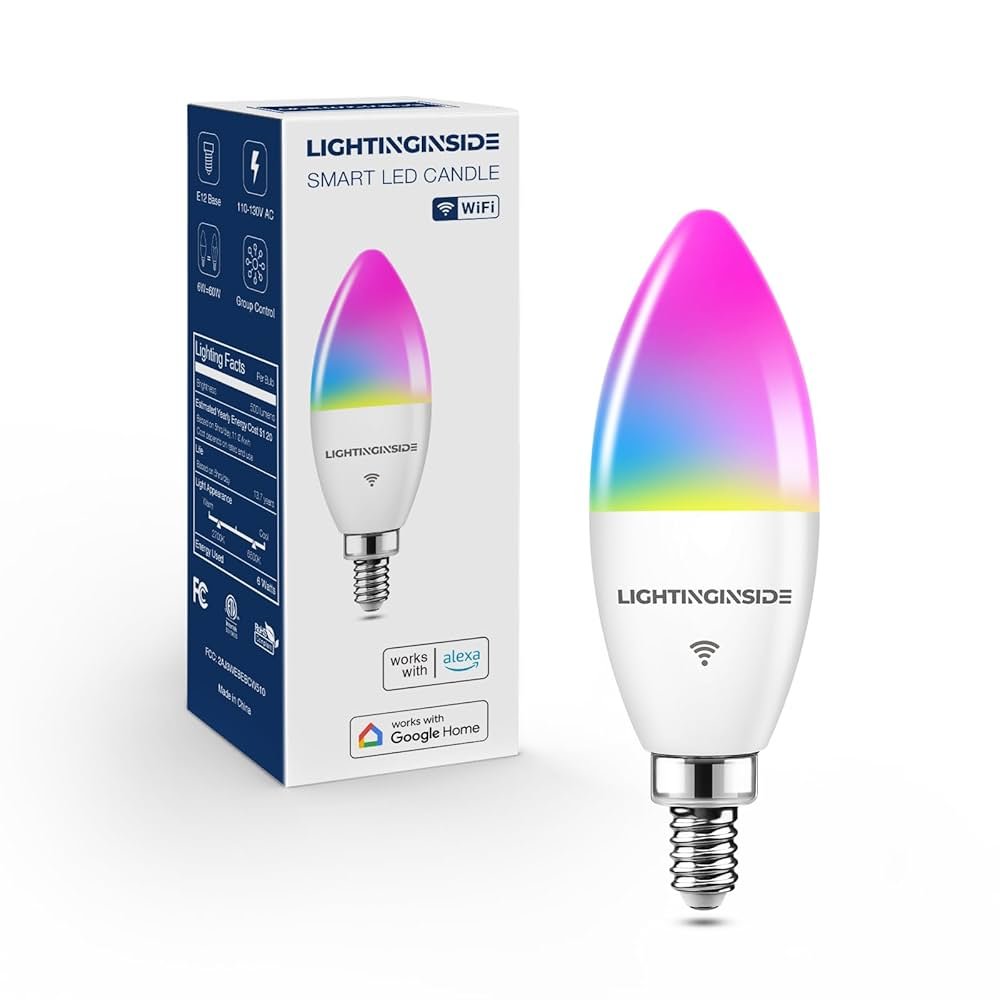
Are you wondering if your smart bulbs can connect seamlessly with Google Home? Imagine controlling your lights with just your voice—turning them on, dimming them, or changing colors without lifting a finger.
But does this convenience really work as smoothly as it sounds? If you’ve ever asked yourself, "Do smart bulbs work with Google Home? " You’re not alone. Keep reading to discover how these two technologies team up to make your home smarter and your life easier.
Smart Bulbs And Google Home
Smart bulbs let you control lighting with your voice. Google Home acts as a smart assistant that connects to these bulbs.
Using Google Home, you can turn lights on or off, change colors, and set schedules. This makes managing your home lighting simple.
How Smart Bulbs Connect
Smart bulbs connect to your home network using Wi-Fi or Bluetooth. Some use a special hub to link with your devices.
- Wi-Fi bulbs connect directly to your router.
- Bluetooth bulbs link to your phone or smart speaker nearby.
- Hub-based bulbs require a central device to communicate with Google Home.
Google Home Compatibility Basics
Not all smart bulbs work with Google Home. You need bulbs that support Google Assistant integration.
| Feature | Supported by Google Home |
| Voice control | Yes |
| Remote app control | Yes |
| Color change | Depends on bulb model |
| Scheduling | Yes |
| Hub required | Sometimes |
Popular Smart Bulb Brands
Smart bulbs are a great way to control your home's lighting with voice commands. Many brands offer smart bulbs that work well with Google Home.
These bulbs let you change colors, dim lights, and set schedules using simple voice controls through Google Home.
Philips Hue
Philips Hue is one of the most popular smart bulb brands. It offers a wide range of bulbs with different colors and brightness levels.
Philips Hue bulbs connect easily with Google Home. You can use voice commands to change colors or turn lights on and off.
- Supports millions of colors
- Works with Google Assistant
- Requires a Hue Bridge for full features
Lifx
LIFX smart bulbs do not need a hub to work. They connect directly to Wi-Fi and support Google Home control.
LIFX bulbs offer bright colors and good brightness. You can control them with your voice or the LIFX app.
- No hub needed
- Supports voice commands with Google Home
- High brightness and wide color range
Tp-link Kasa
TP-Link Kasa smart bulbs are budget-friendly and work well with Google Home. They connect through Wi-Fi without a hub.
Kasa bulbs let you dim lights and set schedules using Google Assistant voice control. The Kasa app also offers extra settings.
- Affordable smart bulbs
- Works with Google Home
- No hub needed
Sengled
Sengled offers smart bulbs that can work with or without a hub. Their bulbs support Google Home voice commands.
Sengled bulbs provide good lighting options and easy setup. Some models need a hub, while others connect directly to Wi-Fi.
- Options with or without hub
- Compatible with Google Assistant
- Easy installation and control
Setting Up Smart Bulbs With Google Home
Smart bulbs can work with Google Home to make your lighting easier to control. You can turn lights on or off with voice commands.
Setting up smart bulbs with Google Home is simple. It only takes a few steps to get started.
Installing The Bulbs
First, screw the smart bulb into a light socket. Make sure the power is off before installation.
Turn the power back on after installing the bulb. The bulb should light up or blink to show it is ready.
Linking Bulbs To Google Home App
Open the Google Home app on your phone. Sign in with your Google account if needed.
Tap the “Add” button and select “Set up device.” Choose “Works with Google” to find your bulb’s brand.
- Select your smart bulb brand from the list.
- Log in to your bulb account if asked.
- Follow the app instructions to connect the bulb.
- Name your bulb for easy control with voice commands.
Troubleshooting Setup Issues
If the bulb does not connect, check your Wi-Fi network. Make sure your phone and bulb use the same network.
Restart the bulb by turning it off and on. Restart the Google Home app if needed.
- Check the bulb is compatible with Google Home.
- Reset the bulb according to the manual.
- Update the Google Home app to the latest version.
- Move the bulb closer to the Wi-Fi router.

Credit: www.amazon.com
Controlling Bulbs With Voice Commands
Smart bulbs work well with Google Home for easy control. You can use your voice to turn lights on or off.
Voice commands make managing your lighting faster and more convenient. You do not need to use a phone or switch.
Basic Commands
You can give simple voice commands to control smart bulbs. These commands let you turn bulbs on or off quickly.
Some common basic commands include adjusting brightness or changing the light color.
- “Hey Google, turn on the living room light.”
- “Hey Google, turn off the bedroom light.”
- “Hey Google, dim the kitchen light to 50%.”
- “Hey Google, set the lamp to blue.”
Customizing Commands
You can create custom commands for your smart bulbs with Google Home. This helps you control lights with your own words.
Custom routines can combine multiple actions into one command for easier control.
- “Hey Google, movie time” to dim lights and close curtains
- “Hey Google, bedtime” to turn off all lights
- “Hey Google, reading light” to set a bright white light
Managing Multiple Bulbs
Google Home lets you control many smart bulbs at once. You can group bulbs by room or area for easy control.
Use voice commands to control all bulbs in a group or single bulbs separately.
- “Hey Google, turn off all lights.”
- “Hey Google, brighten the kitchen lights.”
- “Hey Google, set living room lights to warm white.”
Advanced Features And Integration
Smart bulbs can work well with Google Home. They offer many features that make lighting easy and smart. You can control lights with voice commands or apps.
Connecting smart bulbs to Google Home helps you use them with other devices. This makes your home more automated and convenient.
Scheduling And Automation
Smart bulbs let you set schedules to turn lights on or off at certain times. This works well with Google Home to keep your home lit when you need it.
You can automate your lights to match your daily routine. For example, lights can turn on in the morning and off at night without manual work.
Using Scenes And Routines
Scenes group different light settings into one command. You can create a scene for reading, relaxing, or watching TV.
Google Home routines let you control multiple devices, including smart bulbs, with one phrase. Say "Good night" to turn off lights and lock doors.
- Create scenes like bright, dim, or colorful lights
- Use routines to control lights and other devices together
- Activate scenes and routines by voice or app
Compatibility With Other Smart Devices
Smart bulbs work well with other smart home devices through Google Home. You can link bulbs with smart plugs, cameras, and thermostats.
This compatibility lets your devices work as a team. Lights can turn on when your smart camera detects motion or when you arrive home.
- Connect bulbs with smart cameras for security lighting
- Use smart plugs and bulbs together for energy savings
- Sync bulbs with smart thermostats for comfort and efficiency
Common Problems And Fixes
Smart bulbs are popular for their convenience. They work well with Google Home. Users sometimes face issues. Fixing these problems is often simple.
This guide helps with common issues. Learn about connectivity, response delays, and updates.
Connectivity Issues
Smart bulbs need a stable connection. Problems arise if the signal is weak. Ensure your Wi-Fi is strong.
Place your router in a central spot. Keep it away from thick walls. Check if the smart bulb is close enough to the router.
- Restart the router and smart bulb
- Ensure both are on the same network
- Use a Wi-Fi extender if needed
Response Delays
Response delays can be frustrating. Commands may take too long. This often happens due to network congestion.
Try reducing the number of devices on the network. This can help improve speed. Check the Google Home app for any updates.
- Limit active devices on Wi-Fi
- Check for app updates
- Restart the Google Home device
Firmware Updates
Firmware updates keep your devices running smoothly. Outdated firmware may cause issues. Regular updates are essential.
Check the smart bulb app for updates. Install them promptly. This will ensure compatibility with Google Home.
- Open the bulb's app to check updates
- Follow instructions to update firmware
- Restart the bulb after updating
Future Trends In Smart Lighting
Smart lighting technology is evolving rapidly. It offers convenience and energy savings. Google Home compatibility makes it even more appealing.
Let's explore the future trends in smart lighting. These trends focus on improved AI, energy efficiency, and ecosystem support.
Improved Ai Integration
AI integration in smart bulbs enhances user experience. It allows for personalized lighting settings. This adapts to your daily routines seamlessly.
- Smart bulbs learn your lighting preferences.
- AI can adjust lighting based on time of day.
- Voice commands become more intuitive.
Energy Efficiency Advances
Energy efficiency is a key focus. Smart bulbs help reduce electricity use. They provide long-lasting lighting solutions.
| Feature | Benefit |
| LED Technology | Lower energy consumption |
| Smart Scheduling | Reduces unnecessary usage |
| Dimming Options | Extends bulb life |
Expanding Ecosystem Support
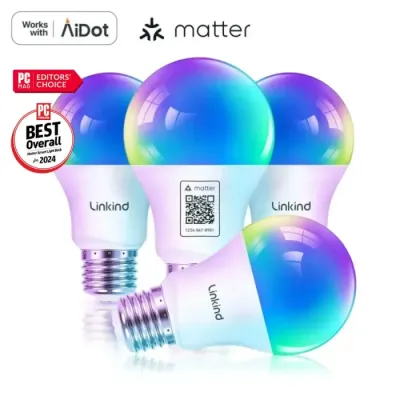
The ecosystem for smart bulbs is growing. More devices and platforms support integration. This makes it easier to create a smart home setup.

Credit: www.amazon.com
Credit: www.aidot.com
Frequently Asked Questions
Do Smart Bulbs Work With Google Home?
Yes, most smart bulbs are compatible with Google Home. You can control brightness, color, and power using voice commands. Integration requires connecting the bulb’s app with Google Home through the Google Home app for seamless control.
How To Connect Smart Bulbs To Google Home?
Open the Google Home app, tap ‘Add’, then ‘Set up device’. Choose your smart bulb brand and follow on-screen instructions. Ensure your bulb and phone are on the same Wi-Fi network for successful connection.
Can Google Home Control Multiple Smart Bulbs?
Yes, Google Home can control multiple smart bulbs simultaneously. You can group bulbs by room or zone and use voice commands to control them together or individually.
Are All Smart Bulbs Compatible With Google Home?
Not all smart bulbs are compatible. Check the product specifications for Google Home support. Popular brands like Philips Hue, LIFX, and TP-Link usually offer seamless integration.
Conclusion
Smart bulbs work well with Google Home for easy control. You can turn lights on or off with simple voice commands. Changing colors or brightness happens in seconds. Setup takes only a few minutes and is straightforward. Smart bulbs add convenience and comfort to any home.
They help save energy by allowing precise control. Using Google Home makes your lighting smarter and simpler. Try connecting smart bulbs to see how they fit your needs.