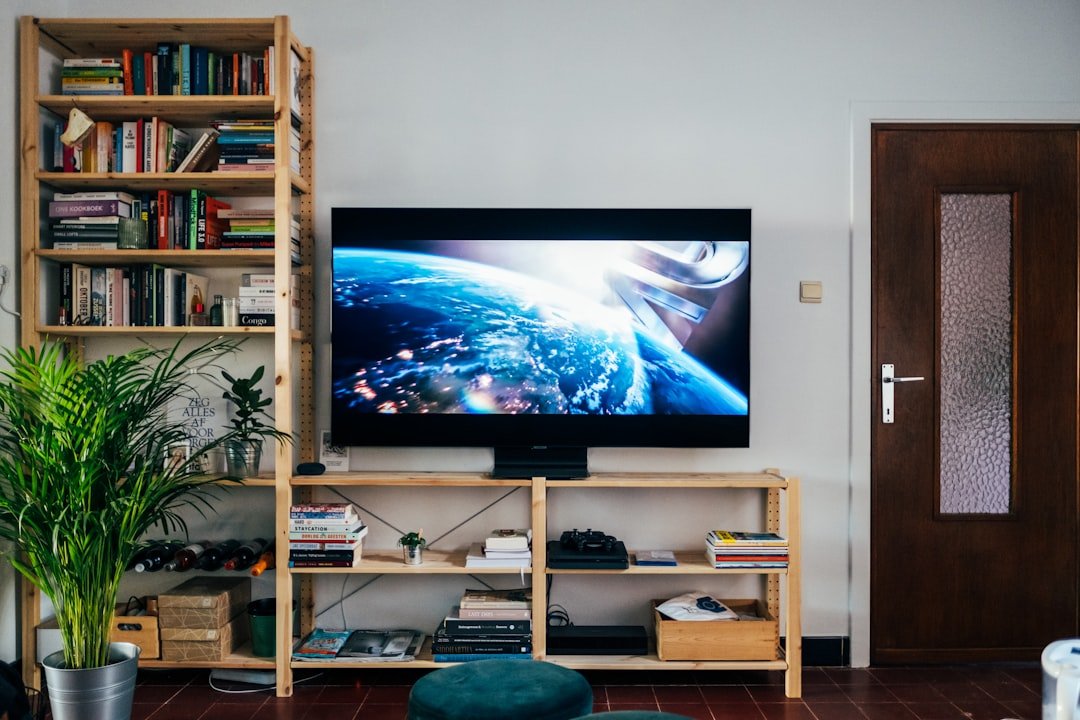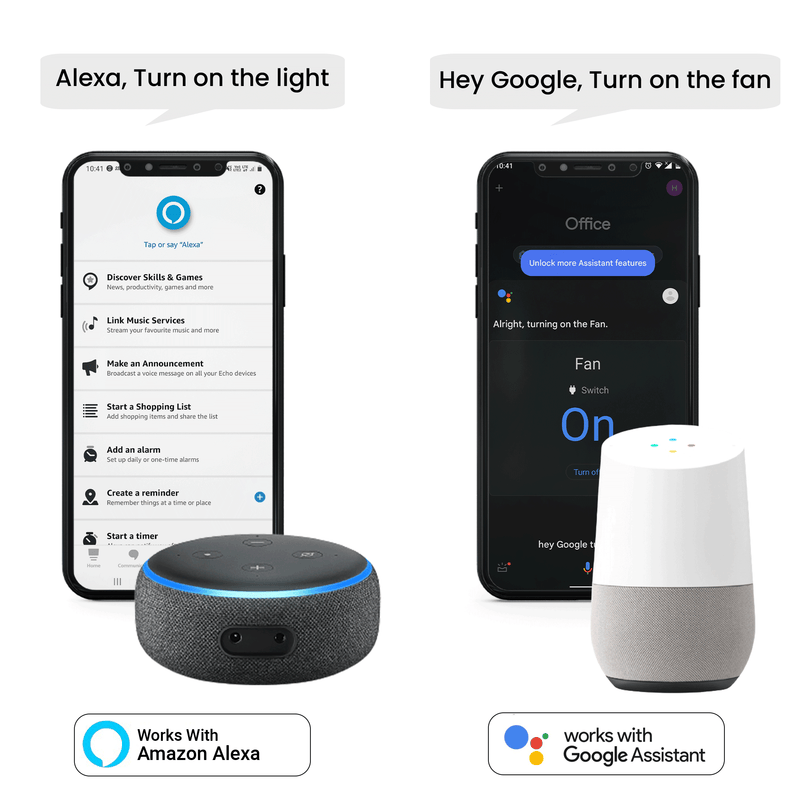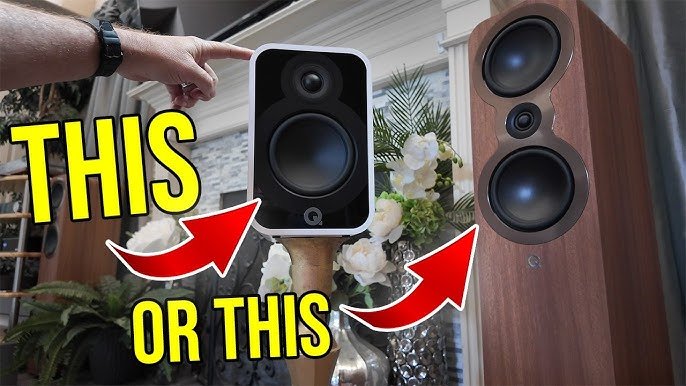
Imagine turning your living room into a full-fledged home theater without lifting more than a finger. With Google Home, you can control your entire home theater system using just your voice.
Whether you want to play your favorite movie, adjust the volume, or switch inputs, Google Home makes it effortless and fun. If you’ve ever wished for a smarter, more convenient way to enjoy movies and shows, this guide will show you exactly how to set up and use Google Home for your home theater system.
Ready to transform your movie nights? Let’s dive in!
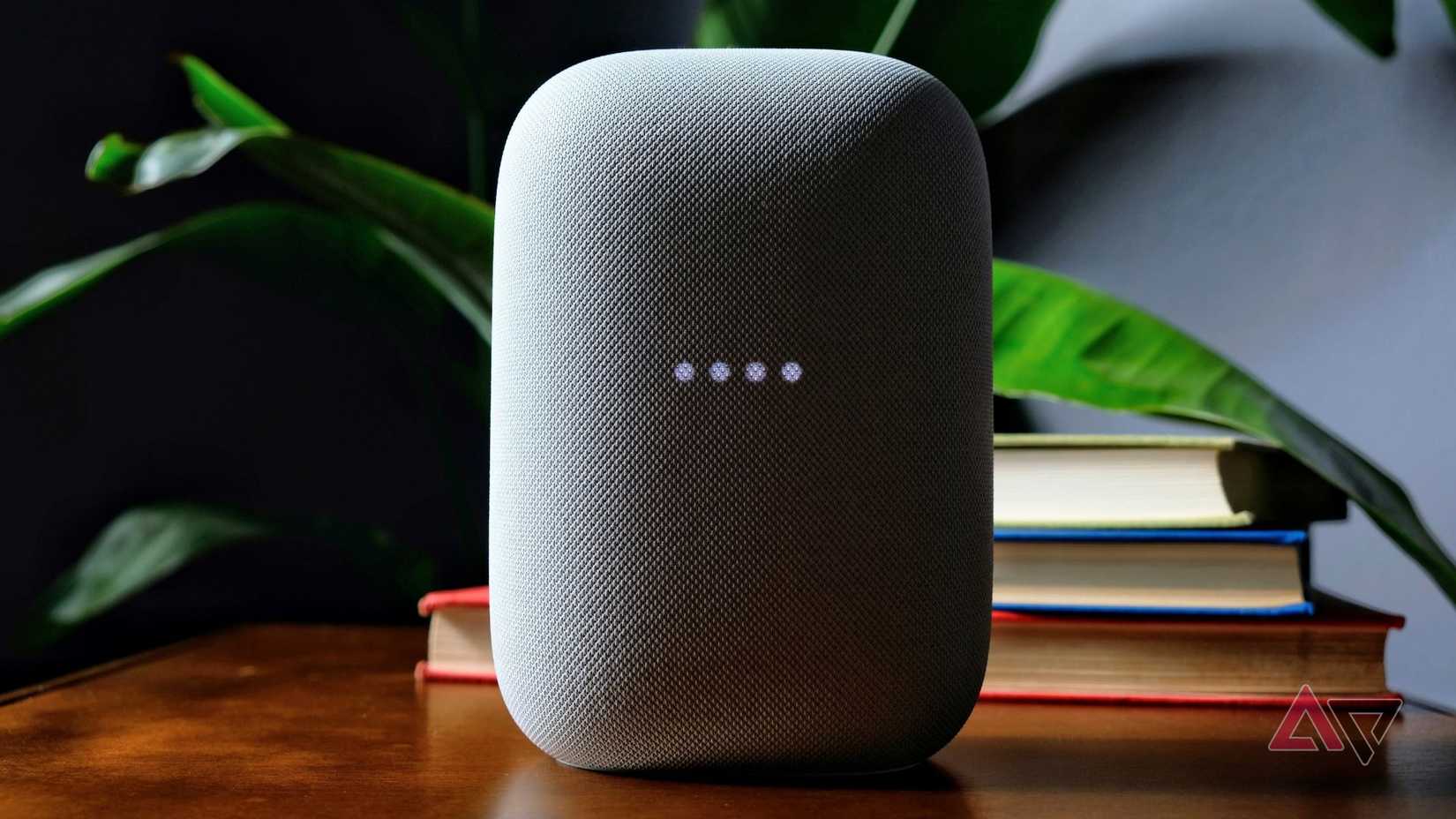
Credit: www.androidpolice.com
Choosing Compatible Devices
Setting up Google Home with your home theater needs compatible devices. Picking the right hardware helps you enjoy clear sound and smooth control.
Learn about Google Home models, speakers, and TVs that work well together. This guide helps you find devices that fit your setup.
Google Home Models For Home Theater
Google offers several Home models that fit different room sizes and sound needs. Choose one that matches your home theater space.
- Google Nest Audio: Good for medium rooms with clear sound.
- Google Nest Mini: Compact and affordable for small spaces.
- Google Nest Hub Max: Includes a screen and smart display features.
- Google Home Max: Powerful speaker for larger rooms.
Selecting Speakers And Soundbars
Speakers and soundbars must support Google Assistant to pair with Google Home. Check if they have built-in Chromecast or voice control.
| Device Type | Compatibility | Notes |
| Soundbars | Google Assistant built-in or Chromecast | Easy voice commands and wireless control |
| Speakers | Wi-Fi enabled with Google Assistant | Works with multi-room audio setups |
| Subwoofers | Usually paired with soundbars | Enhances bass, check brand compatibility |
Smart Tvs And Streaming Devices
Smart TVs and streaming devices must support Google Home voice commands. Look for Chromecast built-in or Google Assistant support.
- Chromecast with Google TV: Works directly with Google Home.
- Smart TVs with Google Assistant: Control TV functions by voice.
- Third-party streaming devices: Check if they support Google Home integration.

Credit: www.eweek.com
Setting Up Google Home
Setting up Google Home is the first step to use it with your home theater system. This guide helps you connect and configure your device.
Follow simple steps to connect Google Home to Wi-Fi, link your Google account, and set up Voice Match for personalized control.
Connecting To Wi-fi
Google Home needs Wi-Fi to work properly. Connect it to your home Wi-Fi network for smooth operation.
Use the Google Home app on your phone. Follow the instructions to select your Wi-Fi network and enter the password.
- Open the Google Home app
- Tap Add device and choose Set up device
- Select your Google Home device
- Choose your Wi-Fi network
- Enter your Wi-Fi password
- Wait for Google Home to connect
Linking Google Account
Link your Google account to personalize your Google Home experience. This allows access to your preferences and services.
Sign in through the Google Home app. This step helps Google Home recognize your voice commands and preferences.
- Open the Google Home app
- Go to Account settings
- Select the Google account you want to use
- Sign in with your email and password
- Grant necessary permissions
Configuring Voice Match
Voice Match lets Google Home recognize your voice. This helps it give personalized answers and control your home theater.
Set up Voice Match in the Google Home app by training it to recognize your voice. This keeps your information private and secure.
- Open the Google Home app
- Go to Voice Match settings
- Tap Add a voice model
- Follow the prompts to say phrases
- Complete the voice training
Integrating Audio Equipment
Google Home can control your home theater sound. You can connect many audio devices to improve sound quality.
There are several ways to link your speakers or sound system with Google Home. Choose the best way for your setup.
Pairing Bluetooth Speakers
Google Home can connect directly to Bluetooth speakers. This lets you play audio wirelessly from your home theater system.
To pair, put your speaker in Bluetooth pairing mode. Then use the Google Home app to find and connect the speaker.
- Open the Google Home app
- Select your Google Home device
- Tap "Settings" and then "Paired Bluetooth devices"
- Choose "Enable Pairing Mode"
- Select your Bluetooth speaker from the list
Using Chromecast Audio
Chromecast Audio lets you stream sound from Google Home to your speakers. It works well with many home theater systems.
Connect Chromecast Audio to your audio equipment using AUX or optical cable. Then link it to Google Home for voice control.
- Plug Chromecast Audio into your speaker
- Connect it to Wi-Fi using the Google Home app
- Assign it to the same room as your Google Home device
- Use voice commands to play music or control volume
Connecting Via Aux Or Hdmi
You can connect Google Home devices to your audio system using AUX or HDMI cables. This gives a wired connection for better sound.
Use an AUX cable for analog sound. Use HDMI if your receiver supports HDMI ARC for digital sound and control.
- Plug one end of the AUX or HDMI cable into Google Home device
- Connect the other end to your home theater receiver or speakers
- Set the audio input on your receiver to the correct source
- Control audio playback with Google Home voice commands

Credit: www.reddit.com
Creating Speaker Groups
Using Google Home to create speaker groups helps you enjoy sound in many rooms. You can play music or movies on all speakers at once. This guide shows how to set up and manage these groups.
Speaker groups improve your home theater system by syncing audio. It works well for parties or quiet background music throughout your house.
Setting Up Multi-room Audio
To start, open the Google Home app on your phone or tablet. Make sure all your Google Home or Nest speakers are on the same Wi-Fi network. Then create a group that includes the speakers you want to use together.
- Open the Google Home app.
- Tap “+” to add a new device.
- Select “Create speaker group.”
- Choose the speakers to include in the group.
- Name the group for easy recognition.
- Save your group.
Managing Groups In Google Home App
You can change your speaker groups anytime. The Google Home app lets you add or remove speakers and rename groups. This makes it easy to adjust audio for different rooms or events.
| Action | How to Do It |
| Add Speakers | Open group settings and select new speakers |
| Remove Speakers | Tap the speaker in the group and choose “Remove” |
| Rename Group | Tap group name and enter new name |
| Delete Group | Open group and tap “Delete group” |
Controlling Playback With Voice
Using Google Home for your home theater can make movie nights easier. You can control playback with simple voice commands.
Learn how to manage playback using voice commands for a seamless experience. No more reaching for the remote control.
Basic Voice Commands
Basic voice commands allow you to pause, play, or stop your media. Simply say "Hey Google" to start your command.
- Say "Hey Google, play" to start the media.
- Say "Hey Google, pause" to stop temporarily.
- Say "Hey Google, stop" to end the playback.
Adjusting Volume And Sound Settings
Adjusting the volume is easy with Google Home. You can make the sound just right for your space.
Playing Specific Content
With Google Home, you can play specific content. Just tell Google what you want to watch or listen to.
| Command | Result |
| "Hey Google, play music" | Starts your music playlist |
| "Hey Google, play movie name" | Starts the specific movie |
| "Hey Google, play podcast name" | Starts the specific podcast |
Enhancing Experience With Routines
Google Home can make your home theater system easier to use. You can set routines to control devices together.
Routines help you create a better movie experience by automating tasks. This saves time and effort.
Customizing Theater Mode
You can set a custom theater mode with Google Home routines. This mode can change sound, lights, and screen settings.
For example, say “Hey Google, start theater mode” to lower volume and dim lights instantly.
- Adjust sound to surround mode
- Set TV to the right input
- Lower lights to a soft glow
- Turn off other noisy devices
Automating Lights And Curtains
Google Home can control smart lights and curtains during movies. You can automate them to change at the right time.
This automation helps reduce distractions and sets a perfect mood for watching.
- Dim lights when movie starts
- Close curtains for a dark room
- Turn lights back on after movie ends
Scheduling Movie Nights
You can schedule routines for regular movie nights. Google Home can prepare your theater system automatically.
Set a time and Google Home will start the routine without you asking.
- Turn on TV and sound system
- Set lights and curtains
- Start your favorite streaming app
- Adjust volume and picture settings
Troubleshooting Common Issues
Using Google Home with your home theater can be fun. But sometimes, you might face issues. Here, we'll discuss common problems and how to fix them.
These solutions will help you enjoy a smooth experience with your Google Home setup.
Connectivity Problems
Sometimes, your Google Home might not connect properly to your home theater. This can be due to Wi-Fi issues or incorrect settings.
Ensure your devices are on the same Wi-Fi network. Restart your router if needed.
- Check if Google Home is updated
- Ensure Bluetooth is on
- Reset Google Home if problems continue
Audio Sync And Quality
Audio issues can spoil your viewing experience. You might notice delays or poor sound quality.
Check the audio settings on your Google Home and TV. Adjust them to improve sync and quality.
- Ensure cables are connected tightly
- Adjust audio delay settings on your TV
- Use high-quality HDMI cables
Command Recognition Errors
Sometimes, Google Home might not understand your commands. This can be due to background noise or unclear speech.
Speak clearly and ensure there is minimal noise around. Move Google Home to a better location if needed.
- Check the microphone is not muted
- Rephrase your commands
- Update the Google Home app
Frequently Asked Questions
How Do I Connect Google Home To My Home Theater?
To connect Google Home, use Bluetooth or Chromecast with your home theater. Ensure both devices are on the same Wi-Fi network. Open the Google Home app and follow the setup instructions for device pairing.
Can Google Home Control Tv Volume For Home Theater?
Yes, Google Home can adjust your TV volume. Use voice commands like “Hey Google, turn up the volume. ” Ensure your TV or receiver supports Google Assistant control or is connected via Chromecast.
What Home Theater Devices Work With Google Home?
Google Home works with Chromecast, smart TVs, soundbars, and receivers compatible with Google Assistant. Check device compatibility in the Google Home app to ensure smooth integration and voice control features.
How To Stream Movies Using Google Home And Home Theater?
Say “Hey Google, play [movie name] on [device name]. ” Google Home will stream content to your connected home theater via Chromecast or smart TV, providing a seamless viewing experience.
Conclusion
Google Home makes controlling your home theater simple. Just use your voice to play movies or adjust volume. It saves time and adds comfort to your viewing experience. Setting it up takes only a few minutes. Enjoy hands-free control without needing a remote.
Your movie nights become more relaxing and fun. Try different commands to find what works best for you. This smart device fits well into any home theater setup. Easy to use and helpful every time you watch.