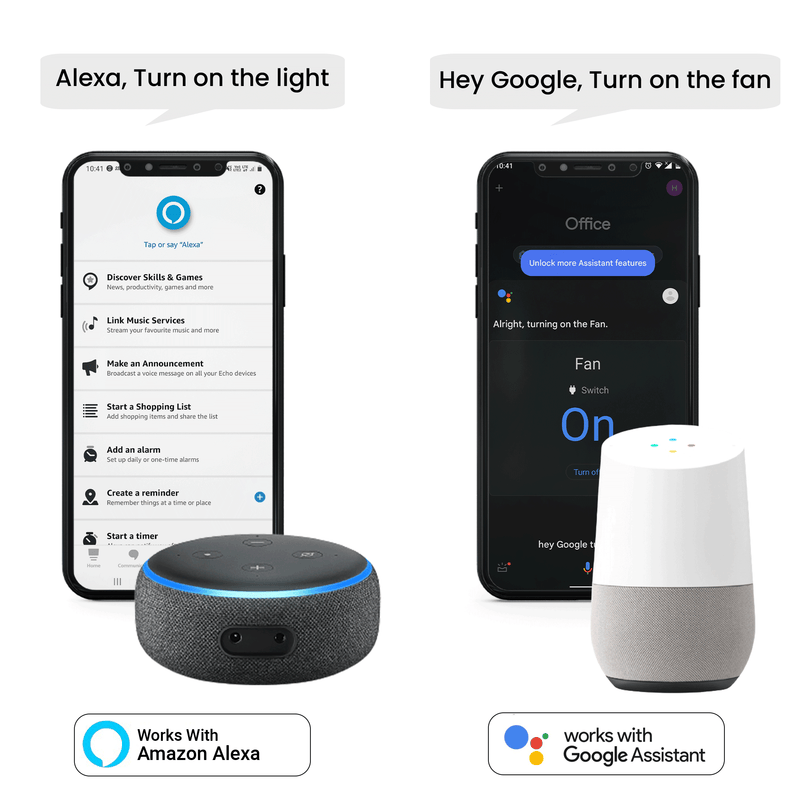
Setting up your Google Home speaker on WiFi might seem tricky at first, but it’s easier than you think. Imagine having your favorite music, news, and smart home controls ready to go with just your voice.
To get there, you need your speaker connected to your WiFi network. In this guide, you’ll learn simple steps to get your Google Home up and running quickly. By the end, you’ll be able to enjoy hands-free convenience without any hassle.
Keep reading, and you’ll have your smart speaker working perfectly in no time.
Prepare Your Google Home
Setting up your Google Home speaker on WiFi is simple. You need to get your device ready first.
This guide helps you prepare your Google Home for a smooth connection process.
Unbox And Power On
Take your Google Home speaker out of the box carefully. Remove all packaging materials.
Plug the power adapter into the speaker and then into a power outlet. The device will light up.
Wait a moment for the speaker to start. You will hear a sound indicating it is ready.
Check Wifi Requirements
Your Google Home needs a 2.4 GHz or 5 GHz WiFi network. Make sure your router supports these frequencies.
Check your WiFi password and network name. You will need them to connect your speaker to WiFi.
- Ensure your WiFi signal is strong near the speaker.
- Use a private WiFi network, not a public hotspot.
- Keep your router turned on during setup.
Download The Google Home App
To connect your Google Home speaker to WiFi, you need the Google Home app. This app helps you set up and manage your device easily.
The app is free and works on both iOS and Android devices. Follow the instructions below to get started.
Find The App On Ios Or Android
Search for the Google Home app in the App Store or Google Play Store. The app icon is simple and easy to spot.
- Open the App Store on iPhone or iPad.
- Open the Google Play Store on Android devices.
- Type "Google Home" in the search bar.
- Look for the app made by Google LLC.
- Tap "Download" or "Install" to get the app.
Set Up A Google Account
You need a Google Account to use the app and connect your speaker. This account stores your settings and preferences.
| Task | How to Do It |
| Create a Google Account | Go to accounts.google.com and follow the sign-up steps. |
| Sign in on the App | Open Google Home app and enter your Google email and password. |
| Verify Your Account | Check your email or phone for a verification code. |
Connect Google Home To Wifi
Setting up your Google Home speaker on WiFi lets it connect to the internet. This allows you to use voice commands and smart features.
Follow these simple steps to connect your Google Home to your WiFi network easily.
Open The App And Detect Device
First, open the Google Home app on your smartphone or tablet. The app is needed to set up your device.
Make sure your phone’s Bluetooth is on. The app will search for new Google Home devices nearby.
- Open Google Home app
- Turn on Bluetooth
- Wait for the app to find your Google Home
Select Your Wifi Network
Once your Google Home is detected, the app will ask you to choose a WiFi network. This is the network your speaker will use.
Pick the WiFi network you want your Google Home to connect to from the list shown.
- Review available WiFi networks
- Tap the network you use at home
- Confirm your selection
Enter Wifi Password
After selecting the WiFi network, enter the password to connect the Google Home speaker. This lets it access the internet.
Type the password carefully and tap connect. Your Google Home will join the network shortly.
- Input the WiFi password
- Check the password for errors
- Tap connect to finish setup
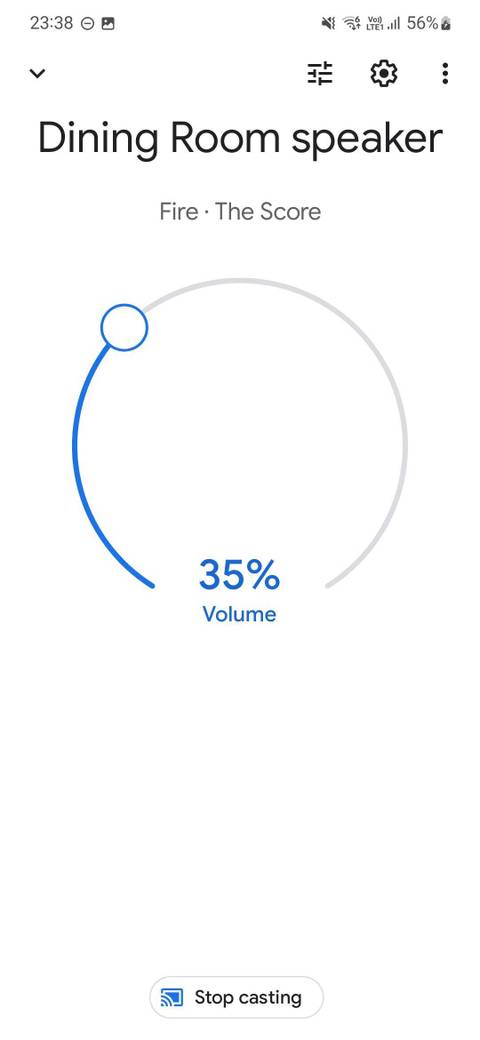
Credit: www.androidpolice.com
Customize Device Settings
After connecting your Google Home speaker to WiFi, you can personalize its settings. This helps make the device fit your needs and preferences.
Customizing settings improves your experience with voice commands and responses.
Name Your Speaker
Give your Google Home speaker a unique name. This makes it easy to identify if you have multiple devices in your house.
- Open the Google Home app on your phone.
- Select your Google Home device from the list.
- Tap the settings icon to open device options.
- Choose "Device Name" and enter a new name.
- Save your changes to update the speaker’s name.
Choose Your Location
Setting the location helps your speaker give better weather and local information. You can select the room or place where the device is kept.
| Room | Purpose |
| Living Room | Family entertainment and news updates |
| Kitchen | Recipe help and timers |
| Bedroom | Alarms and relaxing music |
| Office | Work reminders and calendar alerts |
Set Voice Match
Voice Match lets Google Home recognize different users by their voice. This keeps your information private and gives personalized responses.
- Open the Google Home app.
- Go to Settings > Voice Match.
- Follow prompts to teach your voice to the device.
- Allow access for personalized results.
Troubleshoot Connection Issues
Google Home may face connection problems on your WiFi. You can fix most issues by checking a few common causes.
This guide helps you solve connection problems with simple steps. Follow each section carefully to restore your Google Home’s WiFi link.
Check Router And Signal Strength
Make sure your router is on and working well. Check if your Google Home is close to the router or WiFi source.
- Move your Google Home closer to the router.
- Remove any objects blocking the signal.
- Check if other devices can connect to the WiFi.
- Restart your router if the signal seems weak.
Restart Devices
Restarting your devices often clears temporary errors. Turn off Google Home and your router, then turn them back on.
- Unplug your Google Home from power.
- Turn off your WiFi router and wait 30 seconds.
- Turn on the router and wait until it fully boots.
- Plug in Google Home and wait for it to restart.
- Try connecting to WiFi again.
Reset Google Home
If problems continue, reset Google Home to factory settings. This deletes all settings and allows a fresh start.
| Google Home Model | Reset Method |
| Google Home Mini | Press and hold the factory reset button for 15 seconds. |
| Google Home (Original) | Press and hold the microphone mute button for 15 seconds. |
| Google Home Max | Press and hold the factory reset button near the power cable. |

Credit: www.reddit.com
Optimize Wifi For Better Performance
Setting up your Google Home Speaker on WiFi can improve its performance and reliability. Follow these steps to optimize your connection and enjoy a seamless experience.
Making small adjustments to your WiFi setup can lead to better performance. Here's how to get started:
Place Speaker Near Router
Positioning your speaker close to the router can enhance signal strength. Try to maintain a clear line of sight between the two devices.
- Avoid placing the speaker behind large objects.
- Keep it away from metal surfaces.
- Ensure no walls are blocking the signal path.
Use 5ghz Band
The 5GHz band offers faster speeds and less interference. Switch to this band if your router supports it for a better connection.
| 2.4GHz Band | Longer range but slower speed |
| 5GHz Band | Shorter range but faster speed |
Update Firmware Regularly
Keeping your router's firmware up to date can fix bugs and improve performance. Check for updates regularly through your router's interface.
Credit: greensafaris.com
Frequently Asked Questions
How Do I Connect Google Home To Wifi?
Open the Google Home app, tap your device, select WiFi settings, and choose your network. Enter the password to connect. This links your Google Home speaker to your WiFi for smart features.
Can I Change Wifi On Google Home Later?
Yes, you can update WiFi settings anytime via the Google Home app. Select your device, go to WiFi, and follow prompts to switch networks. This keeps your speaker connected if you change routers or networks.
What To Do If Google Home Won’t Connect?
Restart your router and Google Home device. Ensure WiFi password is correct and within range. If issues persist, reset the Google Home and set it up again through the app for a fresh start.
Does Google Home Support 5ghz Wifi Bands?
Yes, Google Home supports both 2. 4GHz and 5GHz WiFi bands. Choose the band with the best signal strength for optimal performance and faster connectivity in your home network.
Conclusion
Setting up your Google Home speaker on WiFi is simple and quick. Follow the steps carefully to connect your device without trouble. Once connected, enjoy hands-free control of music, smart devices, and more. A strong WiFi connection helps your speaker work better.
Keep your app and device updated for smooth performance. Now, your Google Home is ready to assist you anytime. Give it a try and explore its features easily.