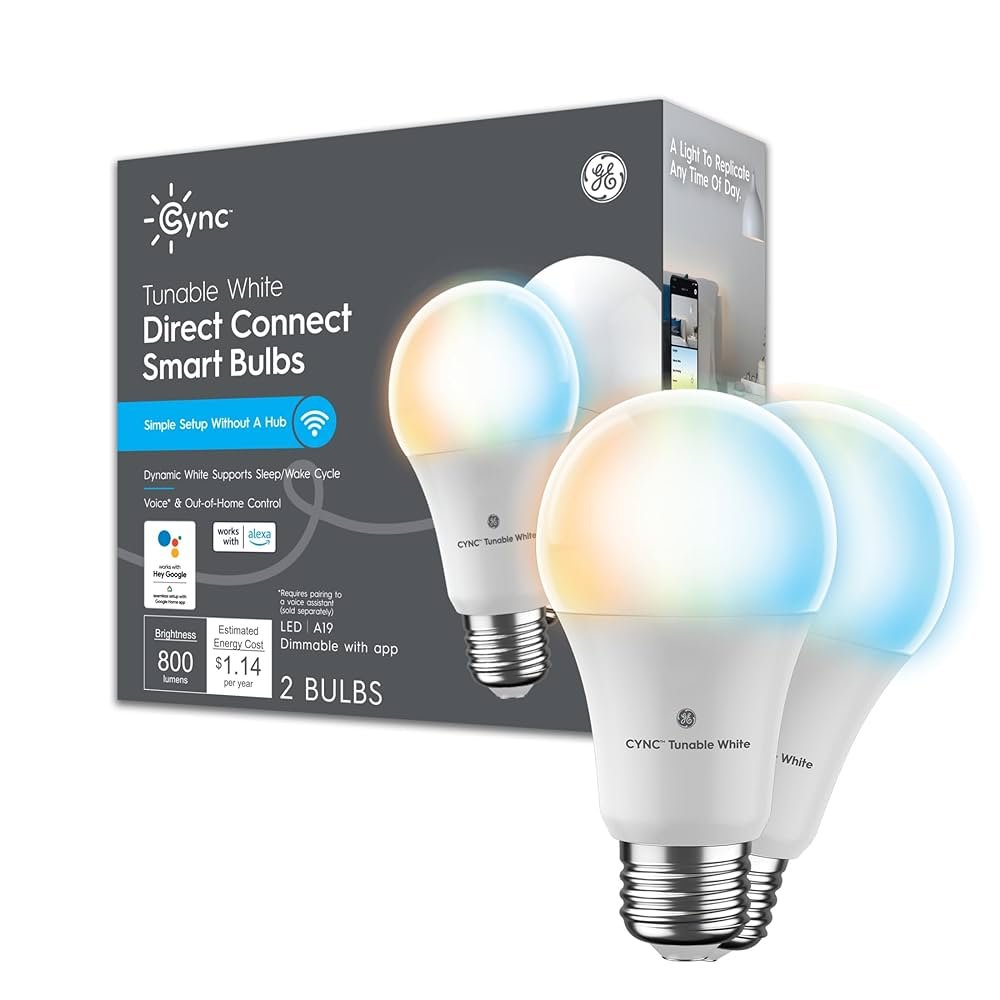
Are you ready to make your home smarter and more convenient? Setting up your Cync light bulb with Google Home is easier than you think.
Imagine controlling your lights with just your voice—no more fumbling for switches in the dark. In this guide, you’ll discover simple, step-by-step instructions that anyone can follow. By the end, you’ll have your Cync bulbs working seamlessly with Google Home, giving you hands-free control and a brighter, smarter living space.
Keep reading, and let’s get your smart lighting set up quickly and effortlessly.
Cync Light Bulb Features
The Cync light bulb offers smart lighting that adapts to your needs. It is easy to control and fits standard sockets.
This bulb uses energy efficiently and connects to your home Wi-Fi. You can change colors and brightness with your voice or app.
Smart Lighting Benefits
Cync bulbs provide many benefits that improve your home lighting experience. They save energy and offer flexible control.
- Adjust brightness to fit any mood or task
- Choose from millions of colors
- Set schedules to turn lights on or off automatically
- Reduce electricity use compared to regular bulbs
- Control lights remotely using a smartphone app
Compatibility With Google Home
Cync light bulbs work well with Google Home devices. You can use voice commands to control your lights without touching a switch.
| Feature | Details |
| Voice Control | Turn on/off, dim, or change colors using Google Assistant |
| Setup | Connect Cync app with Google Home app for easy integration |
| Automation | Create routines that include your Cync bulbs |
| Multiple Devices | Control several bulbs in different rooms at once |
Preparing Your Cync Bulb
Setting up your Cync light bulb with Google Home starts with preparation. This guide helps you get your bulb ready for connection.
Follow the steps carefully to ensure the bulb works correctly with your smart home system.
Unboxing And Initial Setup
First, unbox your Cync light bulb and check all parts are included. Make sure the bulb and any manuals or accessories are present.
- Remove the bulb carefully from the packaging.
- Check the bulb for any visible damage.
- Read the quick start guide to understand basic instructions.
- Keep the packaging for future reference or warranty.
Powering On The Bulb
After unboxing, you need to power on the bulb properly. This step is necessary before pairing with Google Home.
| Action | Details |
|---|---|
| Install the bulb | Screw the bulb into a standard light socket securely. |
| Turn on the power | Switch on the light fixture to supply power to the bulb. |
| Check bulb status | The bulb should blink or glow softly indicating it is ready. |
| Reset if needed | Turn the bulb off and on three times to reset if it does not respond. |
Setting Up The Cync App
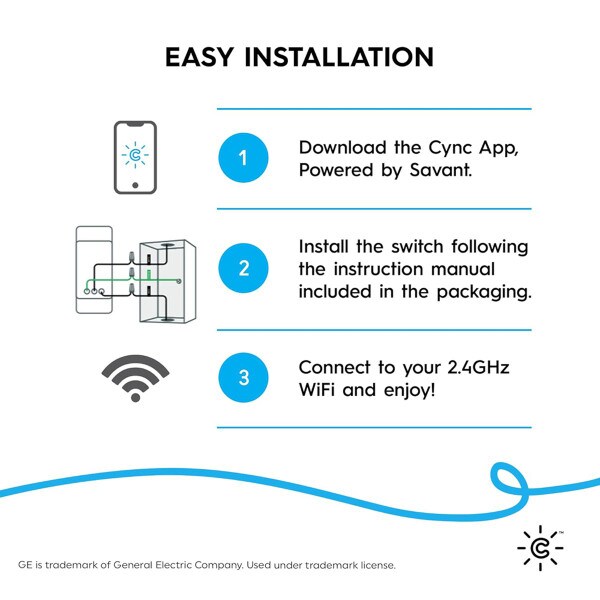
To use your Cync light bulb with Google Home, you first need to set up the Cync app. The app helps you control your smart bulb easily.
This guide will show you how to download the app, create an account, and connect your bulb to Wi-Fi.
Downloading The App
Start by downloading the Cync app on your smartphone or tablet. The app is free and available for both Android and iOS devices.
Open the Google Play Store or Apple App Store, search for "Cync," and tap the install button.
Creating An Account
After installing the app, open it and create a new account. You will need to provide an email address and a password.
Follow the on-screen instructions to complete your profile and verify your email if required.
Connecting The Bulb To Wi-fi
Turn on your Cync light bulb and make sure it is blinking. This means it is ready to connect.
In the Cync app, tap “Add Device” and select “Light Bulb.” Follow the steps to connect the bulb to your Wi-Fi network.
- Enter your Wi-Fi name and password carefully
- Make sure your phone is connected to the same Wi-Fi
- Wait for the app to confirm the bulb is connected

Credit: www.amazon.com
Linking Cync To Google Home
Connecting your Cync light bulb with Google Home lets you control your lights by voice. This guide shows how to link the devices easily.
You only need to follow a few simple steps inside the Google Home app to set up the connection.
Opening Google Home App
Start by opening the Google Home app on your smartphone or tablet. Make sure you are signed in with your Google account before proceeding.
Adding New Device
To add your Cync light bulb, tap the plus (+) icon in the top-left corner of the app.
- Select "Set up device".
- Choose "Works with Google".
- Search for the Cync service in the list.
Selecting Cync Service
After searching, tap on the Cync service to link it with your Google Home.
Here is a table showing what to expect when selecting Cync:
| Action | Description |
|---|---|
| Tap Cync | Starts the linking process |
| Prompt to sign in | Ask for your Cync account details |
| Permission request | Grant Google Home access to control devices |
Signing Into Cync Account
Enter your Cync username and password to sign in. This step connects your account to Google Home.
Once signed in, your Cync light bulb will appear in the Google Home app. You can now control it using voice commands.
Controlling The Bulb With Google Home
Once your Cync light bulb is set up, you can control it using Google Home. This lets you manage your lights with simple voice commands.
Using Google Home makes it easy to turn your bulb on or off, change colors, and adjust brightness without touching a switch.
Voice Commands Examples
You can speak clear commands to Google Home to control your Cync bulb. The assistant understands simple phrases to manage your lighting.
Here are some voice commands you can try with your Google Home device:
- "Hey Google, turn on the living room light."
- "Hey Google, turn off the bedroom light."
- "Hey Google, change the kitchen light to blue."
- "Hey Google, set the hallway light to warm white."
Adjusting Brightness And Color
You can change your bulb’s brightness and color using Google Home voice commands. This helps create the right mood in any room.
Try telling Google Home to make the light dimmer or brighter, or to shift to different colors easily.
- "Hey Google, dim the living room light to 50%."
- "Hey Google, brighten the bedroom light."
- "Hey Google, set the light color to red."
- "Hey Google, make the light color cooler."
Creating Lighting Schedules
You can make schedules for your Cync bulb with Google Home. This lets your lights turn on or off automatically at set times.
Set a routine so your lights fit your daily habits without needing to control them manually.
- Say, "Hey Google, turn on the porch light at 7 PM."
- Set a schedule to turn off bedroom lights at bedtime.
- Use the Google Home app to create custom routines with your bulb.
Credit: www.citymill.com
Troubleshooting Tips
Connecting your Cync Light Bulb to Google Home can be simple. Sometimes, issues arise that need troubleshooting. Follow these tips to solve common problems.
We will explore common connection issues, resetting the bulb, and re-linking accounts. These steps can help your devices work seamlessly together.
Common Connection Issues
Sometimes, the bulb does not connect properly. Check your Wi-Fi and app settings to ensure everything is correct.
- Verify your Wi-Fi is on and stable
- Ensure the bulb is in pairing mode
- Restart your router if needed
Resetting The Bulb
Resetting the bulb can solve many problems. Follow the steps to reset your Cync Light Bulb and start fresh.
- Turn the bulb off for 5 seconds
- Turn it back on and off 5 times
- Wait for the bulb to flash, indicating a reset
Re-linking Accounts
Sometimes, the connection between accounts breaks. Re-link your Cync account with Google Home to restore functionality.
1. Open Google Home app.2. Tap on the "Add" button.3. Choose "Set up device" and "Works with Google".4. Find and select "Cync" from the list.5. Follow the instructions to complete re-linking.
Credit: www.amazon.com
Frequently Asked Questions
How Do I Connect Cync Light Bulb To Google Home?
To connect Cync light bulb, open the Google Home app. Tap “Add,” then “Set up device. ” Choose “Works with Google,” search Cync, and link your account. Follow prompts to complete setup and control bulbs via voice commands.
What App Is Required For Cync Light Bulb Setup?
You need the Cync app by Sengled to set up the bulb. The app allows you to add bulbs, customize settings, and connect to Google Home for voice control.
Can I Control Cync Bulbs With Google Assistant?
Yes, once linked, you can control Cync bulbs using Google Assistant. Use voice commands to turn bulbs on/off, dim, or change colors if supported.
Why Isn’t My Cync Bulb Showing In Google Home?
Ensure the bulb is powered and connected to Wi-Fi. Confirm your Cync account is linked in Google Home. Restart apps or devices if bulbs don’t appear.
Conclusion
Setting up your Cync light bulb with Google Home is simple and quick. You can control lights with just your voice. This adds comfort and ease to your daily routine. No need to get up or find switches. Enjoy smart lighting that fits your schedule.
Try different commands to explore its features. This small step makes your home a bit smarter. Keep experimenting to find what works best for you. Smart home living starts with simple actions like this.