Are you tired of signing in every time you want to play your favorite Xbox games? Setting your home Xbox as the default can change the way you game, making everything smoother and faster.
Imagine having access to your games and subscriptions without any extra steps, right from your own console. In this guide, you’ll learn exactly how to set your home Xbox as the default, so you can enjoy seamless gaming and share your benefits with family or friends.
Keep reading, because mastering this simple setup could transform your Xbox experience.

Credit: www.youtube.com
Benefits Of Setting Home Xbox
Setting your Xbox as the home console brings many advantages. It helps you play games and use apps with ease.
This guide explains the key benefits of making your Xbox the home console.
Access Games Offline
When you set an Xbox as your home console, you can play your digital games without an internet connection. This is useful if your network is down or you are traveling.
Share Games With Family
Home Xbox allows game sharing with other users on the same console. Family members can enjoy your games and subscriptions without extra cost.
- Share Xbox Live Gold benefits
- Access all downloaded games
- Use apps linked to the home console
Save On Digital Purchases
Setting a home Xbox saves money by allowing multiple users to play purchased games. You do not need to buy the same game twice for different accounts.
| Benefit | Description |
| Offline Play | Play games without internet |
| Game Sharing | Share games with family on one console |
| Cost Saving | Pay once, play on multiple accounts |
Prepare Your Xbox For Setup
Setting your home Xbox as default makes gaming easier and faster. Before you start, prepare your Xbox for the setup process.
This guide will help you get ready by signing in and checking your network connection.
Sign In To Your Account
To set your Xbox as default, you must sign in with your Microsoft account. This account stores your games and settings.
- Turn on your Xbox console.
- Press the Xbox button on your controller to open the guide.
- Select your profile or add a new account.
- Enter your Microsoft account email and password.
- Follow the on-screen instructions to complete sign-in.
Check Network Connection
A good internet connection is important for setup and updates. Test your network to avoid interruptions.
| Check | How to Do It |
|---|---|
| Connection Status | Go to Settings > Network > Network settings. |
| Test Network | Select "Test network connection" to see if you are online. |
| Fix Issues | Restart your router or Xbox if connection fails. |
Steps To Set Home Xbox
Setting your Xbox as your Home Xbox allows you to share games and subscriptions with other users on the same console.
This guide explains the easy steps to make your Xbox the default console.
Open Settings Menu
Start by turning on your Xbox and pressing the Xbox button on your controller.
From the main screen, select the gear icon to open the Settings menu.
Navigate To Personalization
Inside Settings, scroll down to find the Personalization option.
- Look for the “Personalization” tab in the sidebar.
- Select it to access related settings.
- This section controls how your Xbox looks and behaves.
Select My Home Xbox
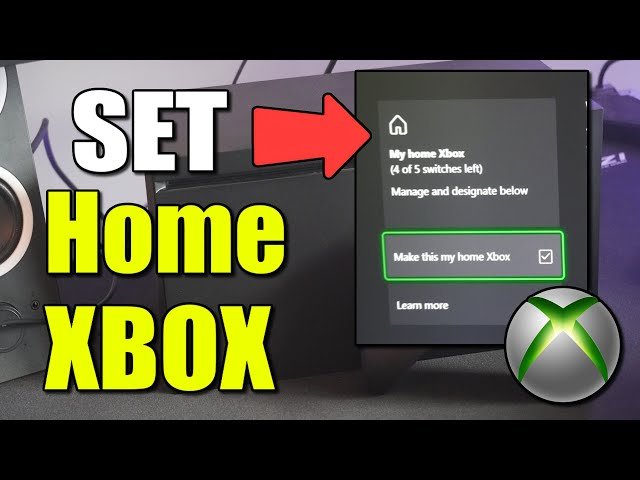
Within Personalization, find and click on “My Home Xbox.”
This page lets you set or remove your Home Xbox. You can only set one console as Home at a time.
If another console is already set as your Home Xbox, you must remove it before assigning a new one.
Confirm Your Choice
After selecting “Make this my home Xbox,” a confirmation message appears.
- Read the confirmation message carefully.
- Press “Confirm” to finalize the setting.
- Wait for the process to complete before exiting.
Manage Home Xbox Limits
Setting a Home Xbox lets you share games and subscriptions with others. It also controls how many times you can change your Home Xbox. Knowing these limits helps avoid problems.
Here are key points about managing your Home Xbox settings and limits.
Change Home Xbox Frequency
You can only change your Home Xbox up to five times a year. This limit stops people from switching too often. It helps keep your games and subscriptions safe.
- Log in to the Xbox console or website.
- Go to the settings menu.
- Select "Personalization" and then "My home Xbox."
- Choose to make the current console your Home Xbox.
- Remember, you have five changes allowed per year.
Remove Previous Home Xbox
If you reach your limit, removing the previous Home Xbox helps. You must sign in to the old console to remove it. This action frees up your ability to set a new Home Xbox.
| Action | Requirement |
| Remove old Home Xbox | Sign in on old console |
| Set new Home Xbox | Allowed if under 5 changes/year |
| Check remaining changes | Visit your Microsoft account online |
Avoid Common Restrictions
Some restrictions can block your Home Xbox settings. These include account limits, network issues, and console errors. Being aware helps you avoid trouble.
- Do not share your account with many people.
- Keep your console connected to the internet.
- Update your console software regularly.
- Check your Microsoft account for any alerts or holds.
- Remember, only one Home Xbox can be set per account.
Troubleshooting Setup Issues
Setting your home Xbox as default can sometimes cause problems. These issues may stop you from enjoying your games.
Here are ways to fix common setup issues quickly and easily.
Fix Sign-in Problems
Sign-in issues often block the home Xbox setup. Make sure your account details are correct.
Try signing out and signing back in to refresh your account status.
- Check your Xbox Live service status online.
- Reset your password if you forgot it.
- Restart your console before trying again.
Resolve Network Errors
Network problems can stop your Xbox from setting as default. Check your internet connection first.
Use a wired connection if Wi-Fi is weak. Restart your router to fix common network errors.
- Run the network test in Xbox settings.
- Clear your DNS cache by restarting your router.
- Disable any VPN or proxy services.
- Update your console to the latest system version.
Contact Xbox Support
If problems continue, contact Xbox Support for help. They can guide you step-by-step.
Have your console info and account details ready to speed up the process.
- Visit the official Xbox Support website.
- Use chat or phone support options.
- Explain your setup issue clearly.

Credit: www.reddit.com
Maximize Gaming Experience
Setting your home Xbox as default can enhance your gaming experience. It allows you to access your games and content more easily.
Learn how to utilize these features and improve your gaming sessions today.
Use Xbox Game Pass Benefits
Xbox Game Pass offers a library of games to enjoy. Setting your home Xbox as default lets you share these benefits with others on the console.
- Access hundreds of games anytime
- Share Game Pass with family members
- Play games offline when needed
Enable Automatic Updates
Automatic updates ensure your games and apps are always up to date. This feature saves time and lets you focus on playing.
To enable automatic updates:
- Go to Settings on your Xbox console.
- Select System, then Updates & downloads.
- Check the box for Keep my games & apps up to date.
Share Xbox Live Gold Features
By setting your console as the home Xbox, you can share Xbox Live Gold features. This includes multiplayer gaming and free games each month.
| Feature | Benefit |
| Multiplayer Gaming | Play with friends online |
| Free Games | Monthly access to new games |
| Exclusive Discounts | Save on game purchases |

Credit: www.youtube.com
Frequently Asked Questions
How Do I Set My Xbox As Home Console?
Go to Settings > General > Personalization > My home Xbox. Select "Make this my home Xbox" to set it as your default.
What Benefits Come With Setting Xbox As Home Console?
Setting your Xbox as home allows offline play, sharing games, and access to subscriptions with other users on the console.
Can I Change My Home Xbox To A Different Console?
Yes, you can change your home Xbox up to five times per year in settings under My home Xbox.
Does Setting Xbox As Home Affect Game Sharing?
Yes, home Xbox allows sharing digital games and Xbox Live Gold with other users on the same console.
Conclusion
Setting your home Xbox as default helps share games and subscriptions easily. It saves money by allowing access on other consoles without extra purchases. The process is quick and simple to follow. Make sure to choose the console you use most often.
Changing the default can be done anytime if needed. Enjoy seamless gaming with shared content across devices. This small step improves your Xbox experience overall. Ready to play with friends or family? Your home Xbox setup is the key.