Want to make your smart home smarter? The first step is easy: installing the Google Home app.
This app puts the power of voice control, smart devices, and home automation right at your fingertips. If you’ve ever felt overwhelmed by tech setup or worried about complicated instructions, don’t worry—this guide breaks it down into simple, clear steps just for you.
Keep reading, and you’ll have your Google Home app up and running in no time, unlocking a world of convenience and control.

Credit: m.youtube.com
Preparing Your Device
Before installing the Google Home app, you need to prepare your device. This helps the app work smoothly and connect to your smart devices.
Follow the steps below to check your device and make sure everything is ready for installation.
Check Compatibility
Make sure your device supports the Google Home app. The app works on most Android and iOS devices.
| Operating System | Minimum Version |
| Android | 5.0 (Lollipop) or higher |
| iOS | 12.0 or higher |
Ensure Stable Internet Connection
A strong internet connection is necessary to install and use the Google Home app. It connects your phone to Google devices.
- Use Wi-Fi with good signal strength
- Check that your internet is working properly
- Restart your router if connection is slow
Update Operating System
Update your device’s operating system to the latest version. This ensures better security and compatibility.
To update your system:
- Go to Settings on your device.
- Find the Software Update option.
- Download and install any available updates.
Credit: apps.apple.com
Downloading The Google Home App
The Google Home app helps you control your smart devices. You need to download it to set up Google Home products.
This guide shows how to find the app on your phone’s store. It works for both Android and iPhone users.
Find The App On Google Play Store
Open the Google Play Store on your Android device. Use the search bar at the top to type “Google Home.”
Look for the app with the Google Home icon. Tap “Install” to download and add it to your phone.
- Open Google Play Store
- Type “Google Home” in search
- Select the app with the correct icon
- Tap “Install” to download
Locate The App On Apple App Store
Open the Apple App Store on your iPhone. Tap the search tab and enter “Google Home” in the search box.
Find the Google Home app in the results. Tap “Get” to download and install the app on your device.
- Open Apple App Store
- Tap search and enter “Google Home”
- Choose the correct app from results
- Tap “Get” to download and install
Installing The App
Google Home app helps you control smart devices easily. Installing it on your phone is simple and quick.
This guide explains how to start the installation and set up app permissions.
Start The Installation Process
Open the app store on your phone. Search for "Google Home". Tap the install button to download the app.
- For Android, open Google Play Store.
- For iPhone, open the Apple App Store.
- Type "Google Home" in the search bar.
- Select the official Google Home app from the results.
- Tap "Install" or "Get" to download the app.
Grant Necessary Permissions
The app needs some permissions to work properly. You will be asked to allow access during setup.
| Permission | Purpose |
| Location | Helps find devices nearby |
| Microphone | Allows voice commands |
| Storage | Saves settings and preferences |
| Wi-Fi | Connects to your home network |
Setting Up The Google Home App
The Google Home app helps you control your smart devices. Setting it up is easy and quick.
This guide shows you how to sign in, connect to Wi-Fi, and add new devices in the app.
Sign In With Google Account
Open the Google Home app on your phone or tablet. Tap the sign-in button to start.
Enter your Google account email and password. If you don’t have an account, create one by following the prompts.
Connect To Wi-fi Network
Make sure your phone or tablet is connected to the Wi-Fi network you want to use for your devices.
- Go to your device’s Wi-Fi settings.
- Select the correct Wi-Fi network.
- Enter the Wi-Fi password if asked.
- Confirm your device is connected.
Add New Devices
In the Google Home app, tap the “+” icon to add a new device. Follow the instructions to find and connect the device.
| Action | Description |
| Select Device | Choose your device from the list shown |
| Connect | Follow prompts to connect device to Wi-Fi |
| Name Device | Give your device a name for easy control |
| Finish Setup | Complete the process and start using your device |
Troubleshooting Common Issues
Installing the Google Home app is usually simple. Sometimes, you may face issues during setup or use. This guide helps you fix common problems quickly.
Follow these steps to solve installation errors, connectivity problems, and update the app to work smoothly.
Fix Installation Errors
If the app does not install, check your device’s storage space and software version. Clear cache and try again if needed.
- Make sure your device has at least 100 MB free space.
- Check that your device runs the latest Android or iOS version.
- Restart your device before reinstalling the app.
- Clear Google Play Store or App Store cache from settings.
- Disable VPN or proxy connections during installation.
Resolve Connectivity Problems
Connectivity issues stop the app from working with your devices. Check your Wi-Fi and Bluetooth settings to fix this.
| Problem | Solution |
| App can’t find Google Home device | Turn on Bluetooth and connect to the same Wi-Fi network. |
| Devices not responding | Restart your router and Google Home device. |
| App keeps disconnecting | Forget Wi-Fi on your device and reconnect. |
| Slow or no connection | Move closer to the router or reduce device interference. |
Update The App
Using an outdated app can cause errors. Keep the Google Home app updated to get new features and fixes.
- Open Google Play Store or App Store on your device.
- Search for "Google Home."
- If an update is available, tap "Update."
- Wait for the update to finish before opening the app.
- Restart the app to check if problems are fixed.
Credit: helpdeskgeek.com
Frequently Asked Questions
How Do I Download The Google Home App?
You can download the Google Home app from the Google Play Store for Android or the Apple App Store for iOS devices. Simply search for "Google Home," select the app, and tap "Install" or "Get" to begin the download process.
The app is free to use.
What Devices Are Compatible With Google Home App?
The Google Home app supports Android devices running version 5. 0 or higher and iOS devices with iOS 12. 0 or later. It also works with Google Nest and Chromecast devices to help you set up and control smart home features easily.
Do I Need A Google Account To Use The App?
Yes, a Google account is required to use the Google Home app. Your account helps sync settings, access personalized features, and manage devices linked to your smart home environment effectively.
Can I Install Google Home App On My Pc?
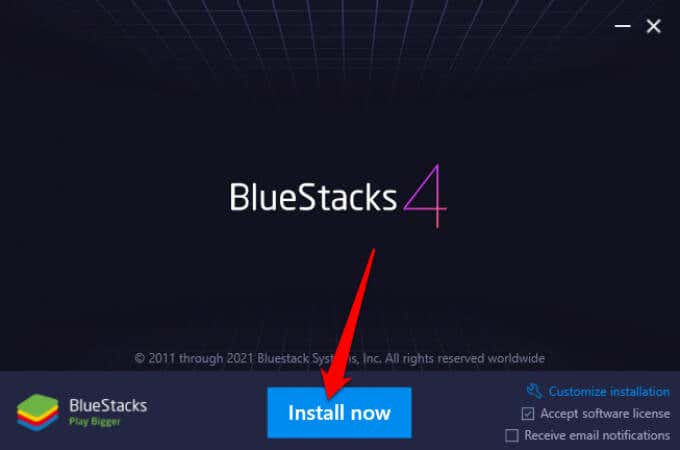
The Google Home app is designed for mobile devices and is not officially available for PC. However, you can use Android emulators to run the app on your computer, but this method may affect performance and is not officially supported.
Conclusion
Installing the Google Home app is quick and simple. Just follow the steps carefully. You can control your smart devices easily afterward. The app helps connect everything in your home. Stay connected, manage devices, and enjoy hands-free convenience. Take a few minutes to set it up today.
Your smart home experience will improve a lot. Now, you are ready to explore its features. Enjoy the comfort and control at your fingertips.