Want to control your TV with just your voice? Connecting your Google Home system to your TV can make that happen.
Imagine turning the volume up, changing channels, or even streaming your favorite shows—all without lifting a finger. In this guide, you’ll learn simple steps to hook up your Google Home to your TV quickly and easily. Ready to make your TV smarter and your life easier?
Keep reading to find out how!
Credit: www.androidpolice.com
Prepare Your Devices
Connecting your Google Home system to your TV makes it easy to control your entertainment with voice commands. Before you start, you need to prepare your devices properly.
This preparation helps to avoid problems and ensures a smooth setup process. Focus on checking compatibility and gathering the right equipment.
Check Compatibility
Not all TVs work with Google Home. You need to confirm if your TV supports Google Assistant or Chromecast. Smart TVs from popular brands usually work well.
- Look for built-in Google Assistant or Chromecast support on your TV.
- Check if your TV has an HDMI port for Chromecast connection.
- Make sure your TV and Google Home are on the same Wi-Fi network.
- Refer to your TV’s manual or website for Google Home compatibility details.
Gather Necessary Equipment
You need certain devices and accessories to connect Google Home to your TV. Prepare these items before you begin the setup.
| Equipment | Purpose |
| Google Home device | Voice control and commands |
| Smart TV or Chromecast | Stream content and receive commands |
| Wi-Fi router | Connect devices on the same network |
| Power cables | Power your TV and Google Home |
| Mobile device with Google Home app | Setup and control devices |
Connect Google Home To Tv
Connecting your Google Home system to your TV lets you control your TV with your voice. You can play videos, change channels, and adjust volume hands-free.
This guide shows you how to link Google Home to your TV using Chromecast or a smart TV.
Set Up Chromecast Or Smart Tv
First, set up your Chromecast or smart TV. Plug in the device and switch your TV to the correct input source.
Follow the on-screen instructions to connect the device to your Wi-Fi network. Make sure your phone or tablet is on the same Wi-Fi.
- Plug Chromecast into your TV’s HDMI port
- Turn on the TV and select the Chromecast input
- Connect Chromecast to Wi-Fi using the Google Home app
- For smart TVs, use the TV’s setup menu to connect to Wi-Fi
Link Google Home To Chromecast
Open the Google Home app on your phone. Tap the “+” icon to add a new device. Follow the steps to find and link your Chromecast.
Once linked, you can use voice commands with Google Home to control your TV through Chromecast.
- Open Google Home app
- Tap “Add” then “Set up device”
- Choose “Set up new devices”
- Select your Chromecast from the list
- Follow instructions to complete setup
Configure Google Home App
Connecting your Google Home system to your TV makes it easier to control the TV with your voice. You need to set up the Google Home app first.
This guide will help you use the Google Home app to link your TV to your Google Home system.
Open The Google Home App
Start by opening the Google Home app on your phone or tablet. Make sure you are signed in with your Google account.
The app works on both Android and iOS devices. It lets you control all your smart devices from one place.
Add Your Tv Device
In the Google Home app, tap the plus (+) icon to add a new device. Choose "Set up device" from the menu.
Select "Works with Google" if your TV is a smart TV or connected device. Find your TV brand or device in the list and follow the prompts.
- Ensure your TV is on and connected to Wi-Fi
- Follow the instructions to link your TV to Google Home
- Wait for the app to confirm the device is added
Assign Tv To A Room
After adding the TV, assign it to a room in the app. This helps Google Home know where the TV is located.
Select the room or create a new one if needed. This step makes voice commands more accurate.
- Tap the device in the app
- Choose "Room" or "Assign room"
- Select or add the correct room
- Save your settings

Credit: www.aiscreen.io
Control Tv With Voice
Connecting your Google Home system to your TV lets you use voice commands to control it. This makes watching shows and movies easier and hands-free.
You can turn the TV on or off, change channels, adjust volume, and more, just by speaking to Google Home.
Basic Voice Commands
Here are some simple voice commands you can use with your Google Home and TV setup.
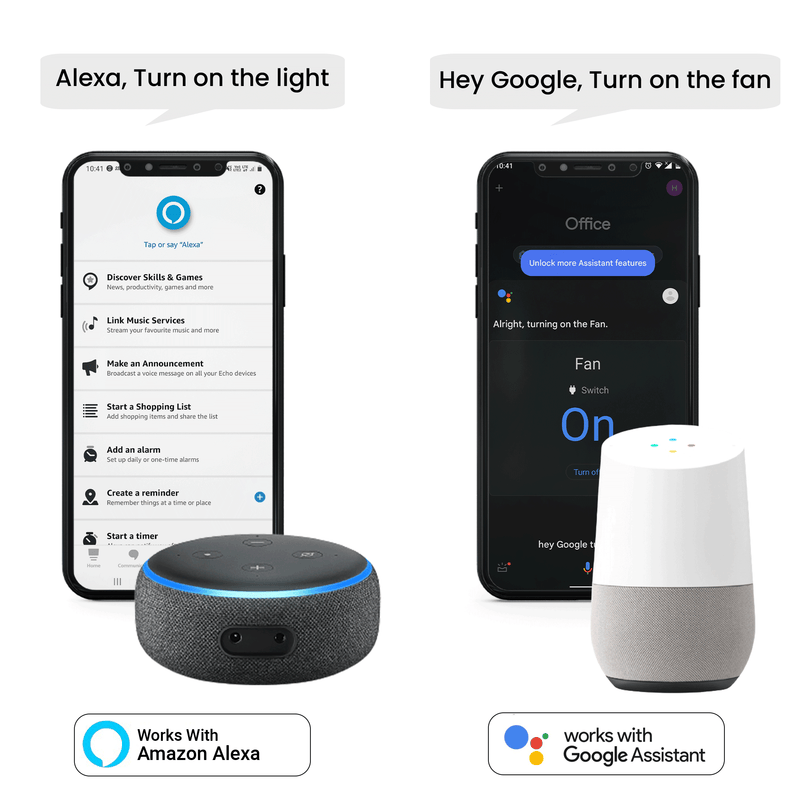
- “Hey Google, turn on the TV.”
- “Hey Google, turn off the TV.”
- “Hey Google, increase the volume.”
- “Hey Google, lower the volume.”
- “Hey Google, mute the TV.”
- “Hey Google, play [show or movie name].”
- “Hey Google, pause the video.”
- “Hey Google, switch to HDMI 1.”
Troubleshoot Common Issues
Sometimes the Google Home system might not control your TV as expected. Check these common problems.
| Issue | Possible Cause | How to Fix |
|---|---|---|
| TV not responding | TV and Google Home not on same Wi-Fi | Connect both devices to the same Wi-Fi network |
| Voice commands not working | Incorrect TV model setup in Google Home | Re-link your TV in the Google Home app |
| Volume control fails | TV remote control not compatible | Check if TV supports IR control or connect via Chromecast |
| Google Home does not hear commands | Background noise or microphone off | Speak clearly and check microphone settings |
Enhance Your Setup
Connecting your Google Home system to your TV can improve your entertainment experience. You can control your TV with simple voice commands.
This guide explains how to add streaming services and use routines for easy automation.
Integrate Streaming Services
Link your favorite streaming apps to Google Home. This lets you ask Google to play shows or movies on your TV.
- Open the Google Home app on your phone.
- Go to the settings and find “Video.”
- Select streaming services like Netflix or YouTube.
- Sign in with your account details.
- Set your TV as the default device for playback.
Use Routines For Automation
Create routines to control your TV and other devices automatically. Routines work with one command.
| Routine Name | Actions |
| Movie Time | Dim lights, turn on TV, open Netflix |
| Good Morning | Turn off TV, play news, adjust thermostat |
| Bedtime | Turn off TV, turn off lights, set alarm |
Credit: tv.google
Frequently Asked Questions
How Do I Connect Google Home To My Tv?
To connect Google Home to your TV, use a Chromecast or a smart TV with built-in Google Assistant. Ensure both devices are on the same Wi-Fi network. Open the Google Home app, select your TV, and follow the on-screen instructions to complete the setup.
Can I Control My Tv With Google Home Voice Commands?
Yes, Google Home lets you control your TV using voice commands. You can play, pause, adjust volume, and switch inputs hands-free. Just say, "Hey Google," followed by your command, like "Play Netflix on TV" or "Turn up the volume. "
What Devices Are Compatible With Google Home Tv Setup?
Google Home works with Chromecast, Chromecast Ultra, and many smart TVs supporting Google Assistant. Brands like Sony, LG, and Vizio often support this. Check your TV’s specifications or the Google Home app to confirm compatibility before setup.
Why Isn’t Google Home Connecting To My Tv?
If Google Home won’t connect, check both devices share the same Wi-Fi. Restart your router, Google Home, and TV. Ensure your TV firmware and Google Home app are updated. Also, verify your TV supports Google Assistant features.
Conclusion
Connecting your Google Home system to your TV is simple and useful. Follow the steps carefully for smooth setup. Control your TV with just your voice. Enjoy hands-free convenience while watching your favorite shows. This setup saves time and makes life easier.
Try it today and see the difference yourself. Small changes can bring big comfort at home. Keep exploring smart home options to improve your daily routine.