Are you ready to turn your living room into a true cinema experience? Connecting your home theater speakers to your TV using HDMI might sound tricky, but it’s easier than you think.
With the right steps, you’ll enjoy crystal-clear sound that matches your stunning visuals. In this guide, you’ll learn exactly how to set up your speakers for the best audio quality, avoid common mistakes, and get the most out of your home entertainment system.
Keep reading, and soon you’ll hear every whisper, explosion, and note like never before.
Credit: columbiaisa.50webs.com
Check Your Tv And Speaker Ports
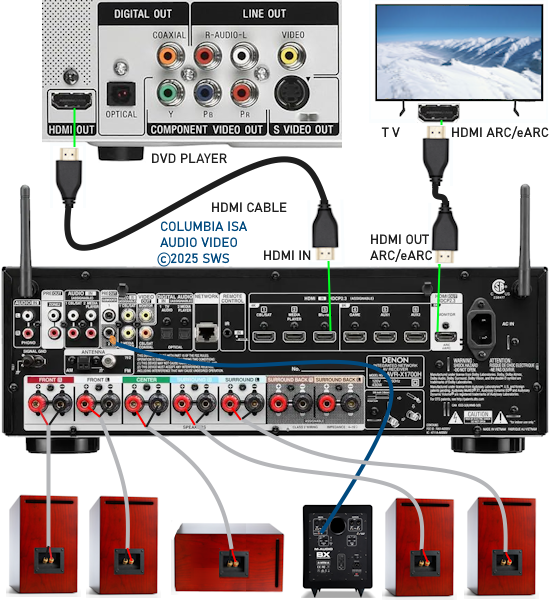
Connecting your home theater speakers to your TV requires knowing which ports are available. Not all TVs and speakers use the same connection types.
Before you start, check the back or side of your TV and speakers. Look carefully to find the correct ports for the best audio connection.
Identify Hdmi Arc And Earc
HDMI ARC (Audio Return Channel) and eARC (Enhanced Audio Return Channel) let your TV send sound to speakers with one HDMI cable. Look for ports labeled “ARC” or “eARC” on your TV.
- HDMI ARC supports standard sound quality.
- HDMI eARC supports higher quality audio and surround sound.
- Use an HDMI cable compatible with ARC or eARC.
- Connect the HDMI cable to the ARC or eARC port on both TV and speaker system.
Look For Optical And Aux Options
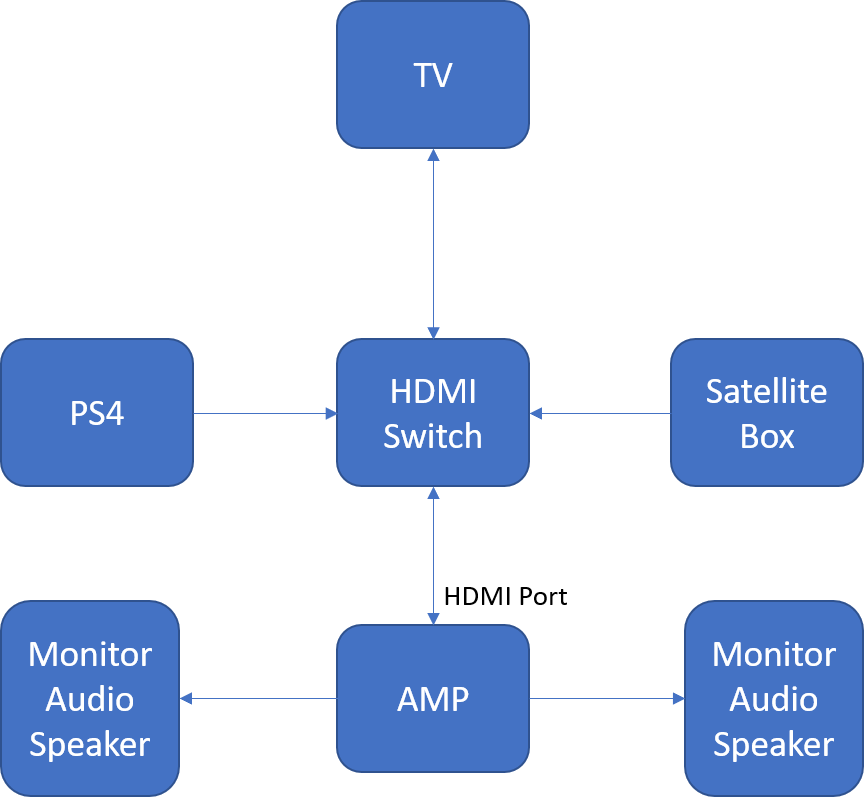
Some TVs and speakers have optical (TOSLINK) or AUX (3.5mm) ports for audio. These can work if HDMI ARC or eARC is not available.
| Port Type | Description | Use |
| Optical | Uses light to send digital audio | High-quality sound, no video |
| AUX (3.5mm) | Analog audio connection | Simple connection, lower sound quality |
Credit: en.community.sonos.com
Prepare Your Equipment
Connecting home theater speakers to your TV using HDMI improves sound quality. Before you start, get your equipment ready.
Proper preparation helps the setup go smoothly. Make sure you have all needed items and power sources available.
Gather Necessary Cables
You need the right cables to connect your home theater speakers to the TV via HDMI. Check your devices for compatible ports.
Common cables include HDMI and audio cables. Some systems may need an HDMI ARC or eARC cable for sound return.
- HDMI cable (preferably HDMI 2.0 or higher)
- Optical audio cable (if HDMI ARC is unavailable)
- Power cables for all devices
- Speaker wires (for some home theater systems)
Power Up Devices
Make sure your TV and home theater speakers are plugged into power sources. Turn them on before connecting cables.
Powering up devices allows them to communicate and helps your TV detect the speakers via HDMI.
Connect Via Hdmi Arc
Connecting your home theater speakers to your TV using HDMI ARC improves sound quality. HDMI ARC lets audio travel both ways on one cable.
This guide shows how to use HDMI ARC to link your TV and speaker system for better audio.
Locate Hdmi Arc Port On Tv
Look at the back or side of your TV to find the HDMI ports. The HDMI ARC port is labeled “ARC.”
- Check each HDMI port for the “ARC” label.
- If no label is visible, check your TV manual.
- Use the HDMI ARC port to connect your speaker system.
Connect To Speaker System Hdmi Arc
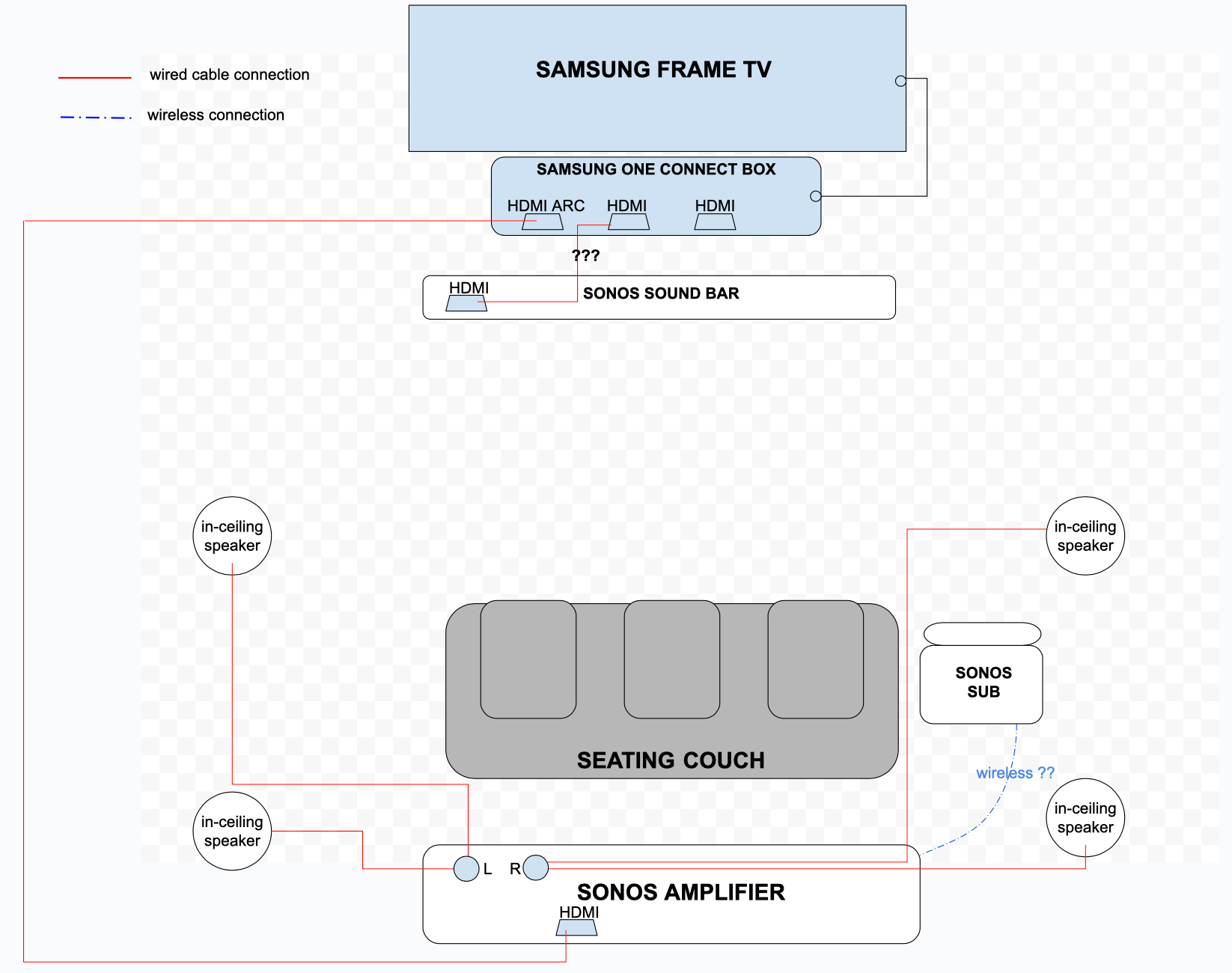
Use an HDMI cable to connect the TV’s HDMI ARC port to the speaker system’s HDMI ARC port.
| Device | Port to Use | Connection Tip |
| TV | HDMI ARC port | Look for “ARC” label near HDMI ports |
| Speaker System | HDMI ARC port | Use HDMI cable to connect to TV |
Enable Arc In Tv Settings
Turn on HDMI ARC in your TV’s settings to allow audio to pass to the speaker system.
- Open the TV menu and find “Sound” or “Audio” settings.
- Look for “HDMI ARC” or “CEC” option.
- Enable the HDMI ARC feature.
- Save settings and exit the menu.
Use Optical Cable As An Alternative
Connecting home theater speakers to your TV can enhance your viewing experience. If HDMI is not an option, you can use an optical cable.
Optical cables are a great alternative for transmitting audio signals with high quality. Here’s how you can set it up.
Locate Optical Ports
First, you need to find the optical ports on both your TV and your home theater system.
- Check the back of your TV for the port labeled "Optical" or "Digital Audio Out".
- Look for a similar port on your home theater receiver or speaker system.
- Ensure both devices are powered off before making any connections.
Connect Optical Cable
Once you have located the optical ports, it's time to connect them with an optical cable.
- Insert one end of the optical cable into the TV's optical port.
- Connect the other end to the home theater system's optical port.
- Make sure the cable is securely connected to both ports.
Adjust Audio Output Settings
After connecting the cable, you need to adjust the audio settings on your TV.
Follow these steps to configure the settings:
- Go to the TV's settings menu.
- Select "Audio" or "Sound" settings.
- Change the output to "Optical" or "Digital Audio Out".
- Save the changes and exit the menu.
Configure Audio Settings
Connecting home theater speakers to your TV via HDMI gives great sound. You need to set up the audio settings on your TV. This helps the speakers work well with your TV.
Adjusting the right audio options improves sound clarity and experience. Follow these steps to configure your system correctly.
Select Correct Output Source
Choose the right audio output on your TV to send sound to your home theater speakers. Usually, the HDMI ARC or eARC port is used.
- Open your TV’s settings menu
- Find the audio or sound section
- Select HDMI ARC or eARC as the audio output
- Turn off the TV’s internal speakers if possible
Adjust Sound Modes
Sound modes change how audio plays through your speakers. Different modes work best for movies, music, or games.
| Sound Mode | Description |
| Standard | Balanced sound for all content |
| Movie | Enhances dialogue and effects |
| Music | Focuses on vocals and instruments |
| Game | Improves sound effects and direction |
Test Audio Quality
Check if the sound is clear and coming from the correct speakers. Play different types of audio to test the setup.
- Play a movie or show with clear dialogue
- Listen for surround sound effects
- Adjust volume and balance if needed
- Try music to check bass and treble
Credit: en.community.sonos.com
Troubleshoot Common Issues
Connecting home theater speakers to a TV via HDMI can improve sound quality. Sometimes, problems happen during setup or use.
Knowing how to fix common issues helps you enjoy your system without delays or errors.
No Sound From Speakers
If your speakers do not play sound, check the HDMI cable is fully plugged in. Loose connections cause no audio.
Make sure the TV audio output is set to HDMI ARC or the correct external speaker option.
- Check volume level on both TV and speakers
- Confirm HDMI cable is not damaged
- Use TV remote to select audio output
- Restart the TV and speaker system
Audio Delay Or Sync Problems
Audio delay happens when sound and picture do not match. This can be annoying during movies or shows.
Adjust audio delay settings on your TV or receiver to fix sync issues. Some devices let you change delay by milliseconds.
- Look for “Audio Delay” or “Lip Sync” in settings
- Try increasing or decreasing delay value
- Update your TV or speaker firmware
- Use a different HDMI cable if problem stays
Hdmi Arc Not Working
HDMI ARC allows audio to pass both ways on one cable. It may stop working if settings are wrong.
Check if HDMI ARC is enabled on the TV and speaker system. Use the HDMI port labeled “ARC” on both devices.
- Enable CEC or HDMI Control in TV menu
- Use high-speed HDMI cable certified for ARC
- Power off and on both TV and speakers
- Reset devices if ARC still fails
Optimize Your Home Theater Experience
Connecting your home theater speakers to your TV using HDMI enhances audio quality. This setup delivers rich, immersive sound for a better viewing experience.
Follow these steps to ensure your speakers are set up correctly. This will help you make the most of your home entertainment system.
Position Speakers Correctly
Proper speaker placement is key to enjoying surround sound. Place your speakers at ear level when seated.
Ensure the front speakers are angled towards the audience. Rear speakers should be slightly above ear level for better sound distribution.
- Front speakers: level with TV
- Center speaker: directly above or below TV
- Rear speakers: behind and slightly elevated
Use Surround Sound Features
Modern TVs and receivers offer surround sound features. Enable these settings to enhance your audio experience.
Choose the surround sound mode that fits your room. Experiment with different settings to find the best audio for your space.
- Check TV audio settings for surround options
- Use receiver presets for quick setup
- Adjust speaker volumes to balance sound
Update Firmware And Software
Keeping your devices updated is crucial for optimal performance. Regular updates fix bugs and improve compatibility.
Check for updates on both your TV and audio receiver. This ensures you have the latest features and improvements.
- Visit manufacturer’s website for updates
- Enable automatic updates if available
- Restart devices after installing updates
Frequently Asked Questions
How Do I Connect Home Theater Speakers To Tv Hdmi?
To connect speakers, use an HDMI ARC port on your TV and an HDMI cable. Connect the cable from the TV’s HDMI ARC port to the receiver or soundbar’s HDMI ARC input. Enable ARC and CEC settings on your TV for proper audio output.
Can I Use Hdmi For Both Audio And Video?
Yes, HDMI carries both audio and video signals. It simplifies connections by sending high-quality sound and picture through a single cable. This reduces cable clutter and ensures synchronized audio with video on your home theater system.
What If My Tv Lacks An Hdmi Arc Port?
If your TV lacks HDMI ARC, use an optical audio cable or RCA cables. Connect these from the TV’s audio output to the home theater system’s input. This setup still delivers quality sound but without HDMI’s enhanced features.
Do I Need Special Settings For Hdmi Arc Audio?
Yes, enable HDMI ARC and CEC settings on your TV. This allows audio to pass correctly to your home theater speakers. Check your TV’s audio output settings and select HDMI ARC or external speakers for sound output.
Conclusion
Connecting home theater speakers to your TV via HDMI is simple and rewarding. Use the right cables and follow the steps carefully. Check your TV and speaker settings for the best sound. Test the setup to ensure everything works well.
Enjoy clearer, richer audio while watching your favorite shows and movies. This small effort makes a big difference in your home entertainment. Keep your equipment updated for the best experience. Now, you are ready to enjoy great sound with ease.