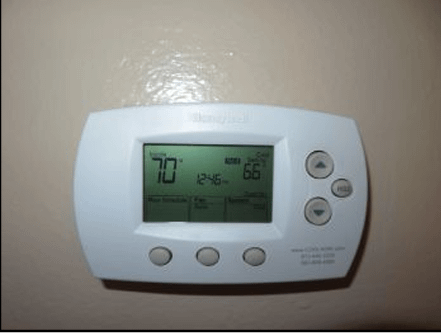
Imagine adjusting your home's temperature without ever leaving your couch. Wouldn't it be great to control your Honeywell Home thermostat right from your phone?
If you've ever wondered whether this is possible, you're in the right place. You'll discover how easy it is to manage your thermostat remotely, save energy, and stay comfortable all year round. Keep reading to find out how your smartphone can become the ultimate tool for controlling your home's climate.
Honeywell Thermostat Models With Mobile Control
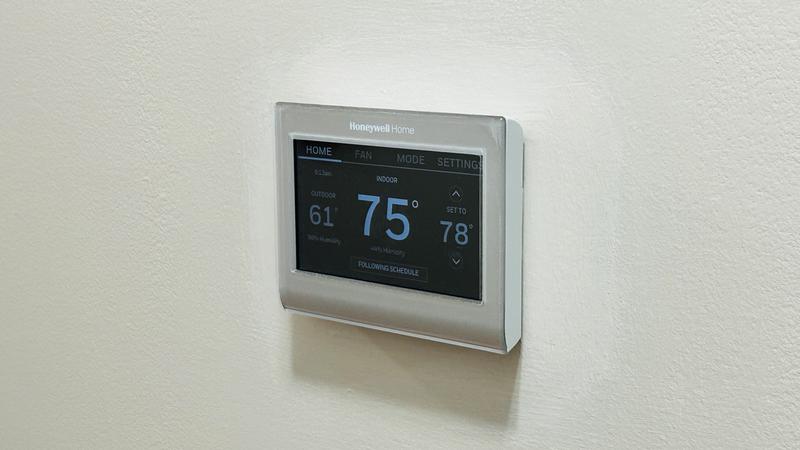
You can control many Honeywell thermostats from your phone. This feature helps you adjust home temperatures easily.
Using your mobile device, you can set schedules, change settings, and monitor energy use remotely.
Wi-fi Enabled Thermostats
Honeywell offers several Wi-Fi thermostats that connect to your home network. These models include the T9, T10 Pro, and Home T5.
- T9 Smart Thermostat
- T10 Pro Smart Thermostat
- Home T5+ Smart Thermostat
- Lyric T5 Wi-Fi Thermostat
- Lyric Round Wi-Fi Thermostat
These thermostats work with the Honeywell Home app. The app lets you control your heating and cooling from anywhere.
Compatible Smart Devices
Honeywell thermostats connect with many smart home devices. This makes it easy to use voice commands or automate settings.
| Smart Device | Compatibility |
| Amazon Alexa | Works with most Honeywell Wi-Fi models |
| Google Assistant | Supported on T9, T10, T5 models |
| Apple HomeKit | Compatible with Lyric series |
| Samsung SmartThings | Works with select models |

Credit: www.honeywellhome.com
Setting Up Mobile Access
You can control your Honeywell Home thermostat from your phone. Setting up mobile access helps you adjust temperature remotely. This guide shows how to get started.
Follow these steps to connect your thermostat to your mobile device. It makes managing your home's temperature easy and convenient.
Downloading The App
First, download the Honeywell Home app on your smartphone. The app is free and works on both Android and iOS devices.
Search for "Honeywell Home" in your app store. Make sure to download the official app by Resideo Technologies.
Connecting To Wi-fi
Your thermostat needs a Wi-Fi connection to link with the app. Connect it to your home Wi-Fi network before pairing.
Use the thermostat screen to find Wi-Fi settings. Select your network and enter the password carefully to avoid errors.
- Open thermostat menu
- Go to Wi-Fi settings
- Choose your home network
- Enter your Wi-Fi password
- Confirm connection
Pairing Your Thermostat
After connecting to Wi-Fi, open the Honeywell Home app. Create an account or sign in to start pairing your thermostat.
Follow the app instructions to add your thermostat. You may need the device ID, found on the thermostat’s settings screen.
- Open the app and log in
- Select "Add Device" option
- Enter thermostat device ID
- Follow prompts to complete pairing
- Test connection by adjusting temperature
Using The Honeywell Home App
The Honeywell Home App lets you control your thermostat from your phone. You can check and change settings anytime and anywhere.
This app makes it simple to manage your home's temperature and save energy with a few taps.
Navigating The Interface
The app has a clean layout with easy-to-find buttons. The home screen shows your current temperature and mode.
- Dashboard for quick status updates
- Menu to access settings and schedules
- Help section for troubleshooting
- Notifications for alerts and reminders
Adjusting Temperature Settings
Changing the temperature is simple with the slider or plus and minus buttons. You can switch between heating and cooling modes.
| Control | Description |
| Temperature Slider | Drag to set desired temperature |
| Plus/Minus Buttons | Tap to increase or decrease temperature |
| Mode Switch | Change between heat, cool, or auto |
| Fan Settings | Set fan to auto or on |
Scheduling And Automation
You can create schedules to set temperatures at different times of the day. This helps save energy and keep your home comfortable.
- Set weekday and weekend schedules
- Adjust temperature for morning, day, evening, and night
- Enable smart responses based on your location
- Use vacation mode to pause schedules
Credit: www.honeywellhome.com
Troubleshooting Common Issues
Controlling your Honeywell Home thermostat from your phone is very convenient. Sometimes, you might face some issues connecting or syncing the app. This guide helps you fix common problems quickly.
Follow simple steps to solve connection, app, or syncing errors. This keeps your thermostat working smoothly with your phone.
Connection Problems
Your phone and thermostat need a strong Wi-Fi connection. Weak or lost Wi-Fi can stop the app from controlling the thermostat.
Make sure your Wi-Fi is working well and the thermostat is connected to the same network as your phone.
- Check if Wi-Fi is on and stable.
- Restart your router and thermostat.
- Ensure your thermostat is in Wi-Fi range.
- Verify the thermostat’s network settings.
App Not Responding
If the Honeywell app does not respond or crashes, the problem could be with the app or your phone.
Try closing and reopening the app. If it still does not work, check for app updates or restart your phone.
- Close the app and open it again.
- Update the app to the latest version.
- Restart your smartphone.
- Clear the app cache in your phone’s settings.
Syncing Errors
Syncing errors happen when your phone and thermostat data do not match. This can stop updates from showing on your phone.
Check your app settings and internet connection to fix syncing problems.
- Make sure your phone has an active internet connection.
- Refresh the app to force syncing.
- Sign out and sign back into your Honeywell account.
- Restart the thermostat to reset syncing.
Benefits Of Mobile Thermostat Control
Using your phone to control a Honeywell Home thermostat gives you many benefits. You can manage your home's temperature easily from anywhere. This helps save energy and adds comfort to your daily life.
Mobile control lets you adjust settings quickly without being near the thermostat. It also offers features that improve your home's energy use and give you peace of mind.
Energy Savings
Controlling your thermostat from your phone helps reduce energy waste. You can set schedules or change temperatures when you are away. This avoids heating or cooling an empty house.
- Set temperature schedules for different times of day
- Turn off heating or cooling when no one is home
- Receive alerts if temperatures are unusually high or low
- Adjust settings instantly to save energy during weather changes
Convenience And Flexibility
Mobile thermostat control lets you adjust your home's temperature anytime. You do not need to go to the thermostat or be inside your home. This gives you freedom and comfort.
| Benefit | Description |
| Easy Access | Change temperature from your phone quickly |
| Multiple Users | Allow family members to control the thermostat |
| Custom Settings | Create different profiles for day and night |
| Voice Control | Use voice commands with smart assistants |
Remote Monitoring
With mobile control, you can check your home's temperature from anywhere. This helps you ensure your heating or cooling is working well. You can spot problems early and fix them fast.
Key remote monitoring features include:
- View current temperature and humidity levels
- Receive alerts for system errors or maintenance needs
- Track energy usage over time
- Get notifications if temperature drops or rises unexpectedly

Credit: apps.apple.com
Frequently Asked Questions
Can I Control My Honeywell Thermostat Remotely?
Yes, you can control your Honeywell thermostat remotely using the Honeywell Home app on your smartphone. This app allows you to adjust temperature settings from anywhere, providing convenience and energy savings.
Which Honeywell Thermostats Support Phone Control?
Most Honeywell smart thermostats, like the T9 and T10 models, support phone control via the Honeywell Home app. Check your model's compatibility before attempting remote access.
Do I Need Wi-fi To Control Honeywell Thermostat By Phone?
Yes, a stable Wi-Fi connection is required for your Honeywell thermostat to communicate with your phone app. Without Wi-Fi, remote control features won’t work.
Is The Honeywell Home App Free To Use?
Yes, the Honeywell Home app is free to download and use. It offers easy setup and seamless control of your thermostat from your phone.
Conclusion
Controlling your Honeywell Home thermostat from your phone is simple and convenient. You can change the temperature anytime, even when away from home. This feature helps save energy and lowers bills. The app is easy to use, with clear instructions for everyone.
Staying comfortable becomes effortless with just a few taps. Many users find this remote control option very helpful. Try it yourself and enjoy more control over your home's temperature. It makes daily life a little easier and smarter.