Imagine adjusting your home’s temperature without lifting a finger. Sounds great, right?
If you have a Nest Thermostat and Google Home, you might wonder: can Google Home control your Nest Thermostat? The answer is yes—and it’s easier than you think. You’ll discover how to take full control of your thermostat using just your voice.
Get ready to make your home smarter and your life simpler. Keep reading to find out exactly how to set it up and start saving energy today!
Google Home And Nest Thermostat
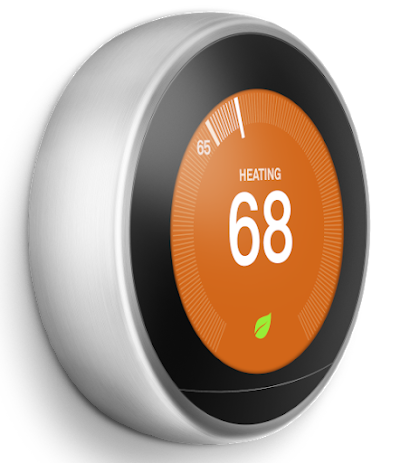
Google Home can control your Nest Thermostat with voice commands. This makes managing your home's temperature easy and hands-free.
By linking Google Home and Nest Thermostat, you can ask to change temperatures, check settings, or create schedules.
How They Work Together
Google Home connects to Nest Thermostat through the Google Home app. Once linked, you can use voice commands to adjust the thermostat.
- Say “Hey Google, set the thermostat to 72 degrees.”
- Ask “What is the current temperature?”
- Control heating and cooling modes.
- Use routines to change temperature automatically.
Compatibility Requirements
Your devices must meet certain conditions to work together. Google Home and Nest Thermostat need the right setup for full control.
| Requirement | Details |
| Device Model | Google Home, Nest Thermostat (3rd gen or later) |
| Wi-Fi | 2.4 GHz or 5 GHz network required |
| App | Google Home app installed on phone |
| Account | Same Google account linked to both devices |
| Firmware | Updated to latest software version |

Credit: www.reddit.com
Setting Up Google Home With Nest
Google Home can control your Nest Thermostat easily. You need to connect them first. This guide will help you set up your devices.
Follow the steps below to connect and configure your Nest Thermostat with Google Home. We also cover fixing common setup problems.
Connecting Devices
Start by linking your Nest Thermostat to the Google Home app. Make sure both devices are on the same Wi-Fi network.
- Open the Google Home app on your phone.
- Tap the “+” icon to add a device.
- Select “Set up device” and choose “Works with Google.”
- Find and select “Nest” from the list.
- Sign in with your Nest account to link devices.
- Follow on-screen instructions to finish setup.
Configuring Settings
After connecting, customize your thermostat settings in the Google Home app. You can set temperature preferences and schedules.
| Setting | Description |
| Temperature Range | Set minimum and maximum temperatures |
| Eco Mode | Save energy by setting eco-friendly limits |
| Schedules | Choose when to heat or cool your home |
| Voice Commands | Enable commands like “Set temperature to 72 degrees” |
Troubleshooting Setup Issues
If your Nest does not connect or respond, try these fixes. They help solve common problems during setup.
- Check your Wi-Fi connection and signal strength.
- Restart both Google Home and Nest Thermostat devices.
- Make sure your Google Home app is updated.
- Remove and re-add the Nest device in the app.
- Reset the Nest Thermostat if needed.
- Verify that your Nest account credentials are correct.
Voice Commands For Nest Thermostat
You can control your Nest Thermostat using Google Home voice commands. This lets you change settings without using your phone or the thermostat itself.
Google Home listens to your commands and adjusts the Nest Thermostat quickly. This makes managing your home temperature easy and hands-free.
Adjusting Temperature
To raise or lower the temperature, just speak to Google Home. Say the temperature you want and it will set it for you.
You can use simple commands like "Set the temperature to 72 degrees" or "Make it cooler."
- “Hey Google, set thermostat to 70 degrees.”
- “Hey Google, increase temperature by 3 degrees.”
- “Hey Google, make it warmer.”
- “Hey Google, lower the temperature to 68.”
Switching Modes
You can change the Nest Thermostat mode with your voice. Modes include heating, cooling, or turning it off.
Just tell Google Home what mode you want, and it will switch the Nest Thermostat for you.
- “Hey Google, switch Nest to heating mode.”
- “Hey Google, change the thermostat to cooling.”
- “Hey Google, turn off the thermostat.”
- “Hey Google, set thermostat to eco mode.”
Checking Current Settings
You can ask Google Home about your Nest Thermostat’s current temperature and mode. It will tell you the current status.
This helps you know your home’s temperature without going to the thermostat.
- “Hey Google, what is the thermostat set to?”
- “Hey Google, what’s the current temperature?”
- “Hey Google, is the Nest on heating or cooling?”
- “Hey Google, what mode is my thermostat in?”

Credit: store.google.com
Automation And Scheduling
Google Home can control your Nest Thermostat easily. It helps automate your home's temperature. You can set schedules that fit your daily routine.
With voice commands or app control, your home stays comfortable. Automation saves energy and money by adjusting heat or cooling automatically.
Creating Routines
You can create routines in the Google Home app. These routines allow multiple actions with one command. For example, you can set the thermostat to lower when you say "Goodnight."
Routines help manage your home's temperature based on time or activity. You can make routines for morning, leaving home, or coming back.
- Set thermostat to warm before you wake up
- Lower temperature when you leave the house
- Raise heat when you return home
- Combine thermostat changes with lights and music
Using Geofencing
Geofencing uses your phone's location to control the thermostat. The Nest Thermostat changes settings when you leave or arrive.
This feature helps save energy by adjusting the temperature automatically. You do not need to set a fixed schedule. The system reacts to your movements.
- Thermostat lowers heat when you leave the house
- It turns warmer when you come back
- Works with multiple users in one home
- Reduces energy use when no one is home
Energy Saving Tips
Use automation to save energy with your Nest Thermostat. Set schedules to avoid heating or cooling empty rooms. Use eco mode for smart energy use.
Regularly check your thermostat settings. Adjust routines and geofencing for better efficiency. Small changes can lower your energy bills.
- Set temperature a few degrees lower in winter
- Raise temperature slightly in summer
- Use eco mode during work hours
- Turn off heating or cooling when windows are open
- Use voice commands to adjust settings quickly
Advanced Features
Google Home can control the Nest Thermostat with many smart features. These features help you save energy and keep your home comfortable. You can connect Nest with other smart devices and use sensors to improve heating and cooling.
With remote access, you can manage your Nest Thermostat from anywhere. This makes it easy to adjust the temperature when you are away from home.
Integration With Other Smart Devices
Google Home works well with many smart home devices. You can control lights, cameras, and speakers along with your Nest Thermostat. This lets you create routines that fit your daily life.
- Set the thermostat to lower when you leave and turn on lights automatically
- Use voice commands to control multiple devices at once
- Connect with smart assistants for hands-free control
- Sync with security systems to adjust temperature when you are away
Using Nest Sensors
Nest Sensors detect temperature and motion in different rooms. This helps the thermostat decide where to heat or cool. It keeps your home more balanced and saves energy.
| Sensor Location | Function | Benefit |
| Living Room | Detects temperature and movement | Adjusts temperature when room is in use |
| Bedroom | Monitors night temperature | Keeps temperature comfortable during sleep |
| Office | Tracks occupancy | Reduces energy use when empty |
Remote Access Benefits
Using the Google Home app, you control your Nest Thermostat from anywhere. This gives you power to change settings even if you are not home. Remote access helps you save money and avoid wasting energy.
- Adjust temperature before you arrive
- Receive alerts if temperature is too low or high
- Monitor energy usage anytime
- Schedule temperature changes remotely
Credit: support.google.com
Common Issues And Fixes
Many people use Google Home to control their Nest Thermostat. While this can be very convenient, some common issues might arise.
Let's explore these issues and provide simple solutions to improve your experience.
Connectivity Problems
Connectivity problems often occur between Google Home and the Nest Thermostat. Ensuring a strong Wi-Fi signal is key.
- Check Wi-Fi signal strength near both devices
- Restart your router to refresh connections
- Ensure both devices are on the same network
Voice Command Errors
Sometimes, Google Home fails to understand voice commands correctly. This can be frustrating but is usually easy to fix.
Ensure the following for better voice recognition:
- Speak clearly and at a moderate pace
- Update Google Home app regularly
- Re-train voice match settings
Device Compatibility Challenges
Not all Nest Thermostat models may work seamlessly with Google Home. Compatibility issues can hinder integration.
| Model | Compatible |
| Nest Thermostat E | Yes |
| Nest Learning Thermostat | Yes |
| Nest Thermostat 2020 | Check for updates |
Frequently Asked Questions
Can Google Home Control Nest Thermostat Directly?
Yes, Google Home can directly control Nest Thermostat. You can use voice commands to adjust temperature and settings easily.
How To Link Nest Thermostat With Google Home?
Open Google Home app, tap Add, select Set up device, and follow steps to link Nest Thermostat.
What Voice Commands Work For Nest Thermostat?
Say commands like "Set thermostat to 72 degrees" or "Increase temperature by 2 degrees" for control.
Is Google Home Control Compatible With All Nest Thermostat Models?
Google Home supports most Nest Thermostat models, including Nest Thermostat E and Nest Learning Thermostat.
Conclusion
Google Home works well with Nest Thermostat. You can control temperature using voice commands. It makes managing your home easier and faster. Setting schedules and changing settings feels simple. This combination fits many homes and lifestyles. It saves energy by adjusting heating or cooling smartly.
Many users find it a helpful daily tool. Try it out and see how it fits your needs. Smart home living made easy and convenient.